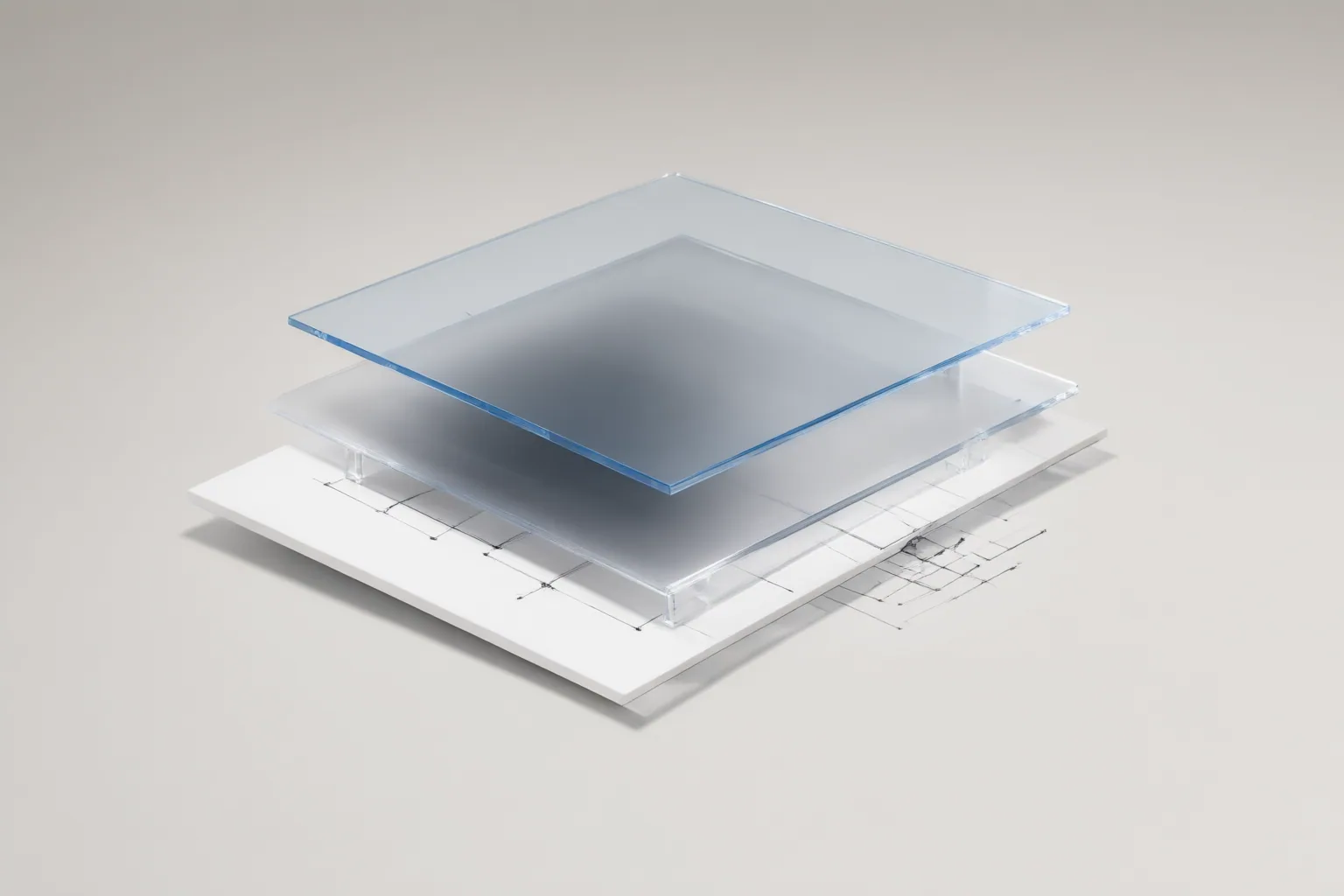
Preserve transparency by treating alpha as essential data throughout the workflow: inspect the mask, avoid conversion or export paths that remove or flatten it, verify alpha interpretation, and preview the finished overlay against both light and dark backgrounds.
What an Alpha Channel Preserves
An alpha channel stores transparency or coverage for each pixel. A value of zero represents full transparency, the maximum value represents full opacity, and intermediate values create partial transparency.
Those intermediate values are critical around anti-aliased edges and in soft elements such as shadows, glows, and smoke. They allow an overlay to blend gradually with the scene underneath instead of appearing as a rigid cutout. If a workflow reduces transparency to a simple visible-or-invisible choice, these transitions can become jagged or lose their intended appearance.
Transparent pixels may also retain RGB color data even though that color is not currently visible. Applications can preserve, discard, or interpret this hidden information differently, which is why the alpha channel and the associated color data must be handled consistently.
Where Transparency Gets Lost
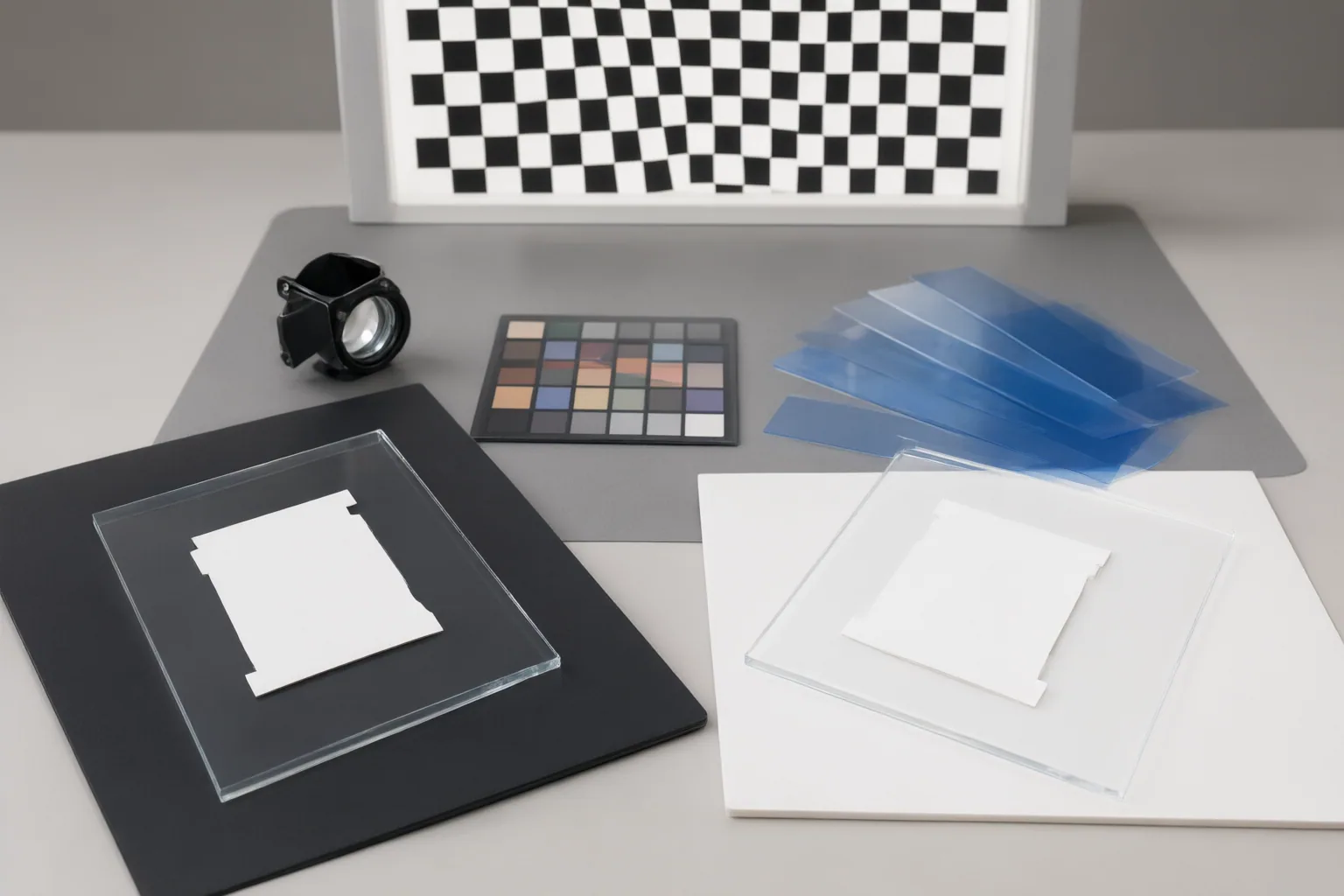
Transparency can disappear when an overlay is converted to a format that does not support it, sent through an export path with alpha disabled, or flattened against a background. Once that happens, transparent regions may be replaced by white, black, or another solid color. Partial transparency can also be removed, damaging soft edges and effects even when the main subject remains visible.
Check every conversion and export stage rather than assuming that transparency present in the source will survive automatically. Repeated flattening or poor separation from a previous background can further contribute to visible fringes.
These principles apply to digital overlays generally. The available evidence does not show that an AI-generated overlay handles equivalent color and alpha data differently, nor does it establish which video formats, codecs, applications, or export controls preserve alpha. Those choices therefore require separate verification for the specific workflow.

How to Inspect and Troubleshoot the Overlay
Use a tool-neutral inspection sequence before placing the overlay in a final composition:
- View the alpha mask. Confirm that intended empty areas are fully transparent, solid subjects are opaque, and soft edges or effects contain intermediate values. Anti-aliased boundaries may remain visible in the mask because they are partially transparent.
- Check the output after every conversion. If the mask disappears or formerly transparent areas become opaque, that stage has removed, disabled, or flattened alpha data.
- Review alpha interpretation. Straight and premultiplied alpha store color and opacity differently. When one application writes one representation and another interprets it as the other, incorrect edge colors or blending can result.
- Inspect hidden edge color. RGB information may exist in fully transparent regions. During interpolation or filtering, unsuitable handling can allow that color to leak into visible borders. Correct premultiplied-alpha handling helps prevent such leakage.
- Preview over contrasting backgrounds. Place the exported overlay over both light and dark backgrounds. A pale halo may disappear on a light background, while a dark fringe may be difficult to see on a dark one.
If a defect appears only after a particular stage, compare the mask and edge appearance immediately before and after that stage. This narrows the problem without assuming an unsupported format- or application-specific fix.
Conclusion
A reliable transparent-overlay workflow preserves both alpha data and its relationship with color data from source to final export. Inspect the mask for full and partial transparency, identify any stage that flattens or removes alpha, and check whether straight and premultiplied alpha are being interpreted consistently. Before final composition, verify transparency through every conversion and preview the exported overlay over both light and dark backgrounds.
Disclosures and limitations
- This article was prepared with AI assistance using only the supplied research sources; no products, formats, codecs, applications, or export settings were independently tested or verified.
- No product recommendations or affiliate links are included.
Sources
- Alpha Channels in PNG: A Practical Guide to Transparent Images, Soft Edges, and Common Pitfalls – PixConverter.io — PixConverter.io
- Alpha compositing – Wikipedia — en.wikipedia.org
- What are alpha channels in digital images? | Color Labs — colorlabs.net
- Extract Alpha Channel from a PNG — onlinepngtools.com
- Alpha Channels in PNG: How Transparent Pixels Work in Real Images – PixConverter.io — PixConverter.io
Improve this guide
Report a problem or suggest the next question
Submissions enter a private editorial queue. They are reviewed and deduplicated before any public update or new page is created.