
Before exporting, preview each final aspect ratio with a destination-specific safe-area or interface overlay, move essential text and action into the clear region, and remove the guide from the finished file.
What Title-Safe and Action-Safe Areas Protect
Safe areas help prevent important content from being clipped, cropped, or covered after delivery. Action-safe is the outer protected region for important visual action. Title-safe is the smaller inner region intended for text, logos, lower thirds, and other critical graphics.
These guides matter even when a composition looks correct in the editor. Delivery cropping or overscan can affect edge content, while social-platform captions and controls can obscure material that remains inside the frame. The same pre-export check applies whether footage was generated with AI or produced another way; the cited sources describe editing and delivery practices, not AI-specific safe-area behavior.
Choose Guides for the Final Destination
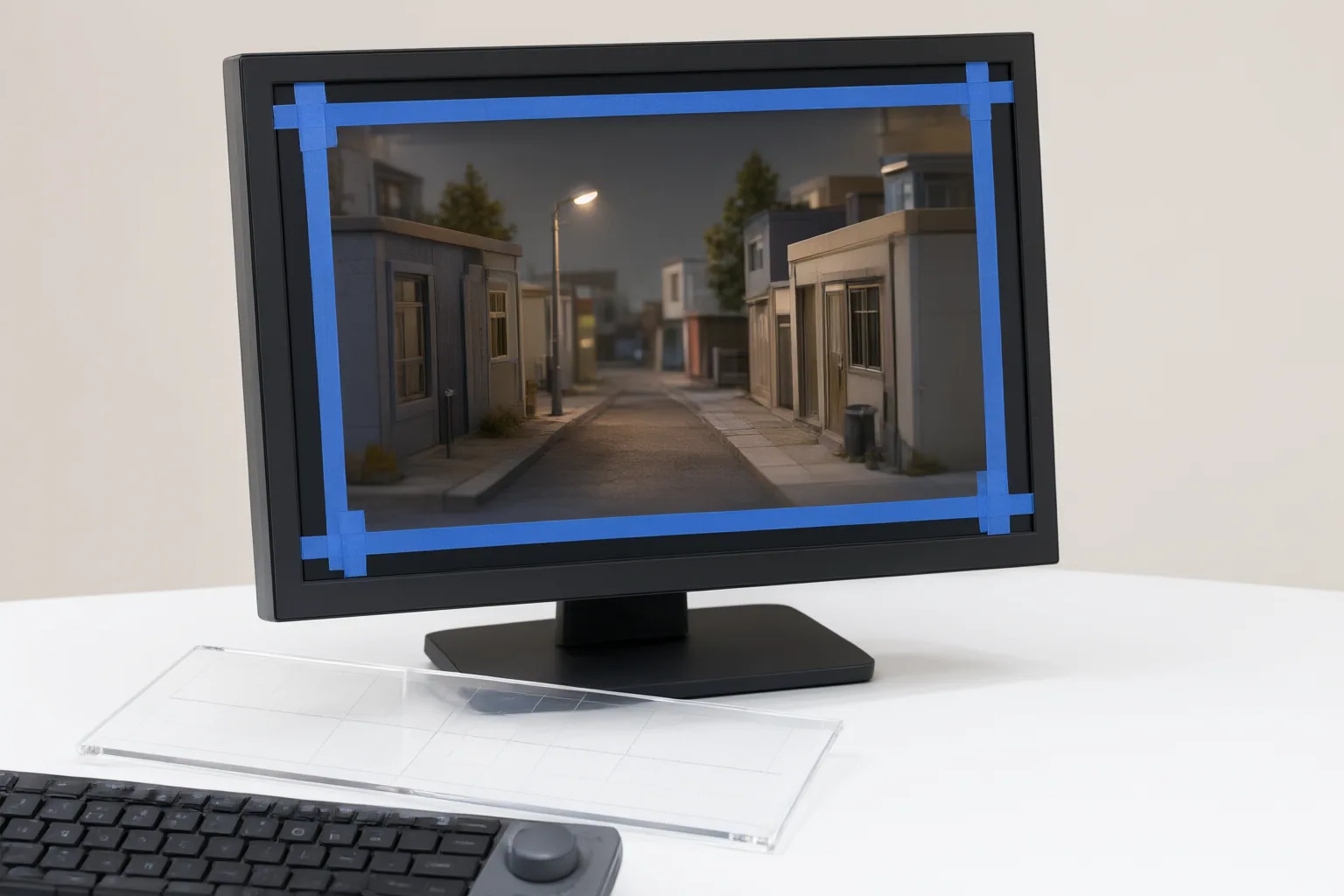
Do not assume that one margin works everywhere. One cited modern broadcast convention places action-safe 3.5% inward from each edge and title-safe 5% inward. Older guidance uses 5% for action-safe and 10% for title-safe. Determine the required delivery standard before selecting either set of guides.
To calculate a percentage-based usable dimension, subtract the margins on both edges. A 10% margin on each side of a 1,920-pixel-wide frame leaves 80% of its width, or 1,536 pixels.
Platform interfaces introduce different constraints. One source reports that its Instagram Reels ad template reserves 14% at the top, 35% at the bottom, and 6% on each side, while noting that organic Reels display less interface. Those figures are specific to that destination and advertising context, not universal rules. Traditional safe-area guidance is also not a guarantee: platforms can crop frames or cover them with interface elements differently. Check each intended destination, aspect ratio, and publishing context.

Run a Pre-Export Overlay Check
Use this workflow for the final edit:
- Obtain a transparent overlay intended for the destination and delivery context.
- Place the overlay on the top video track and extend it across the full timeline.
- Reduce its opacity so the video remains visible beneath the guide.
- Review the entire sequence, not only the opening frame. Keep captions, calls to action, logos, faces, and other essential content inside the clear area and away from interface-covered regions.
- Reposition or resize critical elements where necessary.
- Hide or delete the overlay before exporting so it does not appear in the delivered video.
For vertical video, an alternative is to upload a 9:16 draft to a previewer that simulates TikTok, YouTube Shorts, or Instagram Reels interfaces. A frame screenshot or draft thumbnail can also be placed beneath an adjustable interface overlay, and downloadable guides can be brought into the editing timeline. Repeat the check for every final aspect ratio because a layout that passes a broadcast-safe review may fail after a vertical crop.
Conclusion
Before final export, identify every delivery destination and aspect ratio, apply the matching safe-zone or interface overlay, and inspect the complete timeline. Move essential titles, logos, captions, calls to action, faces, and visual action away from cropped or interface-covered regions. Then remove the guide and verify current margins and interface layouts against the destination platform’s official delivery requirements. Make this check separately for each required output rather than relying on one universal preset.
Disclosures and limitations
- This article was prepared with AI assistance from the supplied research package and its browser-acquired calculator, template, preview-tool, and community sources. Numerical margins and interface layouts should be confirmed against the destination platform’s current official specifications before publication.
- No product recommendation or firsthand testing is claimed. The supplied research does not identify an affiliate relationship, and no commercial relationship should be inferred.
Sources
- Safe Area Calculator — Action & Title Safe Zones — screenresolutionchecker.com
- Safe Zone Templates: Free PNG Overlays for Every Platform — AdCheckLab
- Free Safe Zone Previewer – TikTok & YouTube Overlay Guide — artae.ai
- How to Calculate Title-Safe and Action-Safe Margins for Video — DEV Community
- Video Safe Zones & Aspect Ratio Overlay Checker — Stilest
- AI Video Copyright: Safer Creative Workflows — CapCut
Improve this guide
Report a problem or suggest the next question
Submissions enter a private editorial queue. They are reviewed and deduplicated before any public update or new page is created.