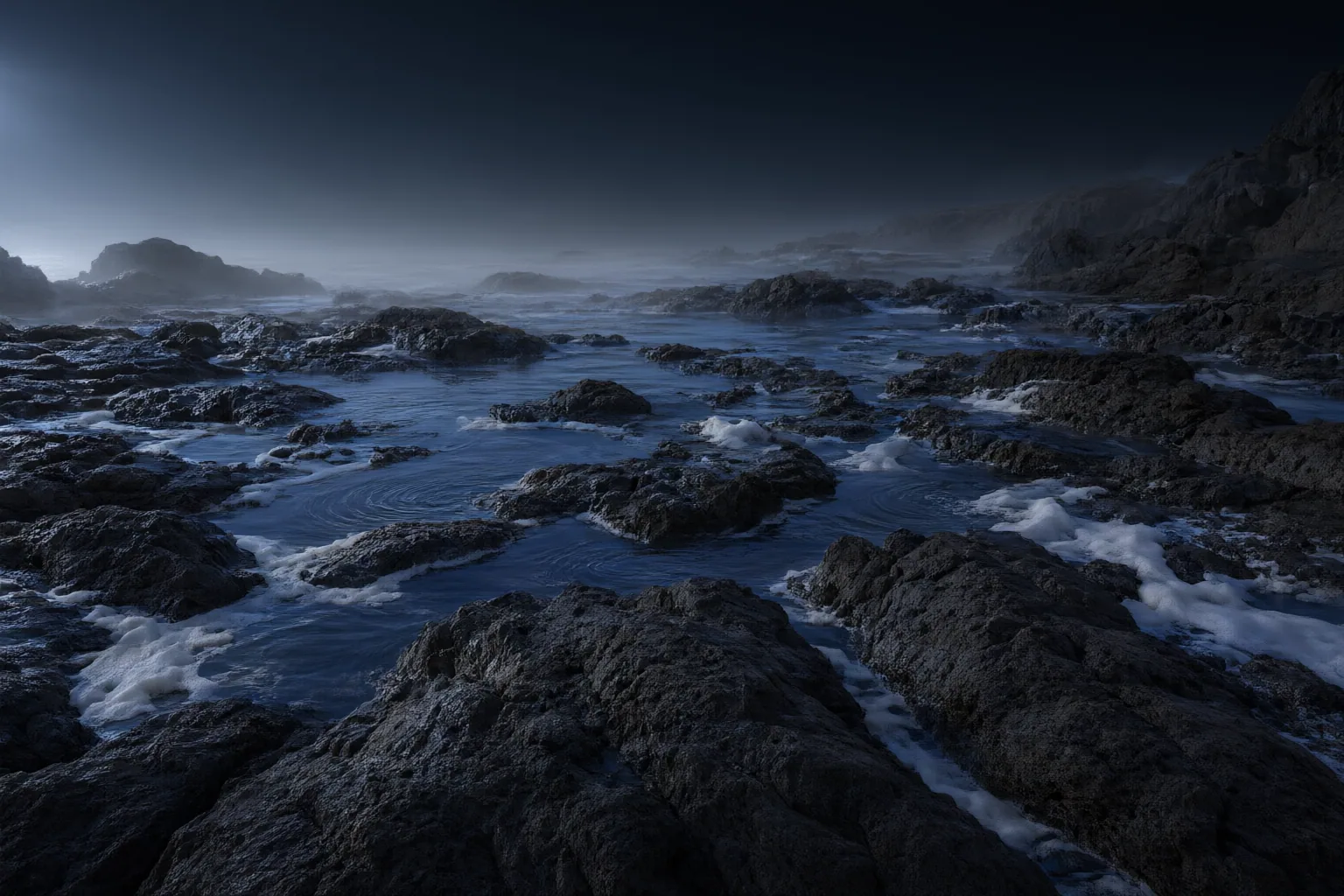
Evaluate low-light video denoising by balancing visible noise reduction against natural texture and stable motion. Test a representative clip at 100% zoom, increase processing gradually, and judge both individual frames and continuous playback.
What Good Low-Light Denoising Should Preserve
Good denoising reduces distracting grain without making the image look unnaturally smooth. Examine facial pores, hair, fabric, foliage, and high-contrast edges. If these features become indistinct or faces develop a waxy or plastic appearance, the processing has removed meaningful texture along with the noise.
A clean paused frame is only part of the test. Low-light footage often contains uneven noise and moving subjects, so a setting that improves a static shadow may damage detail elsewhere. The rendered sequence must also retain consistent texture from frame to frame.
Build a Representative Test Clip
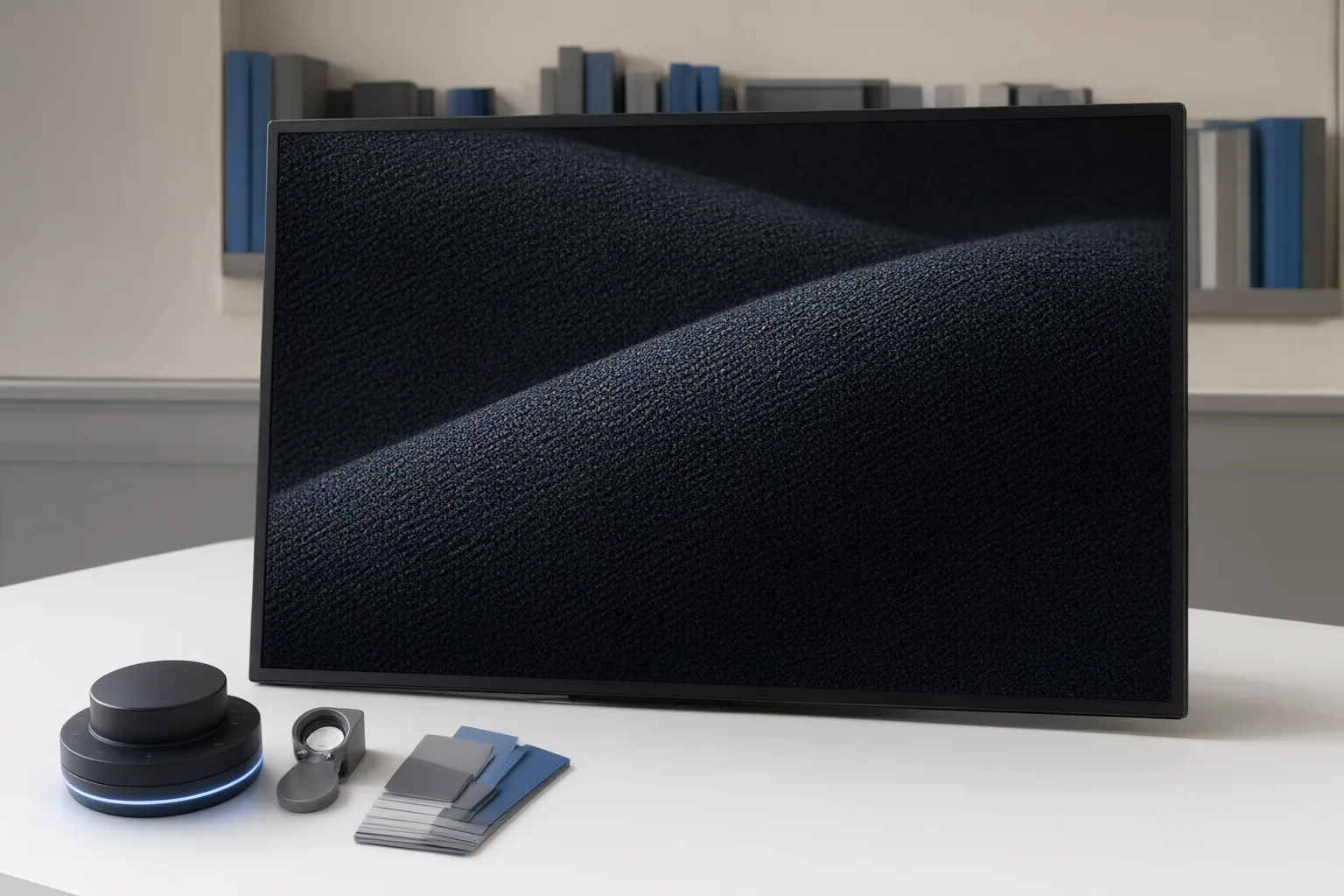
Choose a short segment that reflects the difficult parts of the actual footage. Include shadows and midtones, detailed subjects such as faces or fabric, clear edges, and meaningful movement. This combination makes it easier to see whether processing cleans static areas while harming moving details.
Inspect the segment at 100% zoom. Establish an untreated reference, then compare processed versions against it rather than relying on memory. Watch areas where fine detail and noise can resemble each other, including hair, skin, foliage, and textured surfaces. Highly compressed footage requires extra caution because blocking and related compression artifacts can make legitimate scene detail harder to distinguish from unwanted noise.
Compare Texture and Motion at Incremental Settings
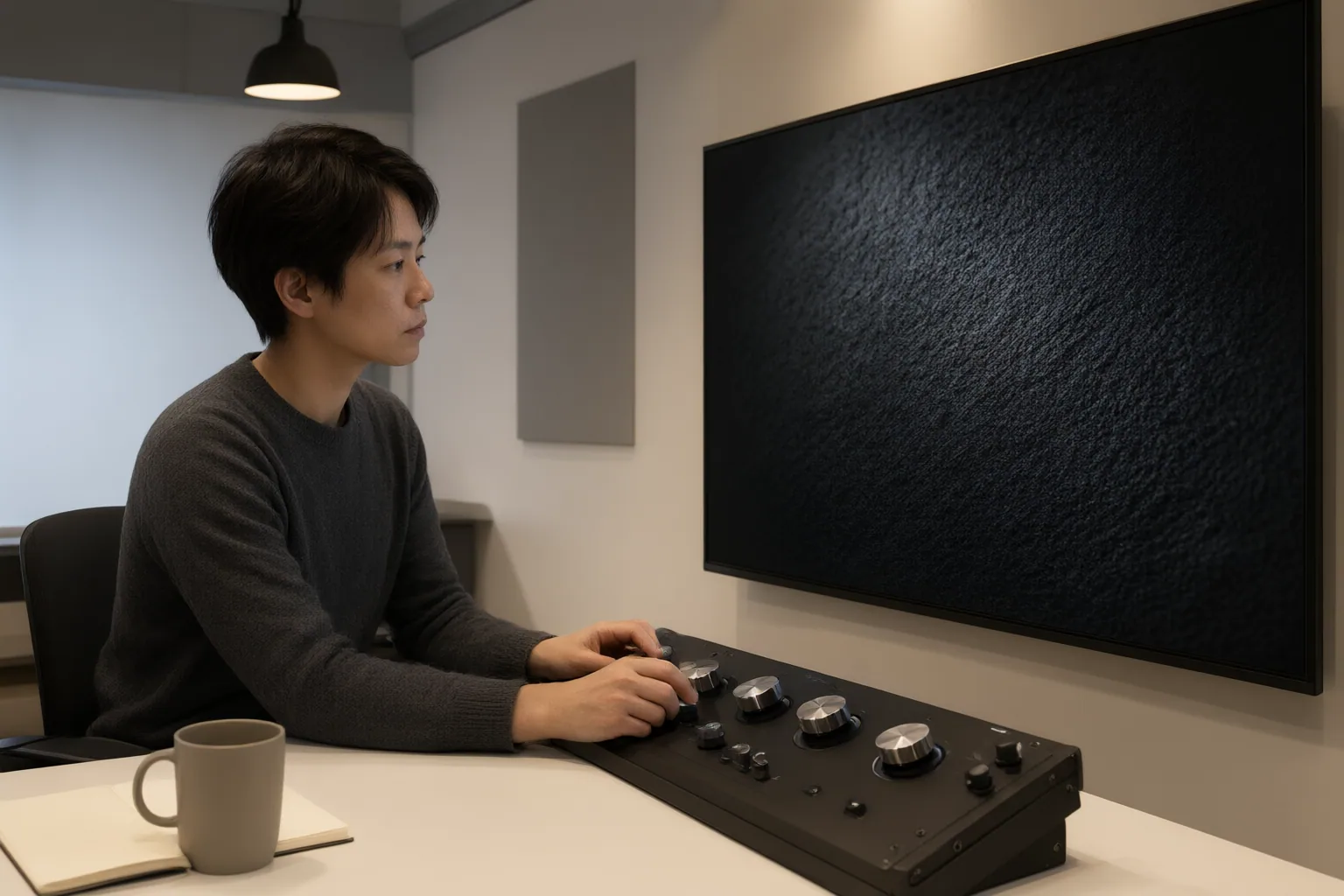
Create comparisons with small increases in denoising instead of jumping directly to the strongest setting. At each step, inspect skin texture, eyes, hair, facial contours, foliage, clouds, textured materials, and sharp edges. The relevant question is not simply whether the frame looks cleaner, but whether recognizable detail still appears natural.
Next, play the entire segment at normal speed and review difficult motion closely. Temporal denoising uses information from adjacent frames, but inaccurate motion handling or aggressive processing can cause flicker, pulsing noise, ghosting, smearing, or unstable texture. A setting may therefore look convincing in one still image while failing during movement.
Use observations from any individual workflow cautiously. One sponsored test examined twilight footage and an older portrait clip for foliage edges, cloud detail, eyes, hair, facial contours, and natural-looking skin. Those criteria are useful inspection targets, but the reported observations apply only to that tested workflow and should not be treated as universal product performance.
Conclusion
Prefer the least aggressive setting that achieves acceptable noise reduction while preserving important texture and stable motion. Results from different clips, tools, and workflows are not controlled comparisons, so do not infer a general ranking from isolated demonstrations.
Before processing an entire project, export a representative segment. Compare incremental settings at 100% zoom, watch the full sequence in motion, and keep the mildest version that avoids waxy surfaces, lost fine detail, flicker, ghosting, and smearing.
Disclosures and limitations
- This article was prepared with AI assistance from the supplied research package and does not claim hands-on product testing.
- The source material includes promotional, vendor-affiliated, forum-style, and sponsored content. No standardized or independently replicated benchmark was supplied, so this article presents an evaluation method rather than product rankings or purchasing recommendations.
Sources
- What are the most effective AI video denoising techniques in 2026 for restoring low-light and grainy footage without losing detail? — aivideoupscale.com
- AI Video Noise Reduction: Clean Up Grainy, Low-Light Footage — reelmind.ai
- 6 Best Video Enhancers Tested for Realistic Detail Restoration — Videomaker
- What are the best AI video denoiser settings for clean footage without losing detail? — aivideoupscale.com
- AI for Video Noise Reduction: Clean Results from Low-Light Footage — reelmind.ai
Explore the complete topic guide
Improve this guide
Report a problem or suggest the next question
Submissions enter a private editorial queue. They are reviewed and deduplicated before any public update or new page is created.