A genuinely nondestructive RAW workflow must do more than leave the original capture untouched. It should preserve edit instructions, keep relevant AI operations revisable, survive saving and reopening, and support the photographer’s actual camera files.
What “Nondestructive RAW” Must Preserve
Start by separating two questions: Does the editor leave the original RAW file unchanged, and can you revisit its adjustments later? An untouched source file alone does not prove that every edit remains adjustable.
The supplied sources describe several storage models. According to Tim Grey, Lightroom normally stores edits in its catalog and can save RAW metadata in an XMP sidecar. Affinity says RAW adjustments can remain embedded and editable within a document alongside later retouching, compositing, live filters, and export work. ON1 says Photo RAW 2026 preserves layers and editing instructions in its .onphoto format while leaving the original RAW file unaltered.
Before choosing an editor, identify exactly where its instructions live: a catalog, sidecar, embedded RAW object, or application-specific layered document. Then determine which files must be retained to reopen the complete editable state.
Check Each AI Operation, Not Just the Editor’s Label
Evaluate AI features individually because an editor-wide “nondestructive” label does not establish that every operation is reversible in the same way. An account of ACR 17 reports nondestructive processing for AI Denoise, Raw Details, and Super Resolution across an expanded range of RAW files. It also says Generative Expand within the RAW workflow permits later RAW-setting changes without recreating existing generated pixels, although extending the expansion later may require running the operation again.
Processing order also matters. ON1 describes NoNoise AI or TackSharp AI near the beginning of its pipeline, before retouching, Develop adjustments, local adjustments, transforms, Portrait AI, effects, and cropping or rotation. For each AI tool, ask whether its settings remain available, whether changing an earlier RAW adjustment forces a rerun, and whether the result depends on a special project format. Treat beta or technology-preview features cautiously because reported behavior and output may change.
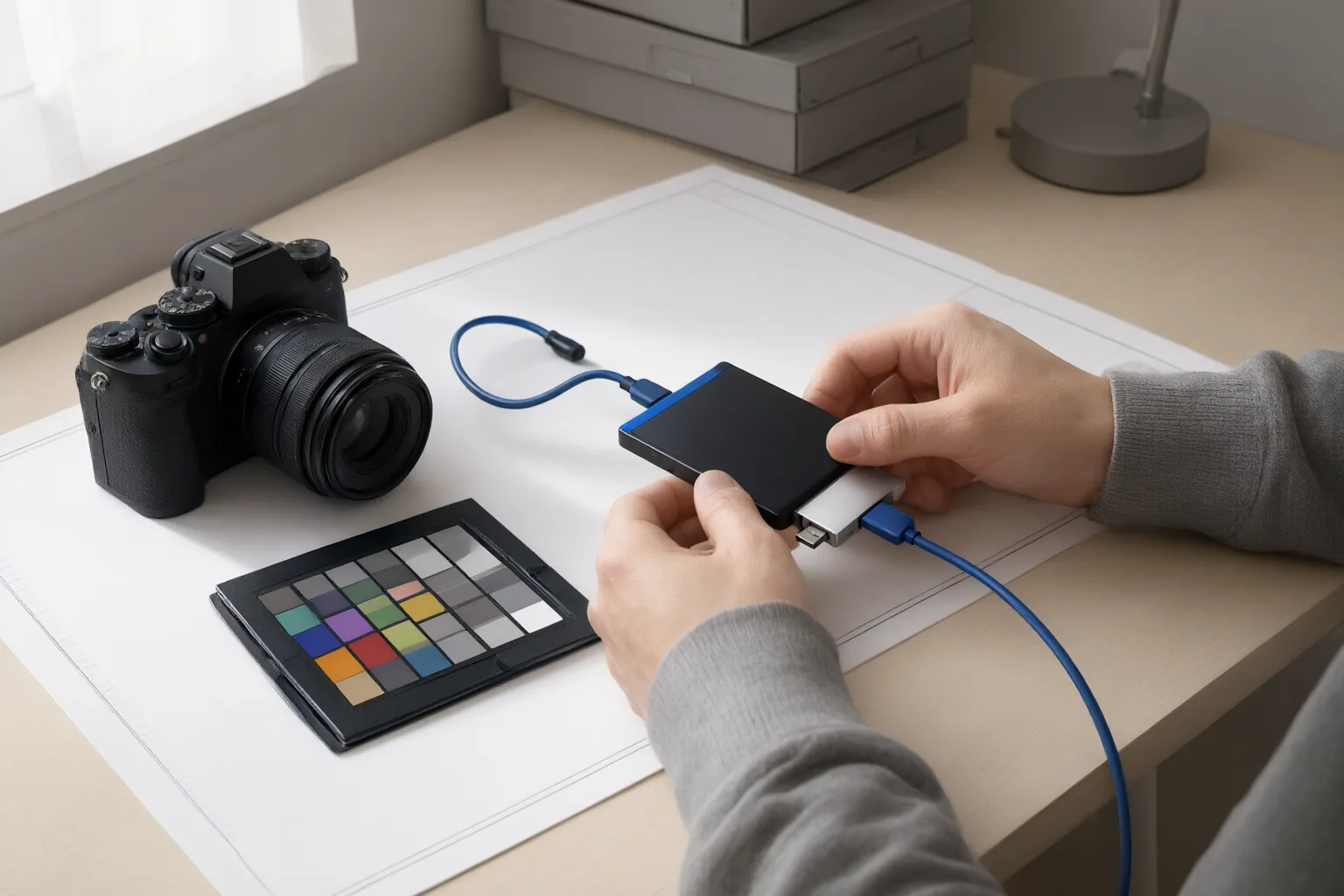
Run a Reopen-and-Revise Workflow Test
Use a duplicate of a representative RAW file and record the installed software version. Then:
- Confirm that the editor recognizes the camera’s RAW format.
- Apply ordinary RAW adjustments and a typical AI operation.
- Save using the documented editable format and note every companion file created.
- Close the application, reopen the project, and change an early RAW setting.
- Check whether the AI result and later edits remain editable or must be recreated.
- Compare the original file to confirm that it remains unchanged.
Test the exact opening and saving route you expect to use. A Photoshop workflow guide says RAW adjustments remain reopenable when the RAW file is opened as a Smart Object and the layered work is saved without flattening, such as in PSD format. The ACR 17 account likewise describes feature-specific path restrictions and identifies some functions as beta or technology previews. Camera compatibility also needs separate verification; reported support differs among editors and may cover only certain additional RAW files.
Conclusion
A credible nondestructive RAW workflow preserves the source capture, stores edit instructions durably, and lets you revisit the operations that matter. It must also use the correct opening and saving path and support your specific RAW files. Because catalogs, sidecars, embedded objects, and application-specific documents behave differently, do not rely on the label alone. Before adopting an editor for important work, use a duplicate representative RAW file, apply an AI edit, save and close the project, reopen it, revise an earlier RAW setting, and verify that the original remains unchanged.
Disclosures and limitations
- This article was prepared with AI assistance from the supplied research package; material capability claims are attributed to vendor pages or independent tutorials and were not independently tested.
- No product prices, ratings, rankings, or affiliate recommendations are included. Readers should verify current behavior with representative RAW files and their installed software version.
Sources
- New in Adobe Camera RAW 17: “Adobe Adaptive” profiles, non-destructive Denoise, and generative expand — Greg Benz Photography
- RAW Editing | Non-Destructive Photo Editing Software — Affinity
- Non-Destructive RAW Workflow – Ask Tim Grey — asktimgrey.com
- 10 Best RAW Photo Editors in 2026: Free & Paid Software Compared — aiarty.com
- RAW Editing in Photoshop: Your Complete Guide to Non-Destructive Workflows — Photoshop Tutorial
- Understanding the Editing Pipeline in ON1 Photo RAW 2026 — on1.com
Improve this guide
Report a problem or suggest the next question
Submissions enter a private editorial queue. They are reviewed and deduplicated before any public update or new page is created.