
AI video deblurring can create halos or doubled edges when it reconstructs a moving subject from imperfectly aligned frames, then sharpens uncertain boundaries. Fast motion, occlusion, low light, compression, and focus errors can make these artifacts more visible.
What halos and doubled edges look like
A deblurred clip may show a bright fringe, translucent trail, or second contour around a moving person or object. Static backgrounds can remain comparatively clean, making the defect appear limited to motion boundaries.
The supplied technical explainers present imperfect alignment across frames as a plausible cause rather than a conclusively established explanation. If the enhancement system places reconstructed details at slightly different positions, the subject’s original and estimated edges may both remain visible. The result can resemble an outline, echo, or faint copy that follows the motion.
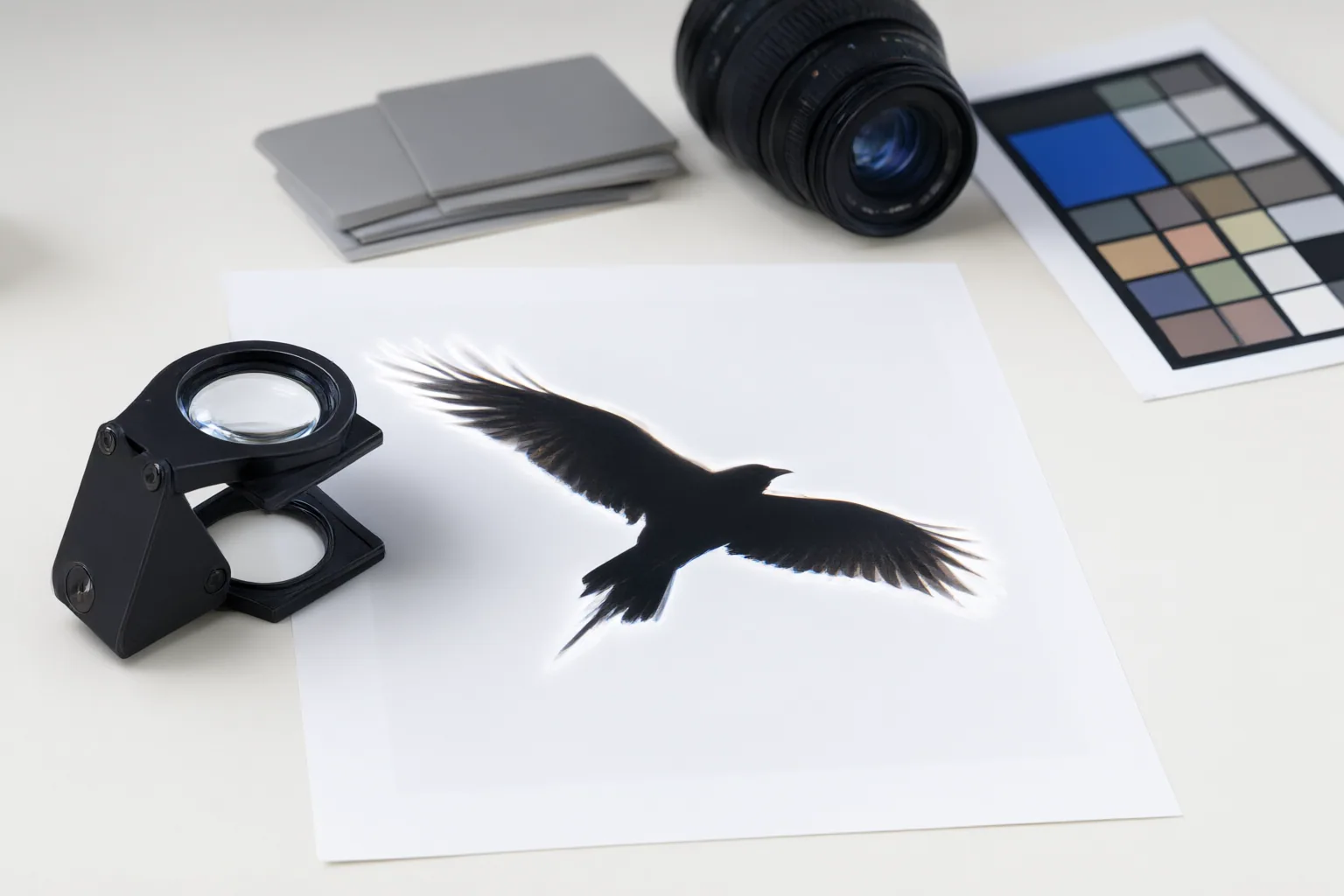
How motion alignment and occlusion can create ghosting
Temporal video processing can use neighboring frames to help reconstruct detail that is unclear in any single frame. This approach depends on estimating where subjects and background features move between frames. According to the supplied explainers, an estimation error can shift reconstructed detail slightly away from its correct position, producing edge leakage or a doubled contour.
Occlusion makes that correspondence harder. As a person moves, one region may become hidden while another is newly revealed. Information from the earlier frame may no longer describe what belongs in the later one. Blending mismatched regions can therefore leave a ghost-like outline.
Fast motion increases the uncertainty because an object changes position more substantially between frames. Compression or already indistinct boundaries may further reduce the visual information available for matching. These mechanisms explain why a stationary part of the same scene can look acceptable while a moving subject develops a translucent trail.
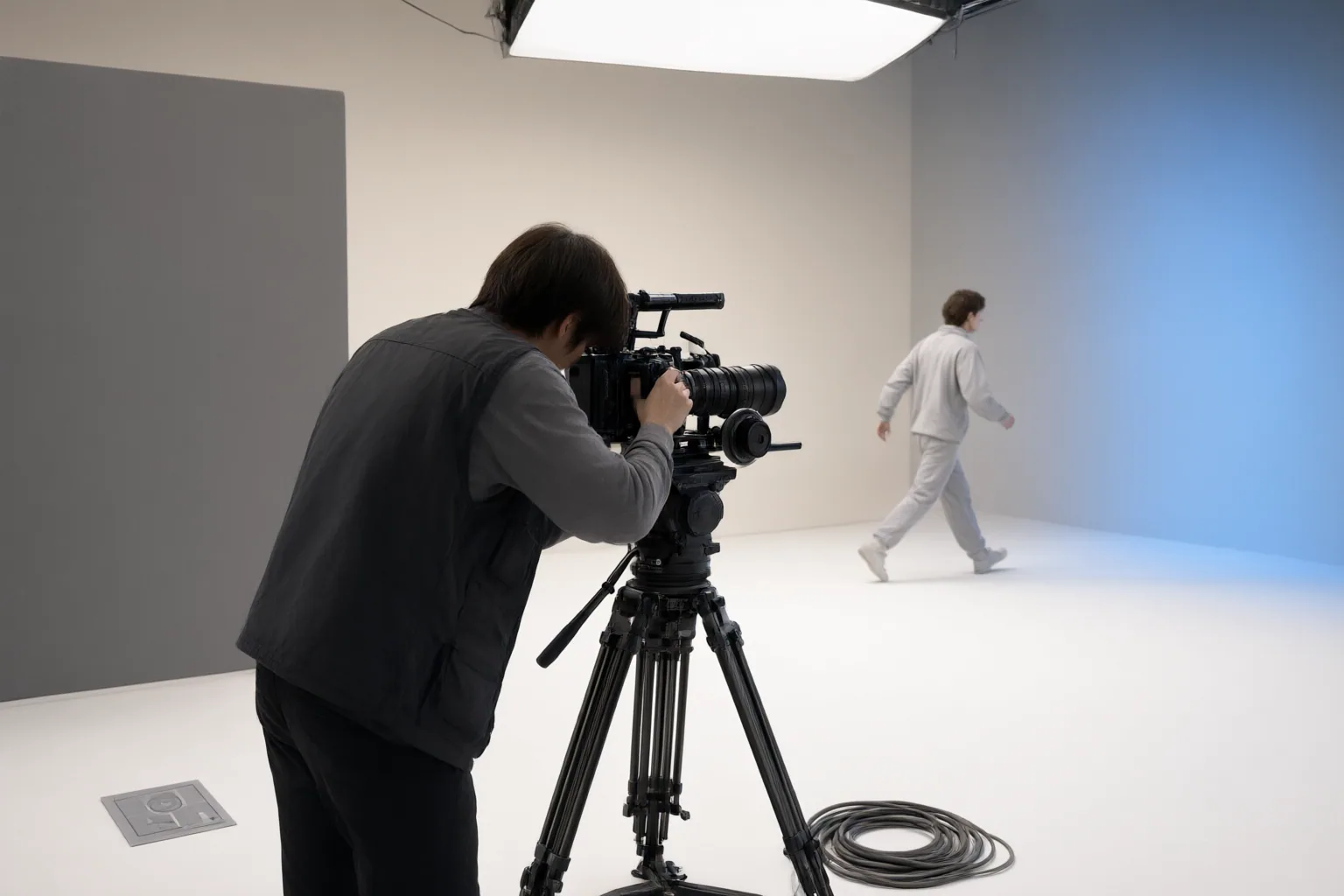
Why sharpening and different blur types change the result
Sharpening can make an alignment problem easier to see. The supplied explainers describe edge enhancement as amplifying uncertain or misplaced detail, while Zawa acknowledges more generally that traditional sharpening can over-enhance edges and introduce halos or unwanted noise. A boundary that was only faintly misaligned may become a prominent bright rim after aggressive enhancement.
Not all blur has the same cause. Zawa distinguishes motion blur, low-light blur, and soft-focus effects, which present different reconstruction problems. A setting that improves mild softness may perform poorly when a fast subject crosses the frame or when low-light footage contains limited usable detail.
Controls also vary. Vidio describes a fully automated workflow that analyzes an uploaded video and applies deblurring without manual adjustment, so users may have no direct way to separate alignment errors from excessive sharpening. Expectations should remain limited: Flixier says its edge-focused clearer can help slightly out-of-focus footage but cannot repair a completely unrecognizable image. These are vendor descriptions, not independent performance tests.
Conclusion
Start by inspecting the boundaries of moving people or objects, then compare them with static details in the same clip. Clean static areas paired with trails or second contours around motion are consistent with the alignment and edge-enhancement mechanisms described by the supplied sources.
Next, consider the source problem: fast movement, occlusion, compression, low light, and focus error do not present identical reconstruction challenges. If the tool exposes enhancement controls, a gentler approach may reduce exaggerated edges; a fully automated service may offer fewer diagnostic options. No adjustment can guarantee recovery of information that is no longer recognizable.
Before processing an entire video, test a short representative segment. Compare moving boundaries with static areas, and choose a gentler enhancement approach or different source footage if halos or doubled contours persist.
Disclosures and limitations
- This article was created with AI assistance from the supplied research package. Technical mechanisms are presented as source-attributed explanations because the provided excerpts did not include independently verifiable testing or primary research citations.
- Some supporting sources are vendor marketing pages. Their capability and ease-of-use statements have not been independently verified; no product is recommended here, and readers should check for commercial or affiliate relationships before acting on product links elsewhere.
Sources
- Video deblurring — vidio.ai
- Why Does My Ai Video Upscaler Add Weird Halos Around Moving Objects Physics-aware Fixes — ProGradeList
- Unblur Video Online Free – Al Video Clearer – Flixier — Flixier
- Why Does My Ai Video Enhancer Add Weird Halos Around Moving Objects — ToolGuideDaily
- Unblur Video Online Free with AI | Zawa (formerly X-Design ) — Zawa
- Why Does My Ai Video Upscaler Add Halos Around Fast-moving Objects But Smooth Static Backgrounds Perfectly — CommercialToolry
Improve this guide
Report a problem or suggest the next question
Submissions enter a private editorial queue. They are reviewed and deduplicated before any public update or new page is created.