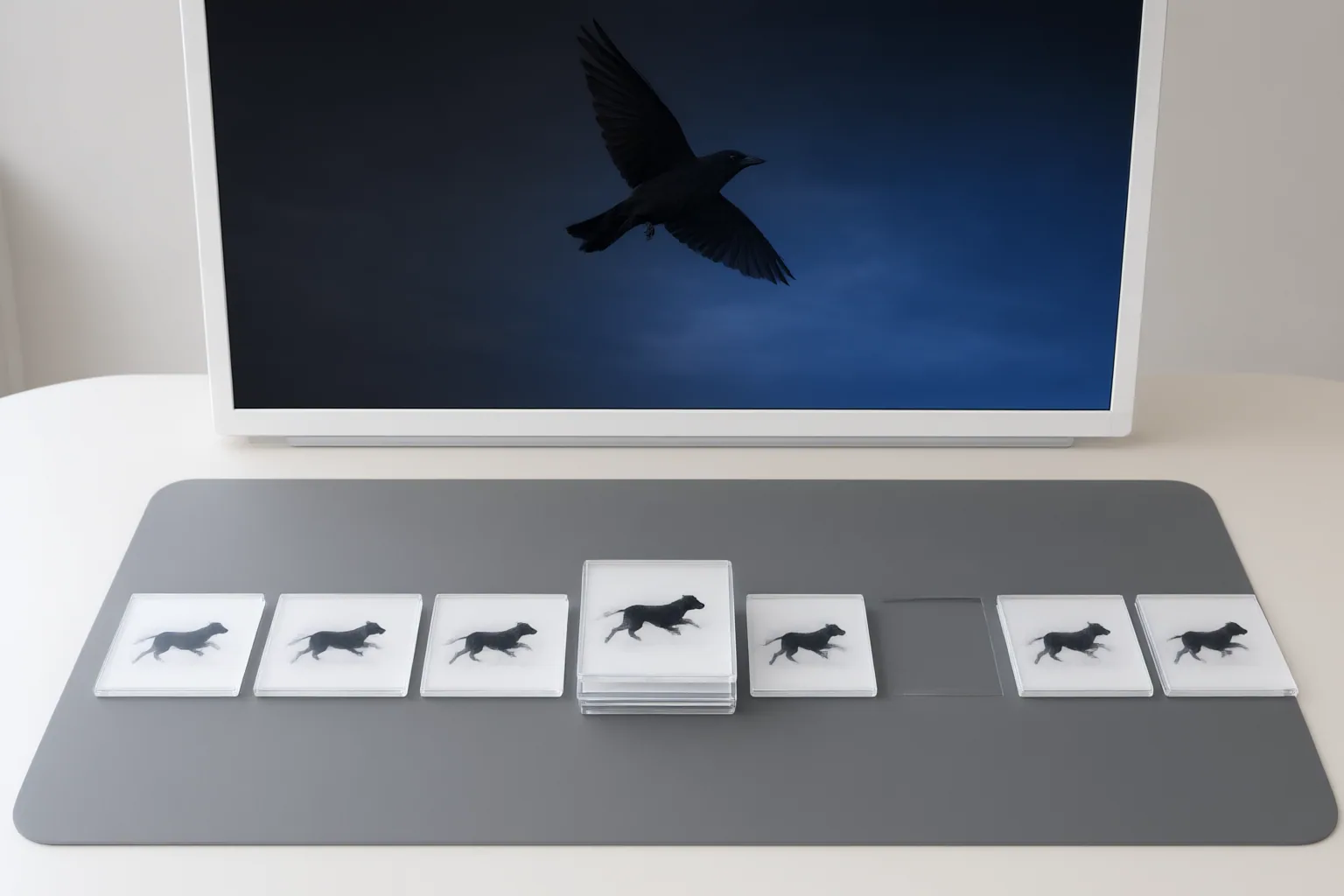
AI video enhancement may involve interpolation, frame-rate conversion, frame-by-frame processing, and re-encoding. When motion looks choppy or artificial, editors should compare the source and export, document the settings used, and distinguish visible inconsistencies from verified dropped or duplicated frames.
Where frame problems may enter an AI enhancement workflow
An AI enhancement workflow can contain several stages that affect how a finished video is assembled. Vmake Labs describes combining super resolution with frame interpolation to improve resolution and motion smoothness. Topaz says its software can adjust frame rate and interpolate frames for outputs such as 30 fps and 60 fps. TotalMedia separately claims conversion from 24 fps to as high as 120 fps.
Other workflows emphasize per-frame processing. BetterVideo describes decoding each frame, applying AI upscaling, and re-encoding the result as an MP4. WaveSpeed similarly says its browser tool processes frames with Real-ESRGAN before re-encoding them into a new video.
These descriptions identify stages worth reviewing: interpolation, frame-rate adjustment, individual-frame enhancement, and re-encoding. They do not establish that any particular stage causes dropped or duplicated frames.
Visible warning signs in enhanced footage
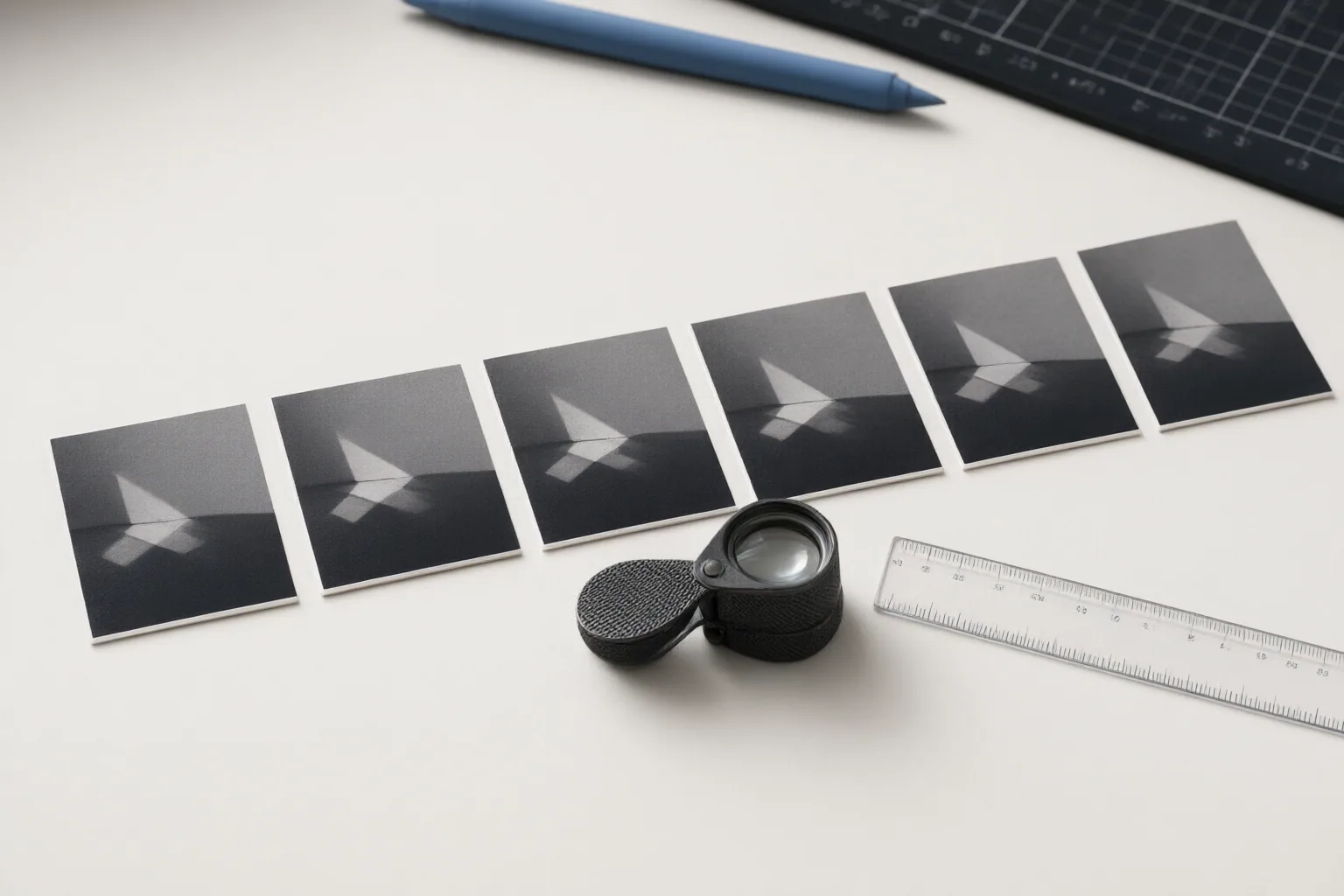
Choppy motion is one reason an editor may consider a frame-rate increase or interpolation. Vmake Labs also identifies flicker, jitter, ghosting, repeated textures, and generation artifacts as defects its enhancement tools are intended to reduce. In an enhanced export, those visible problems can mark segments that deserve closer examination.
The symptoms are not diagnoses. Jitter or choppiness does not, by itself, demonstrate that a frame was lost. Ghosting, repeated textures, or flicker likewise does not prove that a frame was duplicated. They indicate temporal or image inconsistency, but confirming the underlying event requires frame-level evidence beyond appearance during ordinary playback.
What editors can compare without overdiagnosing the problem
Start with the part of the enhanced export where motion first appears irregular, then compare that segment with the corresponding source footage. Record whether the workflow used interpolation or a frame-rate change, including the input and output rates when known. Also note whether the service describes its process as frame-by-frame enhancement followed by re-encoding.
This comparison can separate a visible output problem from assumptions about its cause. For example, the available provider descriptions show that interpolation can target outputs such as 30 fps or 60 fps, while another provider advertises conversion from 24 fps up to 120 fps. Per-frame pipelines may also decode, enhance, and re-encode the video. However, these materials supply no validated diagnostic procedure, tool, or threshold for confirming dropped or duplicated frames. A suspicious repeated image or uneven movement should therefore be recorded as an observation until an appropriate frame-level method verifies it.
Conclusion
AI video enhancement can change more than spatial detail: documented workflows may interpolate frames, alter frame rate, process frames individually, and re-encode the result. Editors can use choppiness, flicker, jitter, ghosting, repeated textures, or other artifacts to locate passages for review, but those signs do not prove that frames were dropped or duplicated.
Preserve the original file, document the enhancement and export settings, and compare the affected source and output segments. Before changing the workflow based on a suspected cause, seek a validated frame-level diagnostic that can confirm what occurred.
Disclosures and limitations
- This article was prepared with AI assistance from the supplied research package. Material capability claims are attributed to provider pages, which are promotional sources rather than independent controlled tests; no hands-on testing was performed.
Sources
- Free AI Video Enhancer: Enhance Videos Online Instantly | Vmake Labs — Vmake Labs
- 11 Best AI Video Enhancers (Free Included) — Geekflare Guides
- AI Video Enhancer – Improve Video Quality Online — topazlabs.com
- Free AI Video Enhancer – Upscale Video to 4K — BetterVideo
- Free Online AI Video Enhancer: Any Scene, Any Quality — wink.ai
- AI Video Enhancer: Upscale & Sharpen to 4K — ElevenLabs
- Free AI Video Enhancer – Upscale Videos up to 4x Online — wavespeed.ai
- AI Video Enhancer Online – Upscale to 4K & 8K | TotalMedia — TotalMedia
- Topaz for Web Video – Online AI Video Enhancement Platform — topazlabs.com
Improve this guide
Report a problem or suggest the next question
Submissions enter a private editorial queue. They are reviewed and deduplicated before any public update or new page is created.