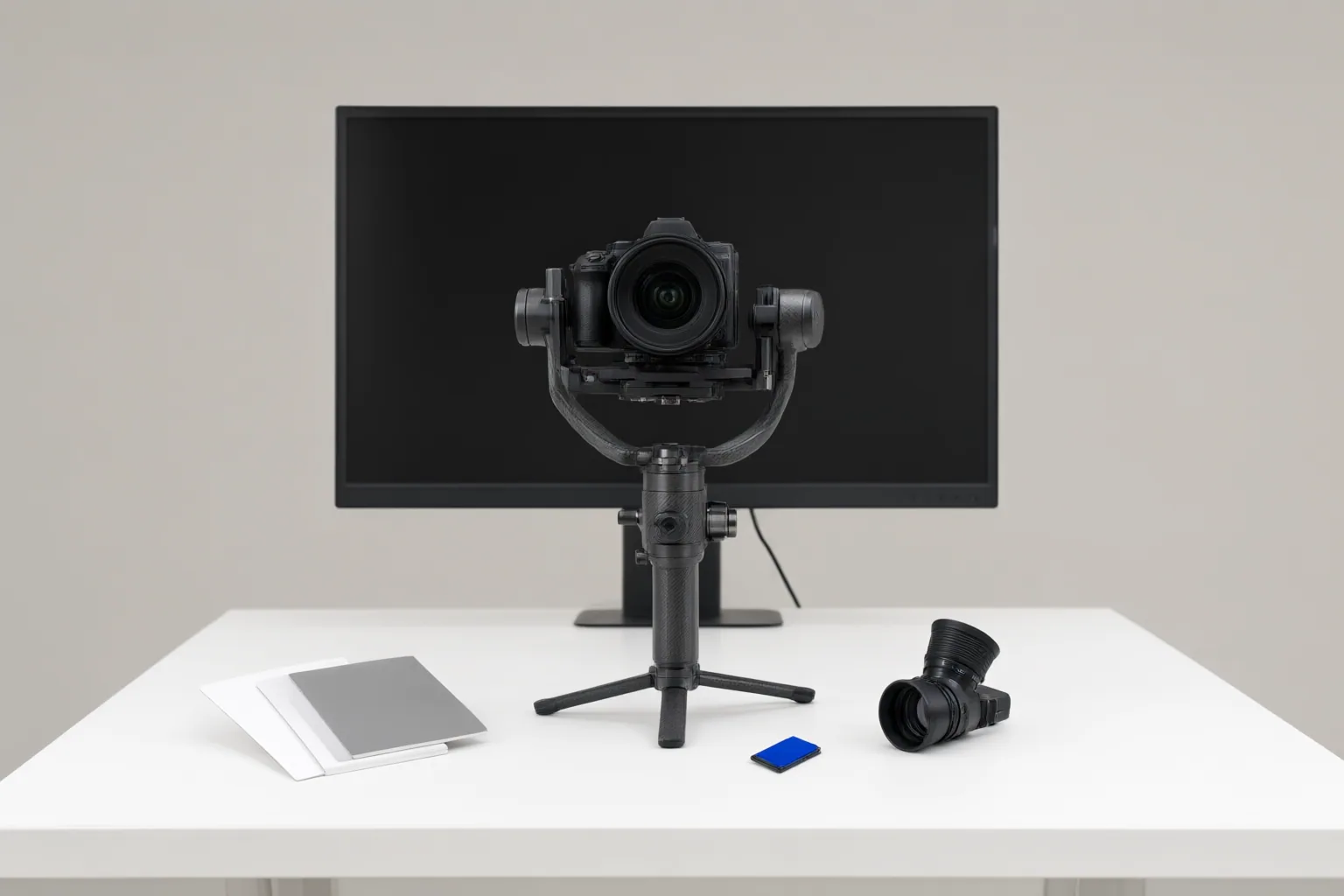
A smooth-looking result is not enough to approve AI stabilization. Editors should compare it with the original, confirm that intentional movement and essential framing remain intact, and inspect difficult passages for geometric, sharpness, border, and frame-to-frame defects.
Establish the Shot’s Intent and Framing Limits
Start by identifying which movement belongs in the shot. A deliberate pan, tilt, push, or handheld energy should not automatically be treated as unwanted shake. If stabilization suppresses that movement, the image may look steadier while feeling unnaturally frozen or no longer serving its intended purpose.
Before processing the full clip, define the delivery format and acceptable framing limits. Mark safe zones, the minimum usable subject size, horizon requirements, and any permitted edge fill. Check whether reframing could remove a person, product detail, caption, contextual evidence, or space reserved for a call to action. Apply the intended platform crop during review because a subject that survives the stabilization crop may still be lost in the final format.
Test the Most Difficult Passage First
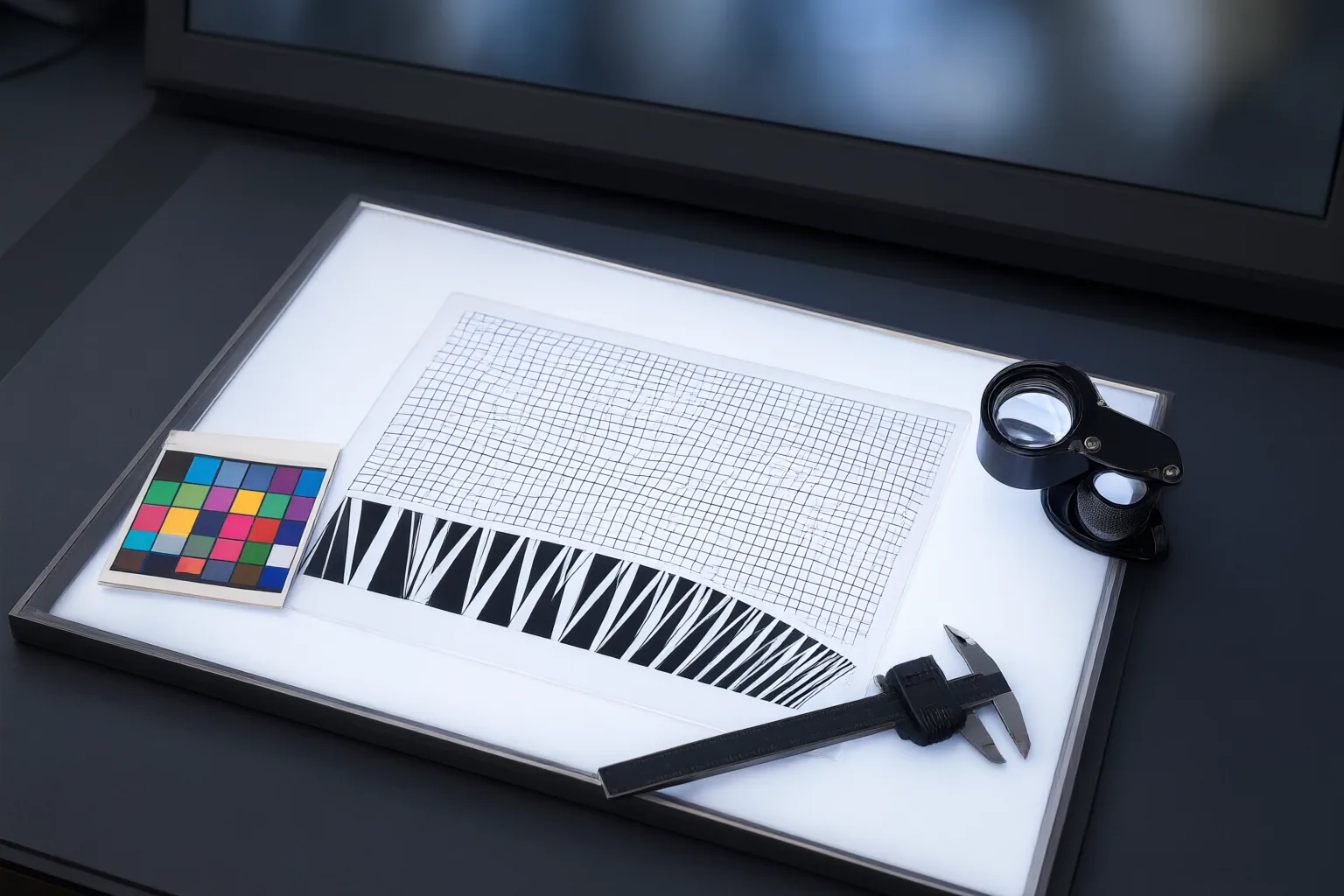
Choose a short section that puts tracking under pressure: fast movement, an occlusion, changing depth, reflective surfaces, or complex edges. An easy section can appear acceptable even when another part of the same clip fails. Testing the hardest passage first can expose problems before the entire clip is processed.
Compare multiple correction strengths while keeping the other settings fixed. This makes it easier to see whether additional smoothing also increases cropping, distortion, or softness. Some vendors describe simple workflows built around uploading footage, choosing a stabilization mode, previewing the result, or automatically detecting shake and re-centering frames. Those descriptions explain the intended workflow, but they do not establish how a particular clip will handle cropping, warping, or detail. Judge the exported footage rather than treating an automatic or one-click process as evidence of acceptable performance.
Inspect Crop, Geometry, Sharpness, and Temporal Artifacts
Compare the stabilized export directly with the original. First inspect composition: look for smaller or missing subjects, lost product details, clipped captions, reduced contextual evidence, and insufficient call-to-action space. Confirm that the horizon and important elements remain inside the destination crop.
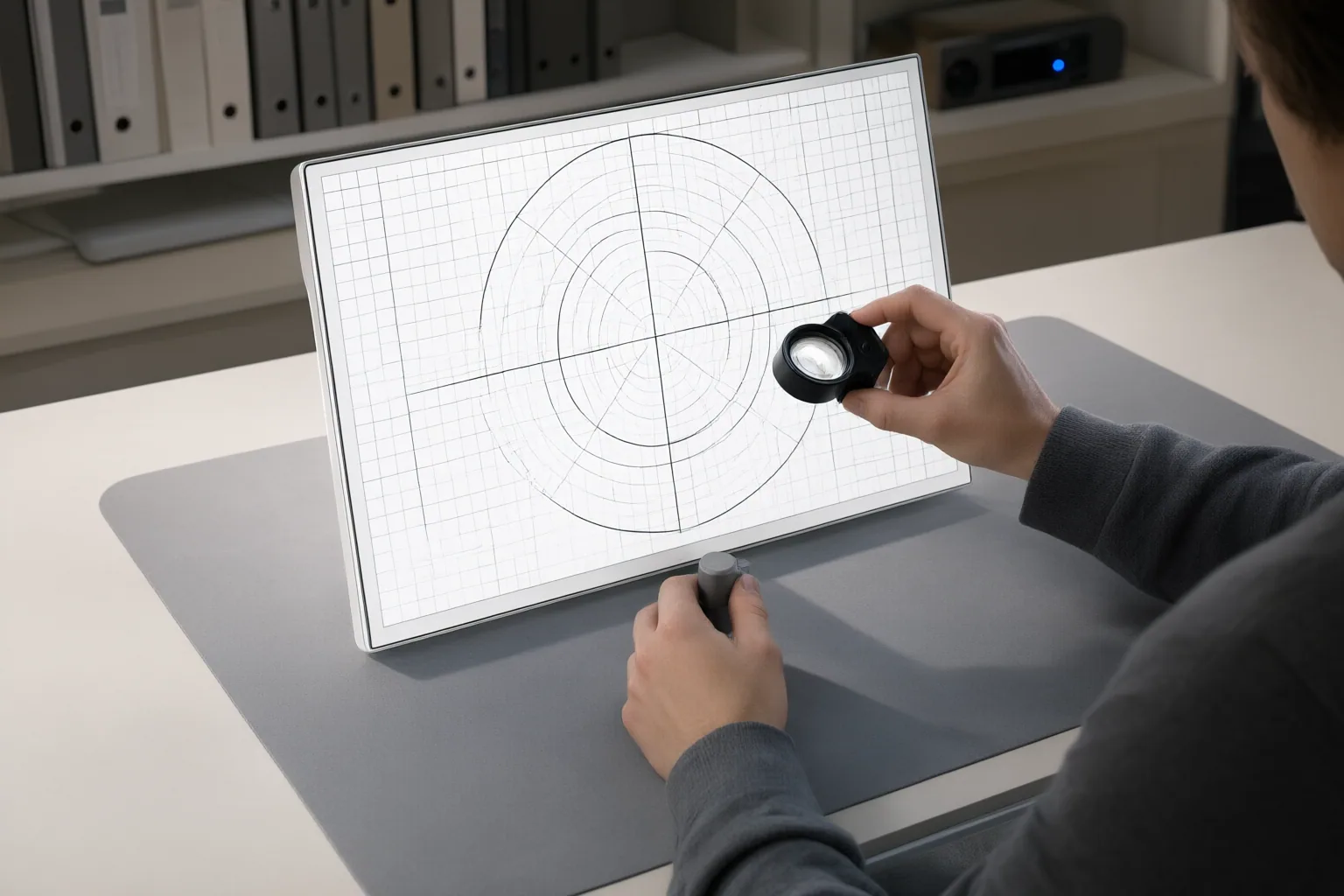
Next, examine local geometry. Watch faces, hands, products, architecture, straight lines, borders, and horizons for bending, stretching, drift, unstable edges, or sudden correction jumps. A globally smooth shot can still contain serious defects in a small region.
Then assess sharpness and temporal consistency. Look for added blur, unnatural smoothing around fast-moving objects, flicker, texture popping, abrupt color changes, and interpolation errors. Review at normal speed to judge natural motion, then at half speed to expose brief distortions. Watch once with audio muted so sound does not distract from visual changes. Check transitions as well as difficult tracking moments, and perform the final assessment within the actual delivery crop. This sequence is a synthesis of the supplied guidance, not a controlled benchmark or universal standard.
Conclusion
Approve AI stabilization only after confirming the intended motion, destination framing, hardest tracking passage, local geometry, sharpness, and frame-to-frame consistency. Finish by reviewing the encoded export against the original at normal speed, half speed, muted, and within its delivery crop. As the next concrete step, isolate the clip’s hardest passage, test correction strengths there, and inspect the resulting export before processing or approving the full clip.
Disclosures and limitations
- This article was prepared with AI assistance using only the supplied research package. Material claims are attributed through the listed source IDs, and vendor descriptions are treated as self-reported rather than independently verified.
- No controlled cross-tool benchmark, product ranking, or affiliate product recommendation is presented; performance should be verified with the reader’s own footage and delivery format.
Sources
- AI Video Stabilizer Testing Guide | Xelta — Xelta
- AI Video Stabilizer Online: Fix Shaky Footage (Free) — wink.ai
- Video Stabilizer — vidio.ai
- How does AI video stabilization and temporal consistency actually work, and what should creators know before using it? — aivideoupscale.com
- Why AI Video Scenes Shake and How to Stabilize Them in 2026 — Digen AI – Free AI Video Generator
- Video Stabilizer — Fix Shaky Videos Online — kapwing.com
Improve this guide
Report a problem or suggest the next question
Submissions enter a private editorial queue. They are reviewed and deduplicated before any public update or new page is created.