
For practical image-to-video generation, prioritize control over the opening image and motion instructions. Then check whether the specific tool and model provide the anchoring, selective-motion, framing, output, audio, and export options your project requires.
Start with the source image and motion instructions
The source image establishes the opening composition, lighting, and subject appearance, so inspect it before generating motion. An awkward crop or distracting background element can carry into the video. Leave enough room for the intended movement, match the image’s aspect ratio to its destination, and consider foreground, midground, and background cues when preparing the composition.
Motion instructions should explain what changes rather than redescribe what is already visible. Look for controls that let you specify camera direction, subject movement, and elements that should remain still. Clearly separating moving and static elements can help address unwanted movement caused by ambiguous instructions. These controls matter because even a detailed motion prompt cannot remove every constraint introduced by the source composition.
Evaluate anchoring and selective-motion controls
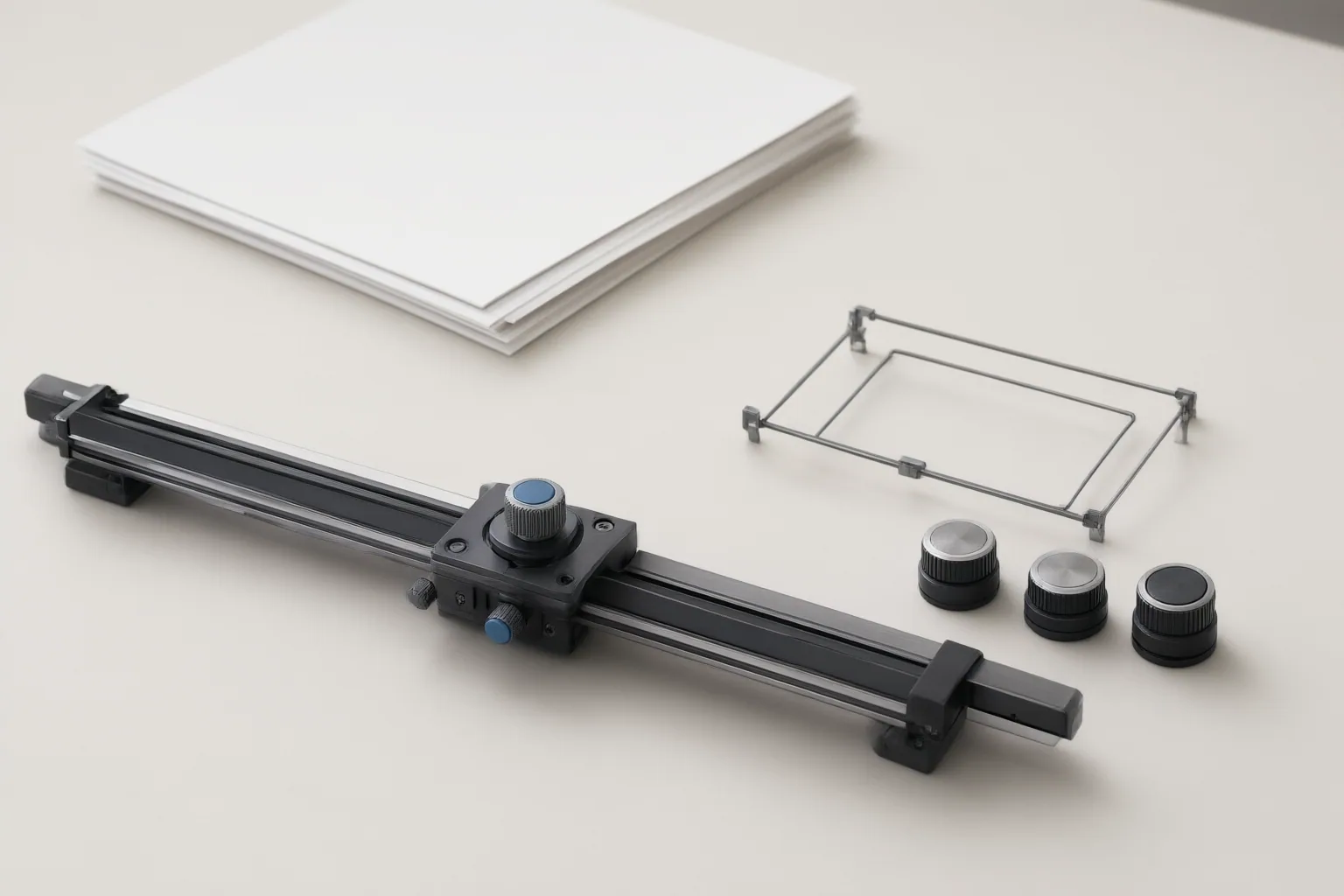
Different controls solve different guidance problems. Optional end-frame anchoring can make the ending more predictable on tools that support it. Region-specific motion offers another approach by letting users identify areas that should move and areas that should stay fixed. This can be relevant when only part of an image is meant to change.
Reference-video motion transfer uses movement from a separate video as guidance. According to the VideoToPrompt guide, this can add workflow overhead and may look unnatural when the reference and target have substantially different body proportions. Treat end-frame anchoring, region selection, and reference motion as separate requirements rather than interchangeable features. Their availability varies, so confirm support for the particular tool or model under consideration instead of relying on a service-wide feature impression.
Check output settings and two practical questions
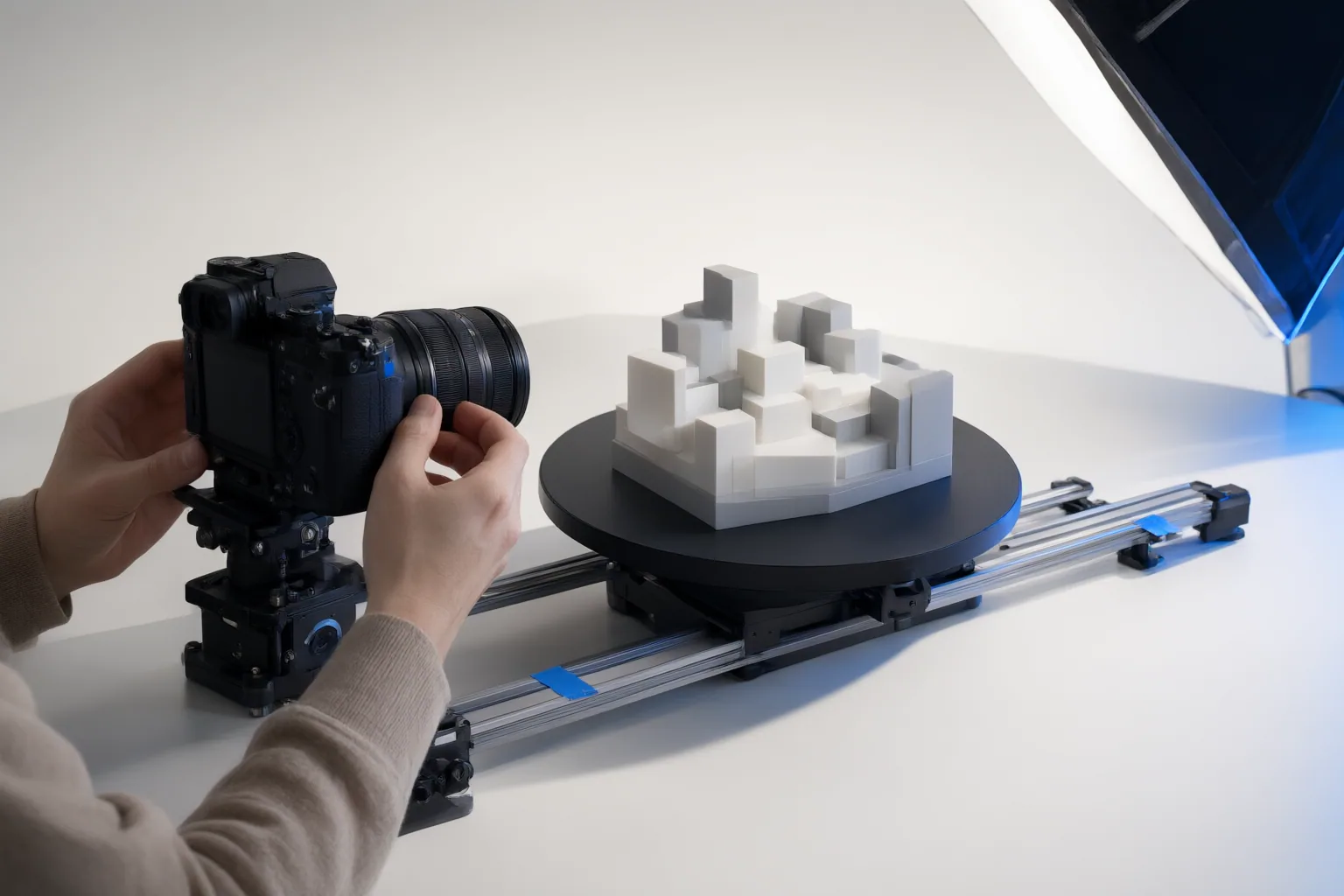
Output controls can determine whether a tool fits the delivery workflow. Check supported aspect ratios, durations, resolutions, and audio options at the model level because these settings are not uniform. Matching the input aspect ratio to the intended destination can also prevent the source composition from constraining later motion.
Review the complete path from upload to usable file. Magic Hour says its service lets users upload an image, optionally describe motion or camera movement, generate a video, and download an MP4. The company also states that aspect ratio, duration, resolution, and audio support vary among models available through its service. These are vendor-provided capability statements, not comparative test results, so they should be rechecked before publication or purchase. Apply the same model-specific verification to any tool being evaluated.
Conclusion
Build your shortlist around the controls the project actually needs. Start with dependable first-frame input and explicit instructions for camera direction, subject movement, and static elements. Then assess end-frame anchoring, localized motion, reference-motion guidance, aspect ratio, duration, resolution, audio support, and export format.
Before committing, list the required controls, verify that each is available in the specific tool and model, and test the workflow with a suitable source image.
Disclosures and limitations
- This article was prepared with AI assistance from the supplied workflow guides and vendor-provided product information; capability statements should be verified before publication or purchase.
- No ranked or affiliate product recommendation is presented. Any future commercial or affiliate relationship connected to a recommendation should be disclosed clearly.
Sources
- Image to Video AI: Complete Workflow Guide for 2026 — VideoToPrompt
- Image to Video AI Workflow (2026 Guide) — Rangy
- Free Image to Video AI Generator Online (No Sign Up) | Magic Hour — Magic Hour AI
Improve this guide
Report a problem or suggest the next question
Submissions enter a private editorial queue. They are reviewed and deduplicated before any public update or new page is created.