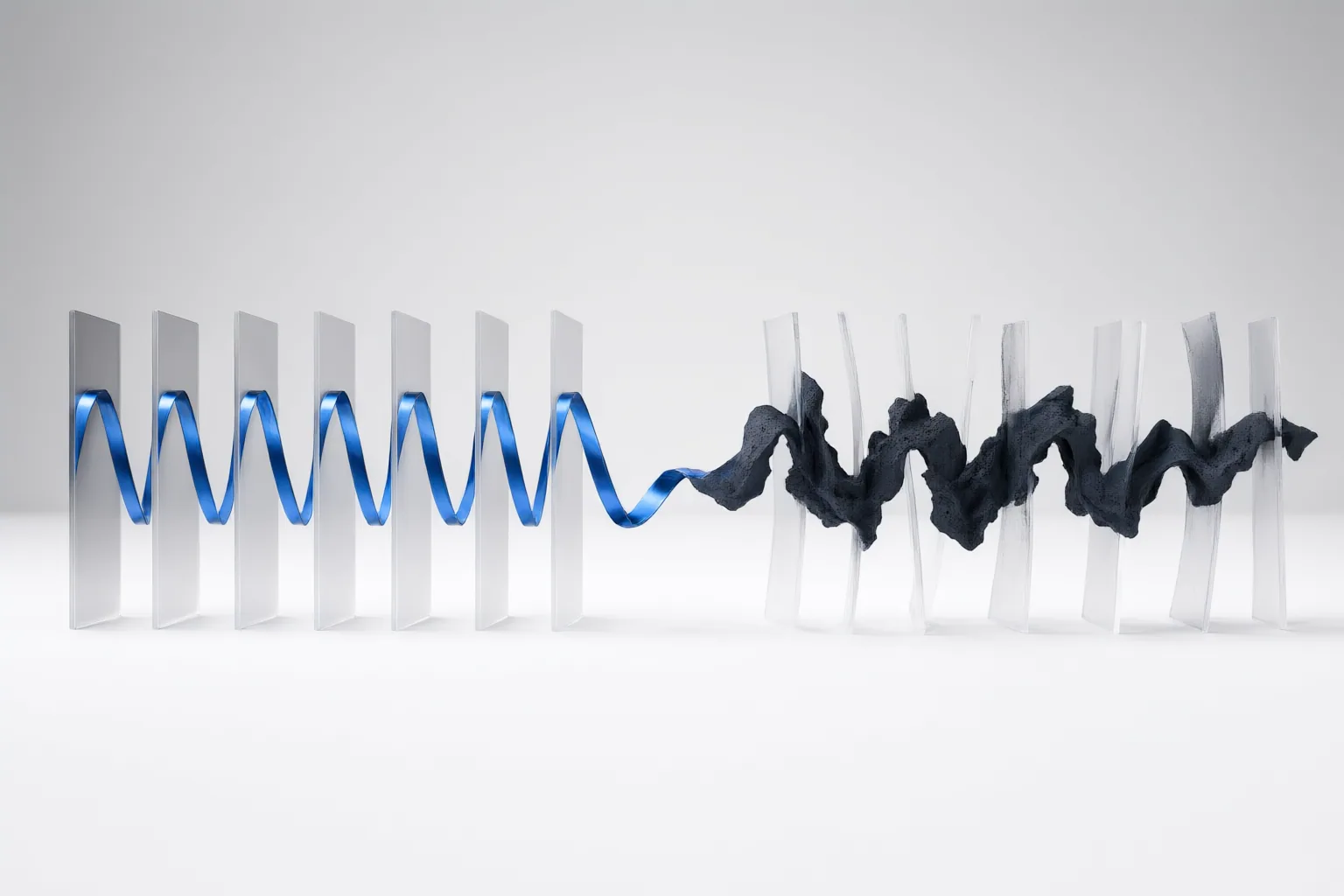
Frame interpolation adds intermediate frames to an existing clip, making motion appear smoother. AI-generated clips can be inputs to that downstream process, but interpolation does not mean the underlying scene or narrative has been regenerated.
The Difference Between Generating a Clip and Interpolating It
The practical distinction starts with what you already have. If the task is to obtain a clip, that is a generation task. If a clip already exists and the goal is smoother motion, frame interpolation may be appropriate.
Interpolation analyzes existing frames and creates intermediate ones between them. This increases the effective frame rate and can make movement look smoother. An AI-generated clip may subsequently be interpolated, so the two operations can appear in the same workflow. However, smoother playback is not evidence that interpolation created a new scene, subject, camera move, or narrative. It is a downstream change to the existing clip’s sequence of frames.
What Frame Interpolation Changes—and What It Does Not
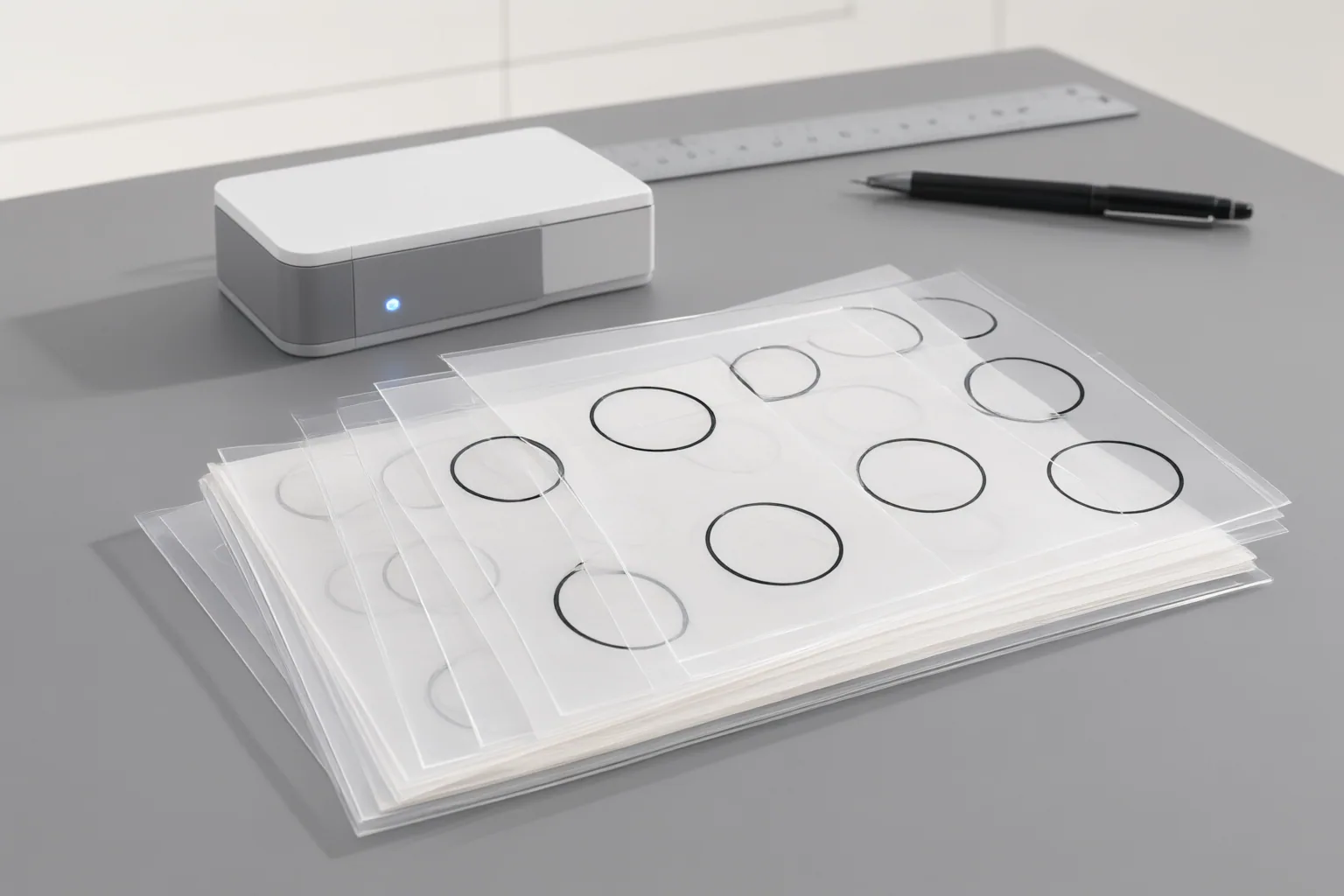
Interpolation changes temporal density: it adds frames between the source frames. Flowframes states that its frame-rate conversion can turn 24 or 30 FPS footage into 60, 120, or a custom frame rate while preserving the original duration.
Slow motion is related but different. Interpolation adds frames, whereas slow motion changes playback speed. Generating additional frames before slowing a clip can help the slowed result appear smoother.
Upscaling addresses another dimension. It increases the pixel count within each frame, while interpolation increases the number of frames. A clip can receive both treatments, but interpolation alone does not correct low spatial resolution or softness.
A higher frame rate is not automatically the best aesthetic choice. Very high rates may make cinematic footage feel less film-like, so the target should be judged on the actual material rather than selected only because a larger number is available.
How to Test an Interpolation Workflow
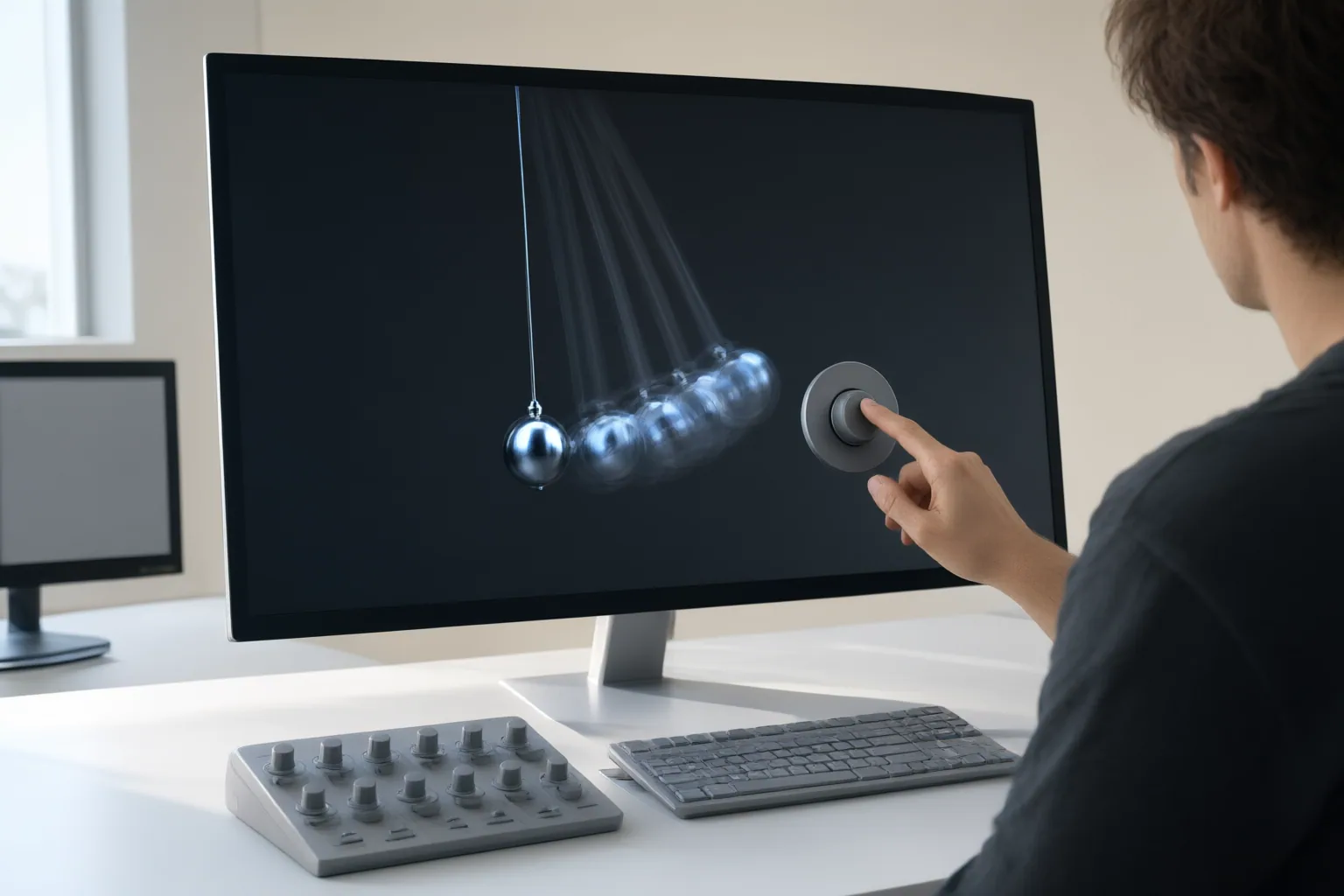
Start with a short, representative sample rather than processing the entire video. Include fast movement, fine edges, overlapping subjects, a detailed background, and at least one hard scene cut when those elements occur in the source.
Review the result frame by frame and at normal playback speed. Look for ghosting, warped edges, unstable textures, and blended images around movement or cuts. Hard cuts are especially difficult because no continuous motion connects the shots. Complex motion can also lead to incorrect predictions.
Begin with a modest target frame rate. Higher interpolation factors require more generated frames, which adds processing work and creates more opportunities for faulty motion predictions. Compare the output with the source before increasing the setting.
Workflow constraints also matter. The cited tools include browser-based options and Flowframes, which is presented as a Windows application that performs local GPU processing. Depending on the workflow, practical constraints can include clip limits, device or GPU requirements, supported formats, and processing time. Check the relevant tool’s current requirements, then test the same sample under the conditions you expect to use.
Conclusion
Choose according to the change you need: obtain a clip when creation is the task, or consider interpolation when an existing clip needs smoother motion or smoother slow motion. Interpolation changes frame count, not spatial resolution, and its quality depends on the footage. Before a full export, process a representative segment at a modest setting and inspect motion, edges, textures, overlapping subjects, and scene cuts.
Disclosures and limitations
- This article was prepared with AI assistance from the supplied research package. Material claims are attributed to the listed source IDs, many of which represent vendor-controlled pages whose performance and capability claims were not independently verified.
- No products, prices, rankings, or affiliate recommendations are presented in this article.
Sources
- AI Frame Interpolation – Change Video FPS Online — topazlabs.com
- Free AI Video Frame Interpolation|Convert 30fps to 60fps Online — wink.ai
- Video Frame Interpolation — vidio.ai
- AI Video Frame Interpolation Online Free | Increase FPS | Zawa (formerly X-Design ) — Zawa
- AI Frame Interpolation: Boost Video FPS Online Free | Vmake Labs — Vmake Labs
- Free AI Frame Interpolation to 60/120 FPS | FuzzPuppy — FuzzPuppy
- Best AI Frame Interpolation Software in 2026: 30FPS to 60FPS Compared — aiarty.com
- Flowframes – AI Video Frame Interpolation for Windows — Flowframes
Improve this guide
Report a problem or suggest the next question
Submissions enter a private editorial queue. They are reviewed and deduplicated before any public update or new page is created.