
Treat automatic silence removal as a rough-cut assistant, not a final-edit decision. Before export, review every proposed cut for preserved meaning, natural pacing, clean audio, visual continuity, and correctly timed captions.
Start With Detection Settings and a Recoverable Edit
Silence-removal tools may locate gaps through audio levels, transcript timing, minimum-duration thresholds, or a combination of signals. Controls and detection methods vary, so do not assume every tool identifies pauses in the same way. A shorter duration threshold can propose more removals, while a longer one may leave more of the original pacing intact.
Treat those detections as proposed edits. Start conservatively, inspect what the tool marked, and retain access to the source footage. A reversible or non-destructive workflow lets you reject a cut, restore removed material, or move an edit point after hearing the sequence in context. This matters because a setting that works for one speaker or recording environment may be unsuitable elsewhere in the same project.
Check Speech Rhythm, Meaning, and Take Selection
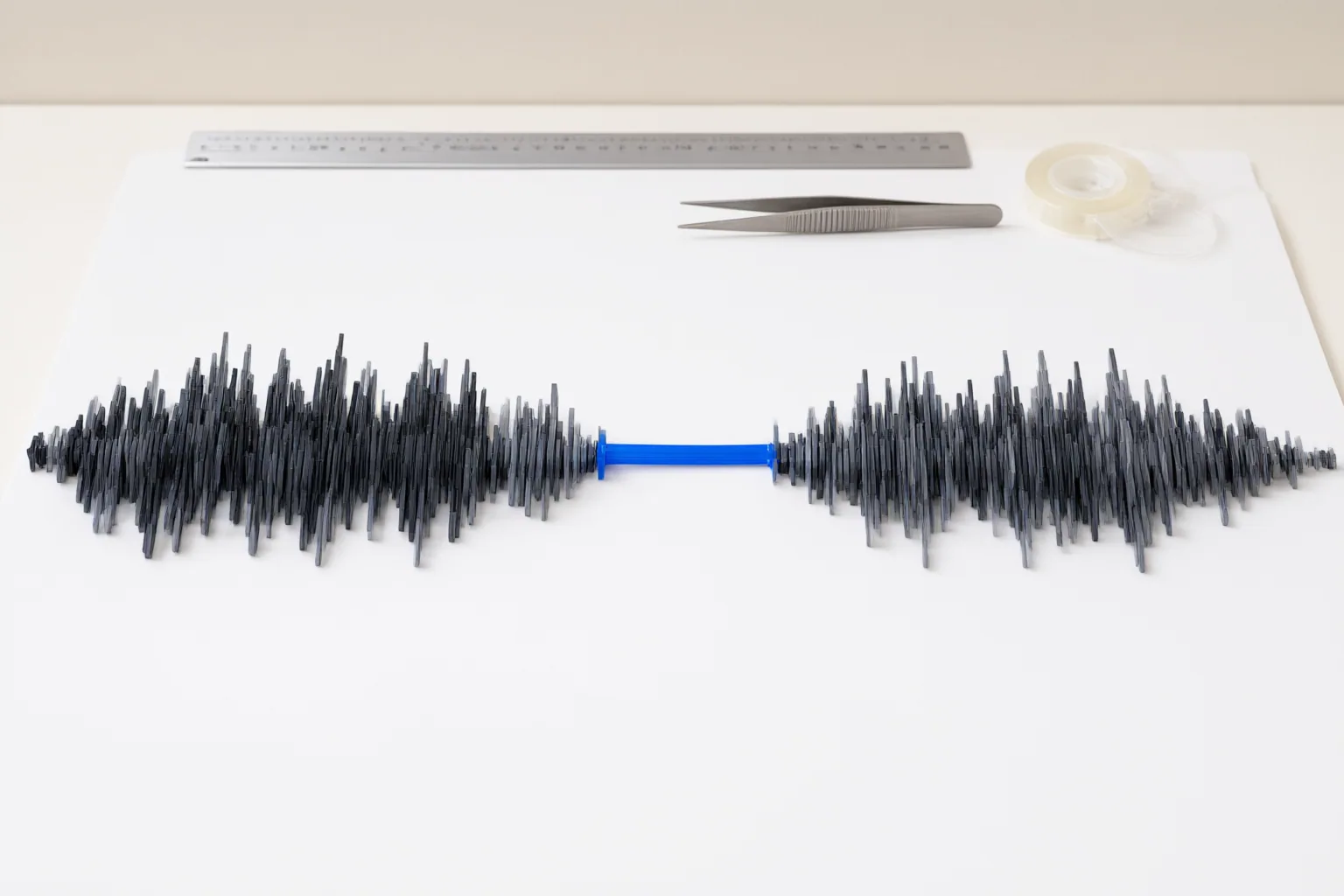
Audition each proposed removal within the surrounding sentence and scene. Restore pauses that provide emphasis, emotional weight, comedic timing, natural cadence, or enough time to understand something shown on screen. Removing every quiet interval can make speech feel unnaturally compressed even when individual sentences remain intelligible.
Review filler-word edits semantically, not just mechanically. Words such as “like” and “actually” can carry meaning, and a filler connected closely to the next word may not produce a clean cut. Qualifiers need particular care: deleting “I think” or “maybe” can transform an opinion or uncertainty into a stronger claim the speaker did not make.
Handle repeated takes as a separate editorial decision. Silence detection cannot determine which performance should survive. Compare the alternatives for intended meaning, factual accuracy, delivery, and visual or verbal continuity before choosing the retained take.

Inspect Audio Joins, Visual Continuity, and Captions
Replay every cut boundary closely. Listen for clipped consonants, missing word endings, clicks, and sudden changes in room sound. Sections containing music, background noise, laughter, applause, crosstalk, soft speech, or room tone deserve review by ear because these sounds can complicate a tool’s judgment about what qualifies as silence.
Then watch the edited sequence rather than relying only on a transcript or waveform. An acceptable audio join can still create a distracting change in posture, facial expression, hand position, framing, or other visible continuity. Check the surrounding shot at normal playback speed so the cut is evaluated as viewers will encounter it.
Finally, verify captions against the finished timing. When cuts change the sequence, existing captions may no longer align with the spoken words. Check them or regenerate them from the final edit, then confirm their timing before export.
Conclusion
Automatic cleanup is best treated as a reviewable assembly rather than an assumed final edit. Its proposed cuts can accelerate the first pass, but editorial judgment is still required to preserve intent, rhythm, intelligibility, and continuity.
Before exporting, watch and listen to the entire edited sequence. Restore purposeful pauses, refine questionable edit points, confirm that the speaker’s meaning and chosen takes remain intact, inspect visual transitions, and recheck captions against the final timing.
Disclosures and limitations
- This article was prepared with AI assistance from the supplied research package and source references. It does not claim firsthand product testing or use.
Sources
- How to Remove Silences, Filler Words & Bad Takes from Video with AI | Vidpal — vidpal.ai
- Silence Remover: Auto-Cut Dead Air from Video Free — echowave.io
- Automatically Remove Silence and Jump Cut Videos · SavvyCut — Automatically Remove Silence and Jump Cut Videos · SavvyCut
- How to Remove Silences and Filler Words from Video | HypeNest — HypeNest
- Remove Silences, Repeated Takes in Premiere Pro — autoeditai.net
- JumpCut Remove — Free Silence Remover — jumpcutremove.com
- Why Your Video Edits Feel Choppy: How AI Rough Cuts Fix Pacing and Flow — cutback.video
- Automatic Jump Cut Editor: The Secret to Viral Retention — Cutsio
- Remove Filler Words from Video: Cut Ums & Silence Free — echowave.io
Improve this guide
Report a problem or suggest the next question
Submissions enter a private editorial queue. They are reviewed and deduplicated before any public update or new page is created.