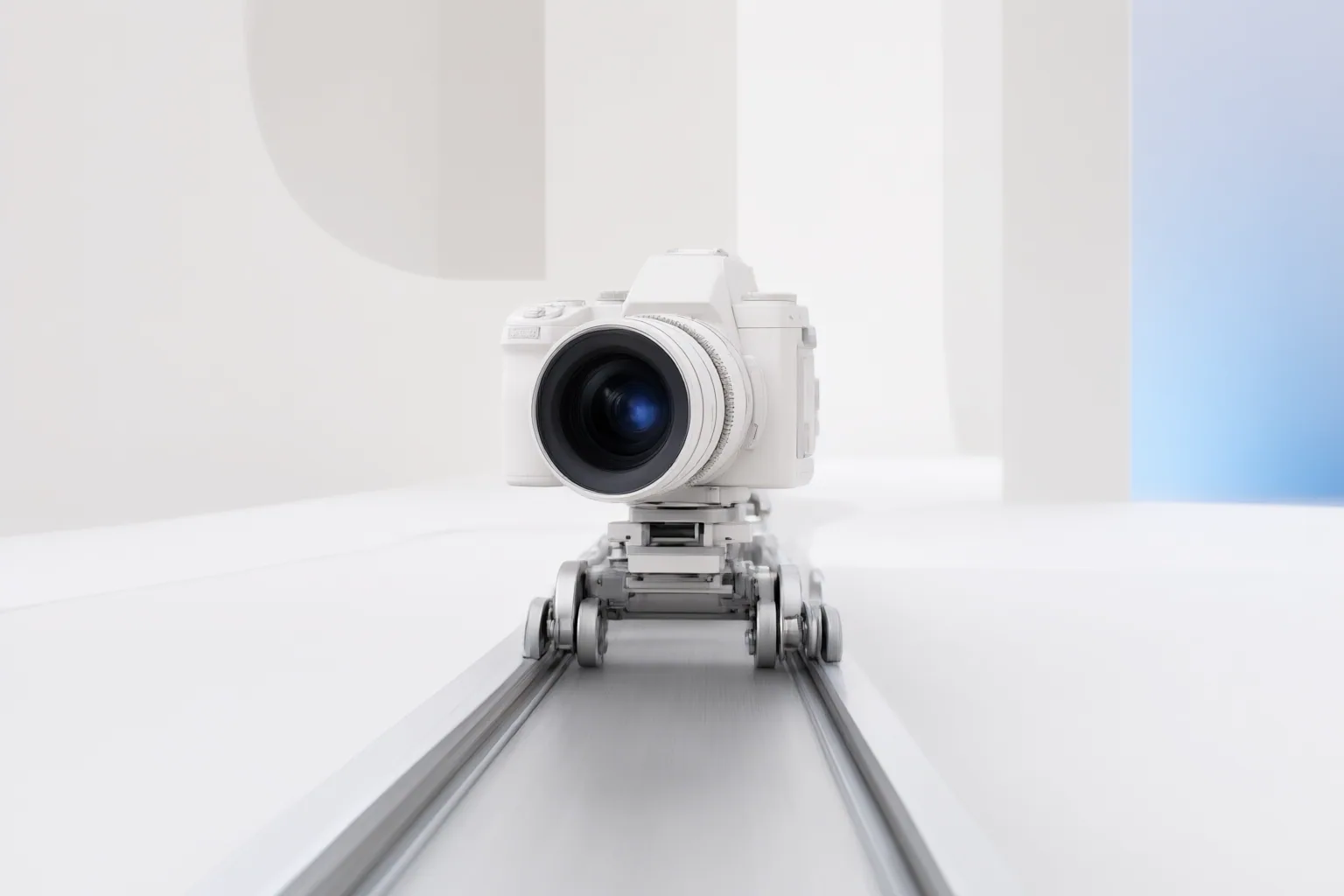
Camera-motion wording tells an image-to-video tool how the viewpoint should move, while separate instructions can describe what the subject does. Clear, restrained directions can make your intent easier to interpret, but results and available controls vary by tool and model.
What Camera Motion Prompts Control
Image-to-video workflows begin with a still image and use text to describe the desired animation. Google Cloud documents this first-frame workflow for supported Gemini Omni and Veo models, while other tool guides ask users to specify camera direction, subject motion, speed, style, mood, or pacing.
A camera instruction describes the intended movement of the viewpoint. A subject instruction describes movement within the depicted scene. Keeping those directions distinct helps communicate whether the camera, the subject, or both should move. This does not create a universal control system: supported formats and features depend on the selected tool or model.
How Common Camera Movements Change the Intended Shot
Published tool guidance uses terms including pans, push-ins, orbits, and parallax to communicate different shot intentions. Magic Hour gives “camera slowly pans right” as an example, combining a direction with restrained speed. Vivideo offers “slow push in” and “gentle parallax” as additional directions.
These phrases should be treated as requests rather than guaranteed outcomes. A pan asks for a lateral change in viewpoint, while a push-in asks for an inward move toward the scene. Orbit wording communicates movement around the subject, and parallax wording requests apparent depth through relative movement across the image.
Do not confuse viewpoint movement with subject movement. For example, Vivideo’s “product rotate” directs the product to move rather than necessarily asking the camera to travel around it. A prompt can state both intentions separately, such as asking for a slow camera move while the subject remains still.
How to Write and Refine a Camera Motion Prompt
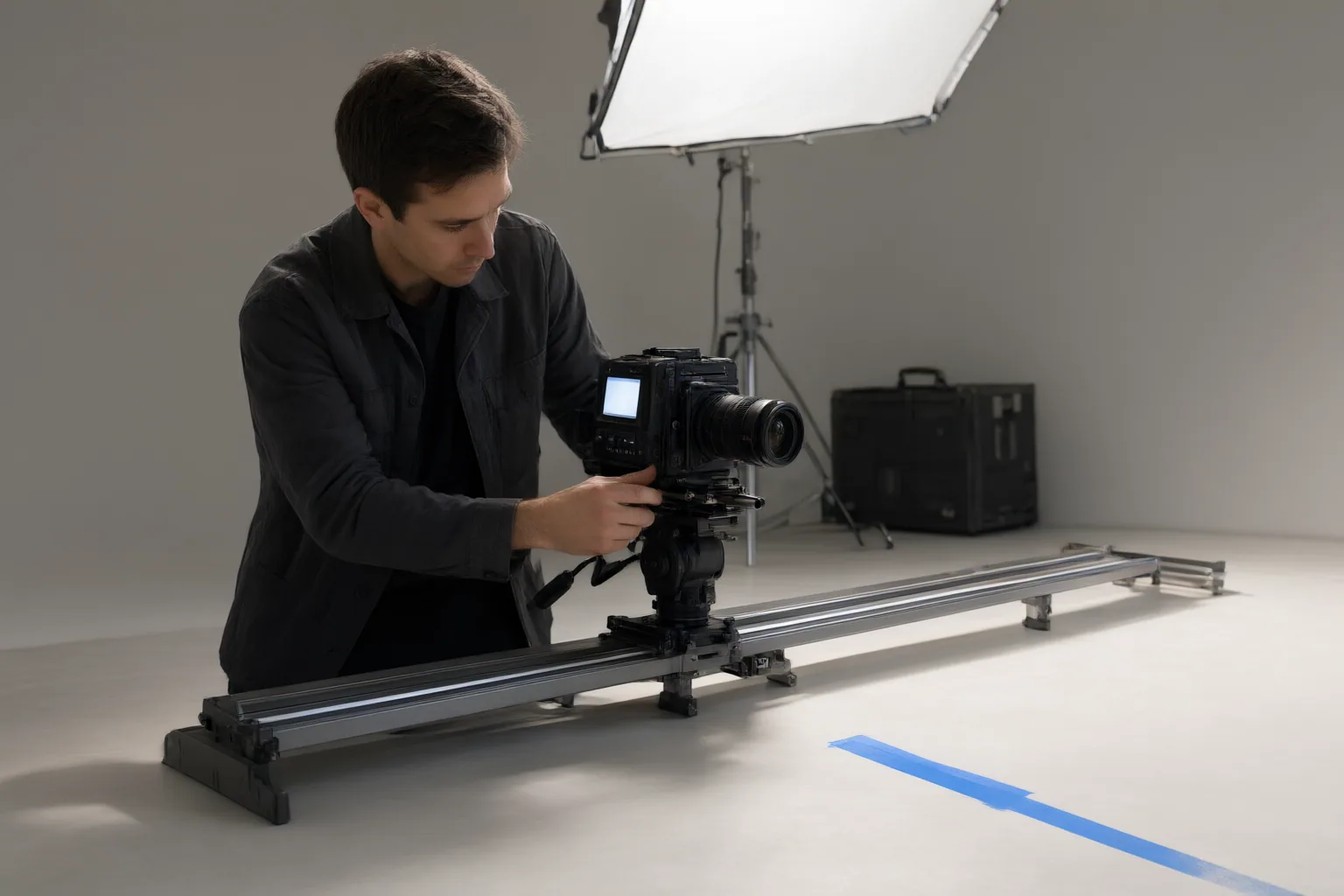
Start with a clear, high-resolution source image and a clean composition. Vivideo advises against busy or low-resolution inputs because they can be harder to animate. Then build a short prompt from separate components:
- State one camera movement and its direction.
- Describe any subject movement independently.
- Add restrained speed, pacing, mood, or style guidance only when needed.
- Generate a draft and review whether the viewpoint and subject behaved as intended.
- Revise one instruction at a time so the effect of each change is easier to assess.
For example, “camera slowly pans right; subject remains still” separates viewpoint motion from subject behavior. This wording illustrates structure, not a promise that every model will follow it consistently.
Watch important faces, products, and other details for unwanted changes. PicLumen describes subject drift as a concern, although the supplied evidence does not measure how often it occurs. If the first render misses the intended movement, reuse the source image and simplify or adjust one motion instruction before generating another draft.
Conclusion
Separating camera movement from subject movement gives an image-to-video system a clearer description of the intended shot, but identical wording may not produce identical results across models. Aspect ratio, duration, resolution, audio support, and other options can also vary by model.
Choose one clear image, write one camera instruction plus a separate subject instruction, and generate a draft. Review the clip, then revise only one motion detail before trying again.
Disclosures and limitations
- This article was prepared with AI assistance from the supplied research package and relies primarily on vendor-published documentation and workflow guidance. Capabilities were observed on September 15, 2026, and may change.
- No controlled cross-model tests, benchmarks, or success rates were supplied; examples describe prompting intent rather than guaranteed performance. No affiliate product recommendation is made.
Sources
- Generate videos from an image | Gemini Enterprise Agent Platform | Google Cloud Documentation — Google Cloud Documentation
- Free AI Image to Video: Turn Any Images into Videos Online | PicLumen — Piclumen
- Free online image to video AI generator | Canva — Canva
- Free Image to Video AI Generator Online (No Sign Up) | Magic Hour — Magic Hour AI
- Image To Video Converter — Free + Online — kapwing.com
- Image to Video AI — Vivideo
- Free Image to Video AI Generator | Renderforest — renderforest.com
- Image To Video AI Generator — Free Online Photo Animator — kapwing.com
Improve this guide
Report a problem or suggest the next question
Submissions enter a private editorial queue. They are reviewed and deduplicated before any public update or new page is created.