Match AI-generated lip movement to recorded dialogue by preparing a clearly visible face, fitting the audio pacing to the available clip, generating a short preview, and correcting timing or animation problems before producing the full sequence.
Choose the Right Starting Workflow
Start with the material you already have. For a single character image, Viggle recommends a clear, front-facing subject with one visible face and simple lighting. For existing footage, Kling similarly recommends a full, clearly visible face and dialogue that fits the clip’s duration. Turned-away, blurred, or obscured faces make convincing synchronization harder to produce and assess.
A digital-actor workflow is different: ACT3 AI documents assigning recorded or text-to-speech audio to an actor, running Lip Sync, previewing the result, and adjusting sensitivity when needed. If a scene contains several characters, keep each voice assigned to the intended character and preserve the planned speaking order.
Prepare the Dialogue and Generate a Short Draft
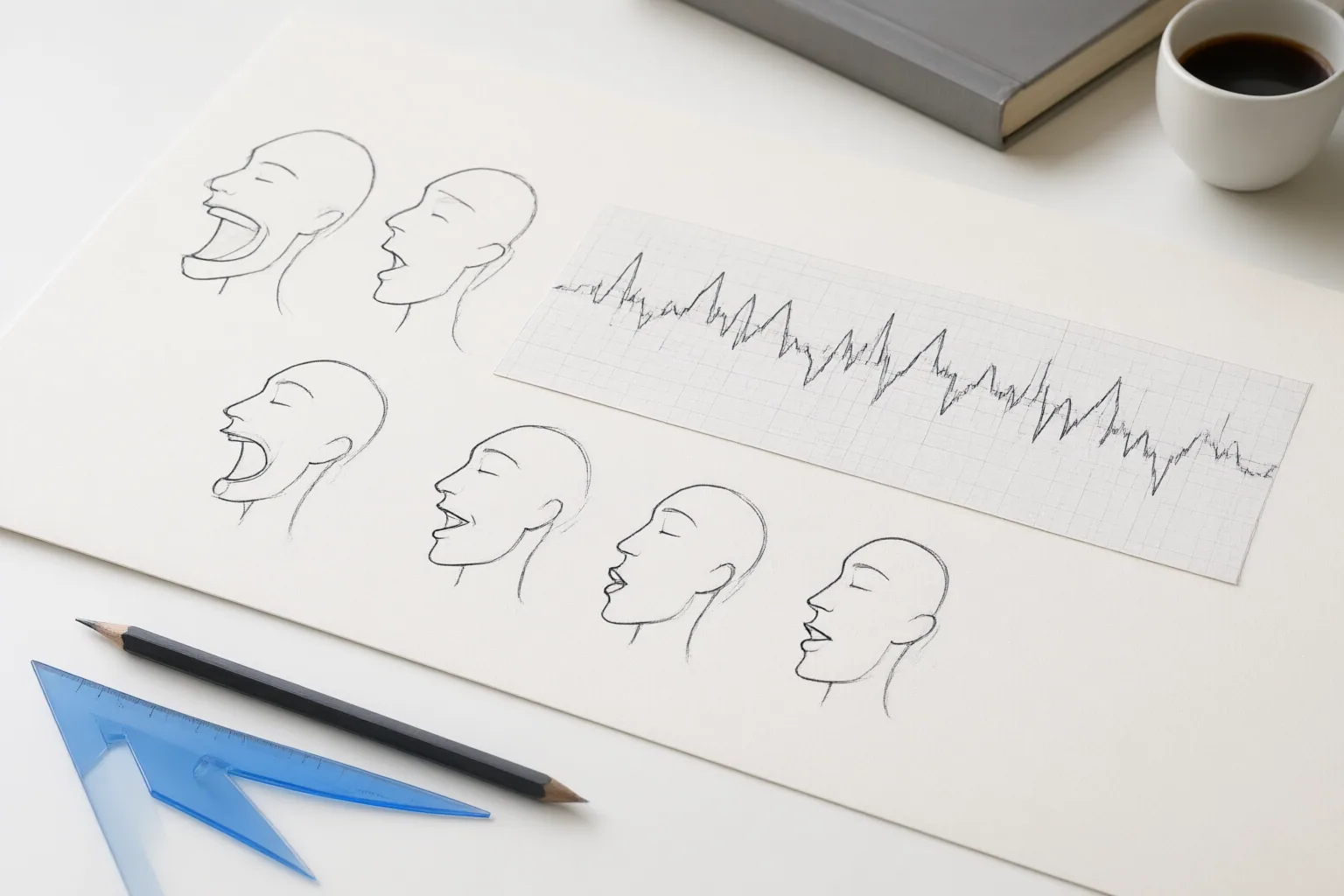
Prepare the audio before starting a full render. ACT3 AI lists WAV, MP3, and AAC as supported formats for prerecorded dialogue and says its process extracts phoneme timing from the audio to drive a digital actor’s facial rig frame by frame. Viggle’s Mic workflow can instead accept typed text, recorded voice, or music input.
Trim unnecessary silence, check where the dialogue begins, and keep its length and pacing close to the available video duration. Long tracks or poorly matched pacing can produce rushed speech, extended pauses, or timing errors. For translated dialogue in ACT3 AI, apply the translated audio and choose the correct language because its phoneme models vary by language.
Generate a short line first. Both ACT3 AI and Viggle recommend previewing or testing a brief draft before expanding the render. This makes it easier to catch alignment problems without committing to the entire clip.
Diagnose and Correct Lip-Sync Problems
Review the draft at fast phrases, pauses, sentence endings, expressions, and moments with head movement. If speech arrives early or late, first compare the dialogue duration with the clip and inspect its pacing. Kling recommends removing unnecessary pauses or changing text-to-speech speed before regenerating. ACT3 AI identifies an incorrect audio start timecode as another possible cause and recommends trimming the audio and running synchronization again.
Timing is only part of the review. When mouth movement looks unnatural even though words are approximately aligned, ACT3 AI recommends adjusting jaw range and blend smoothing; its guidance also varies sensitivity according to shot distance. If the face becomes obscured, blurred, or turned away, consider whether the visual input provides enough facial information to produce and judge the result.
Avoid rebuilding more than necessary when the selected workflow offers local correction. Viggle says its Multi-Track feature can adjust timing and patch weak sections without regenerating the entire clip. For a multi-speaker scene, also verify that each voice remains attached to the correct character and that the intended speaking order has not shifted.
Conclusion
A repeatable lip-sync workflow is to prepare the face and dialogue, make a short test, review timing and facial motion, and refine only the weak areas before completing the full render. Translated dialogue needs the appropriate language setting where supported, while multi-character scenes require careful voice assignment and speaking order. These steps come from vendor-authored documentation, not independent performance testing. Create a short test with a clearly visible face and trimmed dialogue, inspect phrases and pauses, then correct the input timing or patch weak sections before producing the full clip.
Disclosures and limitations
- This article was prepared with AI assistance from the supplied research package. Its workflow and capability statements are attributed to vendor-authored ACT3 AI, Viggle, and Kling materials and do not represent independent product testing.
- No prices, rankings, hands-on results, or affiliate product recommendations are presented. Any relevant commercial relationship with AIAI should be considered separately when evaluating referenced tools.
Sources
- AI Lip Sync — Lip-sync motion from audio | Viggle AI — Viggle
- Lip Sync | ACT3 AI Documentation — documentation.act3ai.com
- Why is My Lip Twitching? — Healthline
- 6 Best Lip Sync Video AI Tools Compared — kling.ai
- Tardive Dyskinesia — Cleveland Clinic
- Lip Twitching: Causes, Remedies, and When to Seek Help — NeuroLaunch.com
- Lip twitching: Causes and treatment — medicalnewstoday.com
Improve this guide
Report a problem or suggest the next question
Submissions enter a private editorial queue. They are reviewed and deduplicated before any public update or new page is created.