Blend AI-generated footage with recorded video by evaluating the combined sequence first, matching frame rate and camera movement, and then refining color, grain, and motion. These adjustments can reduce visible differences, but the available sources do not establish a universal recipe or guarantee an indistinguishable result.
Start With the Composite, Not the Individual Clips
Composite video editing layers recorded footage and AI-generated material into a cohesive image or sequence. That makes the assembled edit—not either clip viewed alone—the useful starting point.
Place the clips in their intended sequence and look for changes that reveal the boundary between them. Compare their visual character and temporal behavior: Does motion suddenly feel different? Does the color change noticeably at the cut? Does one clip appear cleaner or more textured than the other? The supplied sources identify integration as the central challenge, so assess mismatches in the context viewers will actually see.
Make a short list of the most visible differences before adjusting anything. This keeps the work focused on continuity across the composite rather than improving an individual shot in isolation.
Match Frame Rate and Camera Movement
Begin the technical comparison with frame rate, apparent camera movement, and motion continuity. Jhroke Camera recommends matching frame rate and camera movement when combining AI-generated clips with recorded scenes.
Review the transition at normal playback speed and observe whether movement changes abruptly between shots. Compare the direction and apparent character of camera motion as well as the way subjects move across the frame. Address the clearest temporal mismatch before spending time on fine visual details, because an obvious change in motion can keep otherwise similar clips from feeling connected.
The supplied evidence does not offer software-specific steps, tested settings, or controlled comparisons. Treat frame-rate and movement matching as practical areas to inspect, not as a formula that guarantees a seamless composite.
Align Color, Grain, and Motion in Post-Production
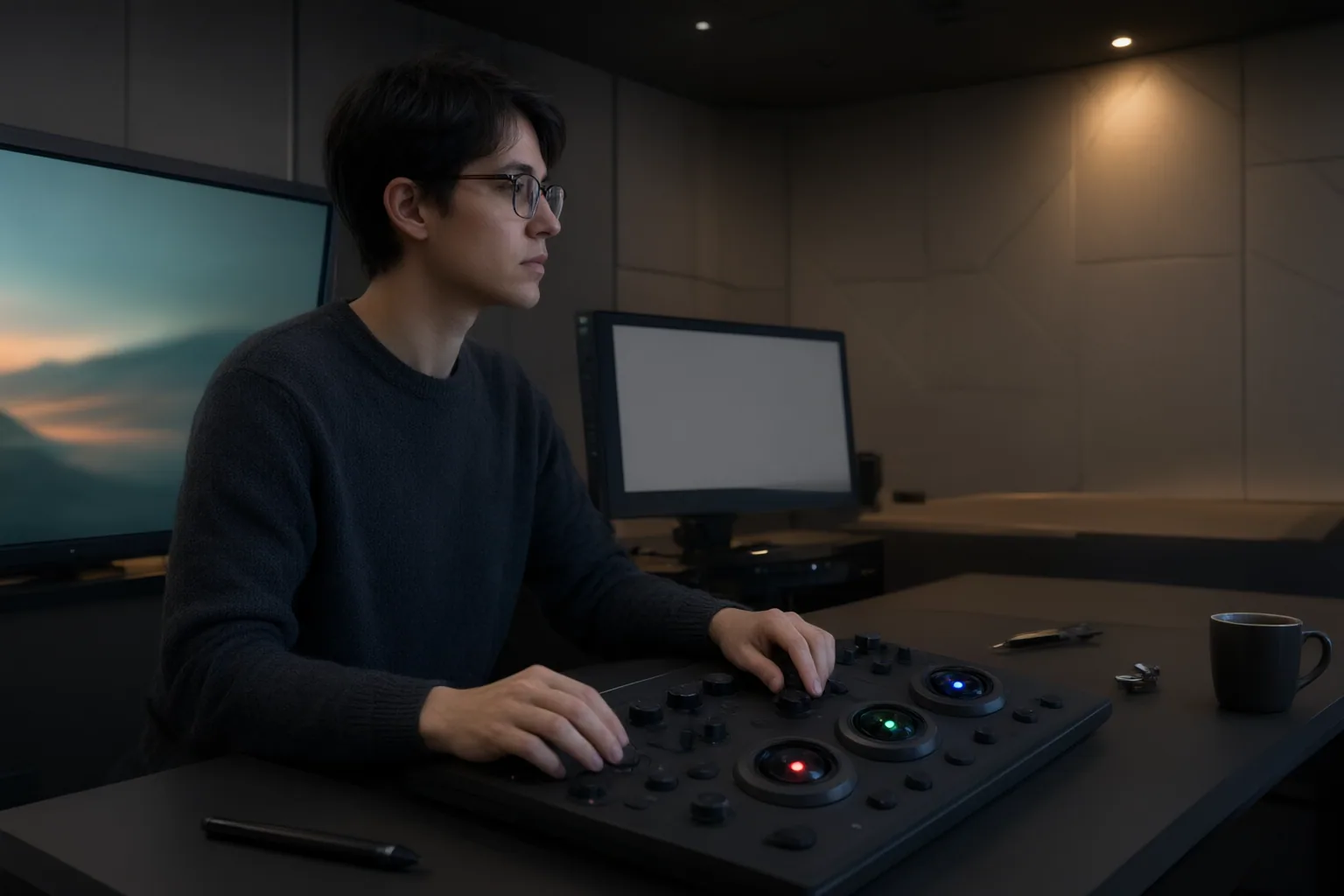
After reviewing temporal continuity, compare the clips’ color and texture. The source recommends color correction and consistent color grading as ways to reduce visible differences between AI-generated and recorded footage. Rather than treating each image independently, judge whether color remains coherent as the edit moves from one source to the other.
Next, inspect grain. If the recorded clip and generated material have noticeably different texture, grain matching may help them sit together more consistently. Finally, reconsider motion. Jhroke Camera identifies motion smoothing as another post-production technique intended to reduce discrepancies.
Work in deliberate passes: first color correction and grading, then grain, then any remaining motion issue. Recheck the full transition after each pass so one adjustment does not distract from a more prominent mismatch. These techniques are suggestions from a commercial publication; the supplied research does not demonstrate that they will make the two sources indistinguishable.
Conclusion
A restrained workflow starts with the composite, aligns frame rate and camera movement, and then refines color, grain, and motion. This order gives editors a practical way to find and reduce the differences that interrupt continuity.
The supporting material comes from commercial or promotional publications. It does not establish universal settings, verified software-specific procedures, benchmarks, or guaranteed outcomes. Results therefore need to be judged within the actual sequence. Compare the two clips shot by shot, correct the most visible mismatch first, and review the finished sequence at normal playback speed before exporting.
Disclosures and limitations
- This article was prepared with AI assistance from the supplied research package and content plan. Material claims are attributed to two browser-acquired commercial or promotional sources rather than independent technical documentation.
- No product recommendation or affiliate endorsement is made here. Any future commercial relationship should be disclosed before related recommendations are published.
Sources
- About the Boundary Blend Feature — support.ptc.com
- Sharp Technologies and Design Group — sharptechdesign.com
- Composite Video Editing: Seamlessly Blend Real and AI Footage — reelmind.ai
- Kling AI: How to Seamlessly Integrate AI-Generated Clips into Your Video Projects — Jhroke Camera
- Boundary Blend — CADCAM Resources
- To Create a Boundary Blend — support.ptc.com
Improve this guide
Report a problem or suggest the next question
Submissions enter a private editorial queue. They are reviewed and deduplicated before any public update or new page is created.