Choose an AI background removal tool by testing it with your typical images, examining difficult edges at full size, and checking correction controls, batch features, upload requirements, and service terms. Treat performance claims on vendor pages as unverified unless supported by independent evidence.
Start With Your Images and Required Output
Begin by defining the result you need. AI background removal generally identifies a foreground subject, separates it from the background, and creates a cutout for use on a transparent, white, solid-color, or replacement background. A tool suited to an occasional portrait may not fit a recurring ecommerce catalog workflow.
Build a small test set from the kinds of images you actually handle. Include clear, sufficiently high-resolution files as well as realistic problem cases. The supplied guidance associates better results with adequate contrast between subject and background. Low resolution, weak contrast, uneven lighting, shadows, noise, and complex scenes can make satisfactory separation harder.
Evaluate the resulting files against your required destination rather than relying on a vendor’s general quality or speed claims. The supplied sources are vendor-operated pages and do not independently establish performance, capacity, resolution, uptime, or algorithm quality.
Check Cutout Quality and Correction Options
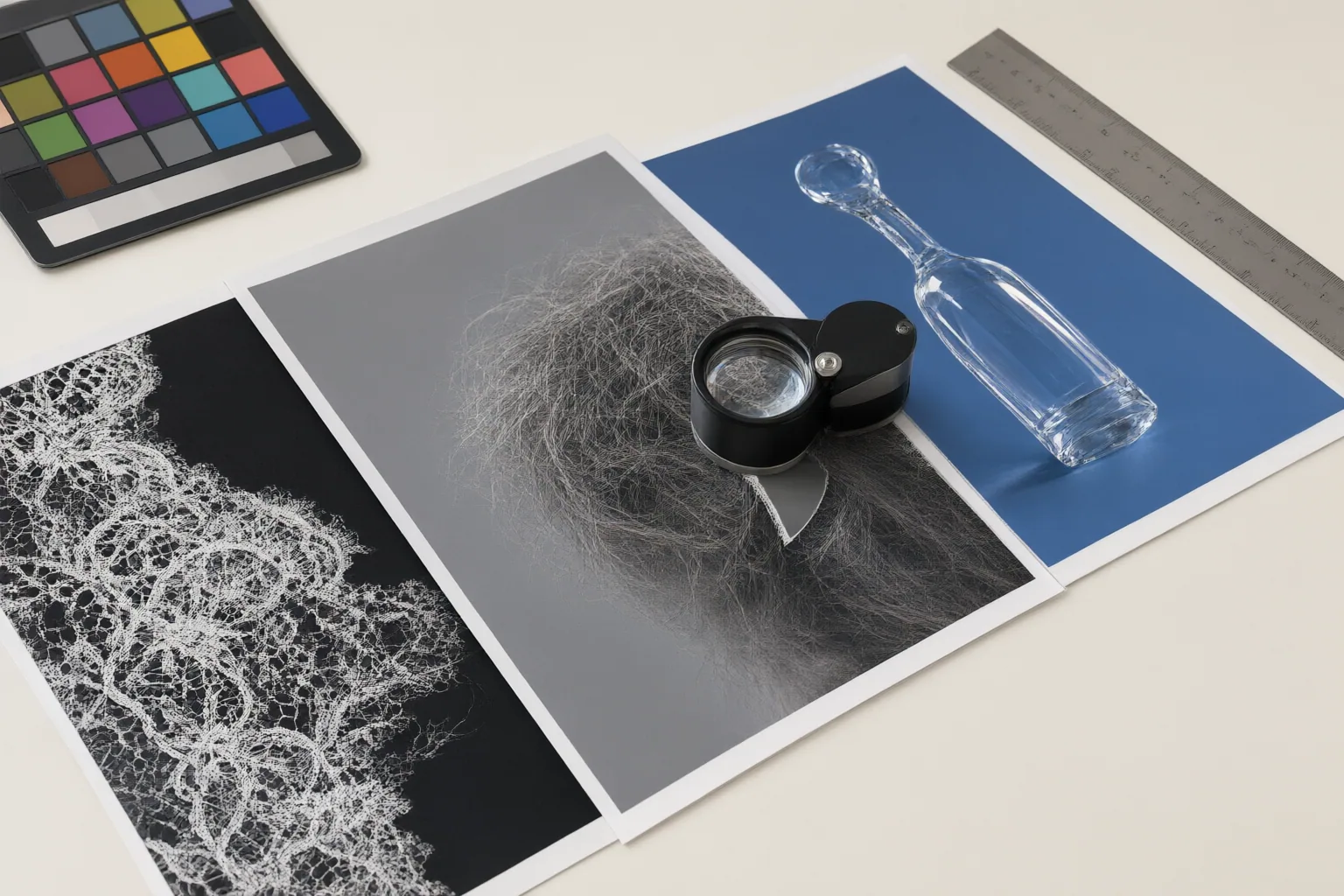
Inspect every trial cutout at full size. Pay particular attention to hair, fur, feathers, semi-transparent materials, shadows, and narrow or irregular boundaries. These areas can expose missing details, leftover background pixels, harsh contours, or unwanted transparency that may be difficult to see in a small preview.
Include both straightforward and challenging images in the trial. If a tool performs well only when the subject is sharply separated from a simple background, it may not be dependable for a collection containing weak contrast or complicated scenes.
Also determine what happens when automation fails. Check whether you can retry the operation, refine the foreground manually, or obtain human editing support if that matters to your deadlines. A captured Removal.AI page displayed an error indicating that the foreground might not be identified. The same material advertises manual foreground editing, but this is a vendor claim that was not independently verified in the supplied research.

Evaluate Workflow Fit, Upload Rules, and Service Terms
Look beyond the first successful cutout. For catalogs or other large image sets, verify whether the complete workflow supports multi-image upload, batch processing, and batch download. Run a representative group of files through the available process so you can assess how much checking and correction each image requires.
Consider what must happen after removal. Depending on your work, useful options may include background replacement, an editor, presets, templates, or API integration. Removal.AI advertises these features, including automatic removal and manual foreground editing, but the supplied material does not independently verify them. Confirm any feature you depend on before selecting a service.
Review accepted file formats, error handling, and the steps required to retry. In a captured error state, Removal.AI advised checking for an accepted JPG or JPEG file and checking the internet connection. Finally, read the terms presented at upload. Removal.AI states that submitting an image or image URL constitutes agreement to its Terms of Service; its interface also says reCAPTCHA’s Privacy Policy and Terms of Service apply. Upload rules and applicable terms deserve attention whenever images are sent to an online service.
Conclusion
Use a short decision checklist: test your normal image types, examine difficult edges at full size, confirm the available correction path, and validate batch features if you process many files. Check accepted formats, upload terms, and the complete editing and export workflow. Do not treat unsupported claims about speed or quality as established facts.
Before committing to a tool, run a small trial with representative images—including at least one difficult edge case—and choose only if the results and workflow meet your actual quality and volume requirements.
Disclosures and limitations
- This article was drafted with AI assistance using only the supplied vendor-operated guides and product pages. Vendor feature and performance claims were not independently verified.
- No structured product records, prices, ratings, hands-on tests, or affiliate offers were supplied. Any future affiliate relationship should be disclosed before related recommendations are published.
Sources
- AI Background Remover Guide 2026 | Remove BG Instantly – PixCraftAI — PixCraftAI
- Complete Guide to AI Background Removal: From Beginner to Expert – AI Tool to Remove Objects, Backgrounds, and Watermarks | Remove Anything — Remove Anything
- Image Background Remover | Remove BG from Image for Free — Removal.AI
- Removal.AI: Upload Image to Create Transparent Background — Removal.AI
Improve this guide
Report a problem or suggest the next question
Submissions enter a private editorial queue. They are reviewed and deduplicated before any public update or new page is created.