
Constant quality video encoding targets a selected visual quality rather than a fixed bitrate or file size. The encoder allocates more data to complex portions and less to simpler ones, so output size varies with the material. For AI-generated video, this can help preserve visible detail during export, but it cannot repair defects already present in the generated source.
Constant Quality Video Encoding: The Direct Answer
In constant-quality mode, you choose a quality level and let the encoder vary the bitrate according to what each part of the video requires. Detailed scenes, motion, text, and other complex material can consume more data than simpler sections. “Constant quality” therefore does not mean constant bitrate, and it does not promise a predictable file size.
That distinction matters for AI-generated footage. A 1080p or 4K frame size alone does not establish that captions, faces, backgrounds, motion, or product edges contain convincing and stable detail. Encoding determines how the available source information survives export, but the generated video itself must still be reviewed.
Constant Quality vs Average Bitrate
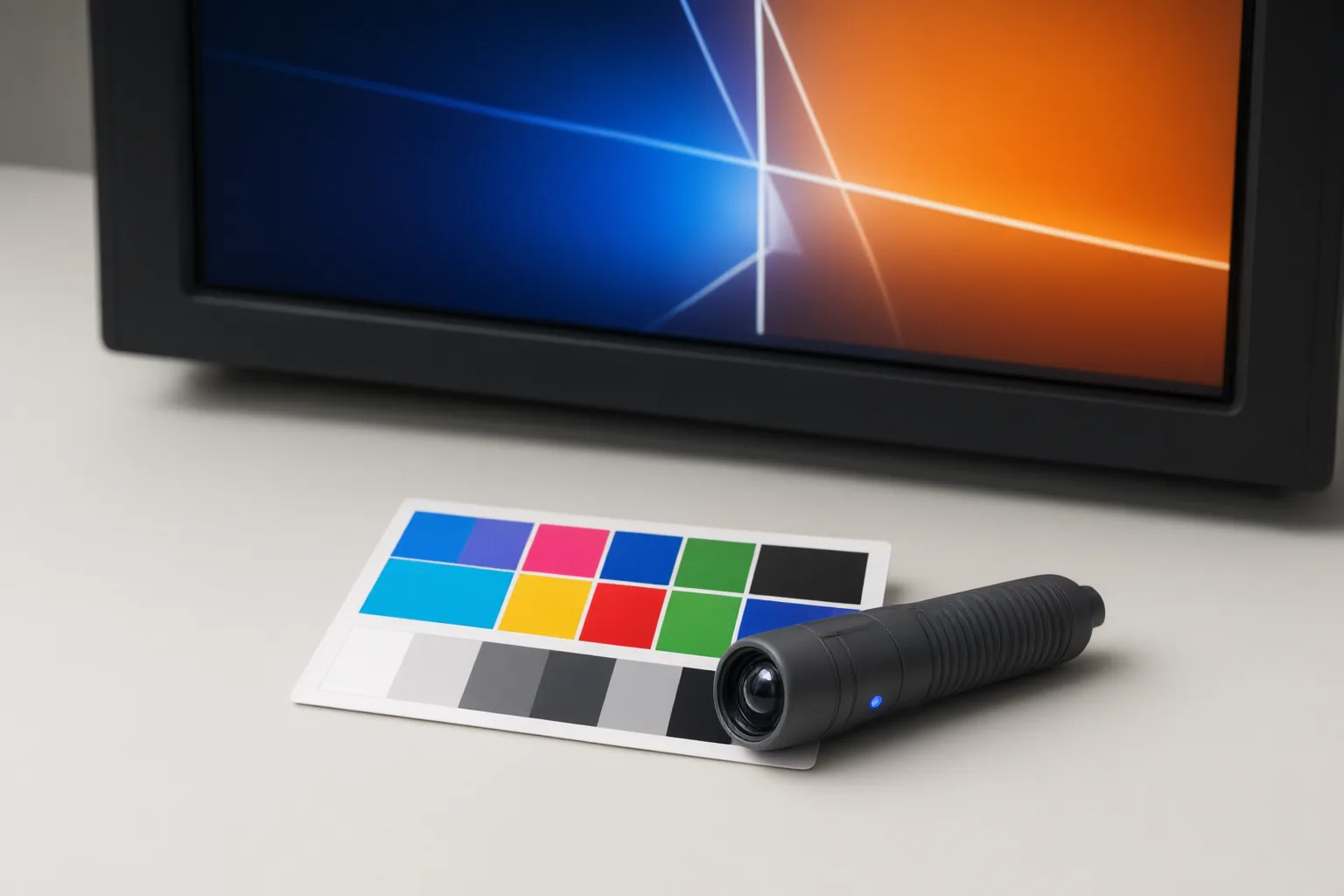
Constant quality prioritizes a chosen quality target while allowing bitrate and final size to change. Average-bitrate encoding instead targets a data rate, making it more suitable when delivery requirements emphasize file size or bitrate rather than direct control of quality.
Two videos with equal duration and the same constant-quality setting can consequently have substantially different sizes. A clip with complicated movement or detail may require more data to reach the target than a visually simple clip. Increasing the selected quality will also generally increase file size, while reducing quality will generally decrease it.
When an upload service, client, or storage workflow imposes a particular bitrate or size limit, a two-pass, size-targeted approach may be more appropriate. It analyzes how to distribute a constrained data budget rather than allowing size to follow the selected quality target.

How to Read RF Settings and Check an AI Video Export
RF controls must be interpreted in the context of the selected encoder. HandBrake documents that lower RF values mean higher quality for x264, x265, and SVT-AV1, while some other encoders, including Apple VideoToolbox, reverse that direction. The scales are not interchangeable: the same RF number should not be expected to produce matching quality across x264, x265, and SVT-AV1.
Start with a short, representative segment and make small quality adjustments. Compare the resulting size and inspect the actual frames and motion rather than relying on resolution or the RF number alone. Check whether captions remain readable, faces and backgrounds stay consistent, motion holds together, and product edges retain their intended shape. If the video will be uploaded to a platform that compresses it again, the delivered version also deserves inspection.
Keep generation defects separate from encoding losses. Export settings cannot automatically correct unstable hands, shifting facial features, changing product edges, inconsistent backgrounds, or details absent from the source. Raising quality may preserve the source more faithfully, but it cannot create reliable detail that was never generated.
Conclusion
Constant quality is useful when visual quality is the priority and variable bitrate and file size are acceptable. A bitrate- or size-targeted workflow is preferable when the output must satisfy a firm delivery cap. In either case, encoding can preserve or discard source information, but it cannot repair unstable motion or missing detail in an AI-generated clip.
Before encoding the full video, export a representative segment. Inspect its text, motion, faces, backgrounds, and product edges, then adjust the encoder-specific quality control in small steps—or switch to a size-targeted method when the delivery limit is fixed.
Disclosures and limitations
- This article was prepared with AI assistance using only the supplied research package and its attributed sources; no product testing or benchmarking was performed.
- One supplied HandBrake comparison source identifies itself as a draft that may contain incomplete or incorrect information. Encoder behavior and interface guidance should be checked against current documentation before publication.
Sources
- HandBrake Documentation — Constant Quality vs Average Bit Rate — handbrake.fr
- AI Video Resolution: What HD Really Means — CapCut
- Video Encoding Settings for Maximum Quality at Minimum File Size — Peasy Math
- Best HandBrake Quality Settings (Fix Blurry Video After Compression) — aiarty.com
- HandBrake Documentation — Adjusting quality — handbrake.fr
Improve this guide
Report a problem or suggest the next question
Submissions enter a private editorial queue. They are reviewed and deduplicated before any public update or new page is created.