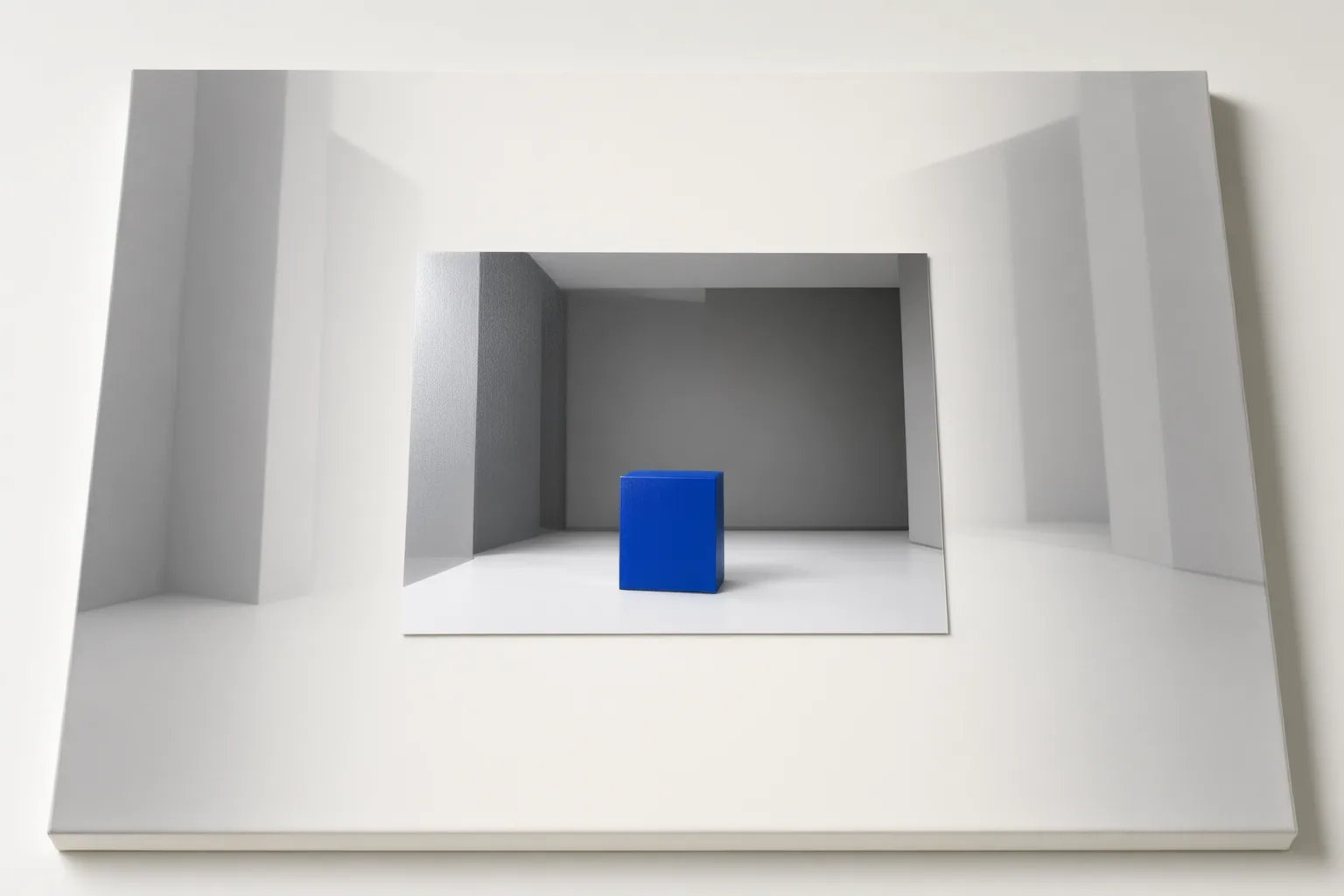
AI video outpainting creates imagery beyond a clip’s original boundaries so the shot can fill a different aspect ratio. Before approving an expansion, editors should examine workflow fit, original-frame preservation, boundary quality, motion continuity, edge artifacts, and whether synthetic scenery might be mistaken for recorded reality.
What AI Video Outpainting Changes
Video outpainting enlarges a shot’s spatial canvas; it does not extend the clip’s duration. Instead of cropping away captured material or filling unused space with letterbox or pillarbox bars, the process generates new imagery around the source frame.
This can help an editor adapt existing footage to a different aspect ratio while retaining the original composition. The tradeoff is that the added area is synthesized rather than recovered from the recording. It must therefore be reviewed as generated content, even when it appears to continue the setting naturally.
Check the Workflow and Source Shot Before Processing
Start by defining the required aspect ratio. VEED and LTX both document the target ratio as a core workflow input, while LTX also describes optional prompting and a mask-conditioned approach.
Then consider how the option fits production. The reviewed providers describe different operating models: VEED places expansion inside an editor, Outpaint offers a done-for-you service, and LTX documents API and self-hosted workflows. These descriptions indicate workflow differences, not independently verified quality rankings.
Inspect the source clip before committing processing time. Laike says static or slowly moving backgrounds are better candidates. Its guidance identifies fast action near the frame boundary, partial faces or text, foliage, and waves as situations with greater artifact or flicker risk. Detailed or rapidly changing edge regions deserve particular caution because the system must invent missing content while maintaining continuity across frames.
Review the Expanded Shot Frame by Frame
Preview the processed clip before export, as VEED’s documented workflow directs, and examine both normal playback and individual frames. Focus on the original boundaries, where recorded pixels meet generated regions.
Use this review checklist:
- Confirm that the captured frame remains intact and that important subjects have not shifted or changed. LTX says its process preserves the original frame while generating the surrounding canvas.
- Look for seams, sudden texture changes, mismatched lighting, or geometry that breaks at the boundary. LTX describes coarse generation followed by boundary refinement, but that provider description is not a substitute for reviewing the actual output.
- Watch for flicker, drifting objects, or backgrounds that change shape between frames. Video outpainting must keep new areas coherent as subjects, scenery, and the camera move.
- Slow down difficult motion segments. Check fast edge action and repeated details such as foliage or waves for unstable reconstruction.
- Examine incomplete elements touching the source boundary, especially partial faces and text. Confirm that generated continuations remain visually consistent throughout the shot.
- Recheck cuts, camera movement, and moments when a subject enters or leaves the expanded area. A convincing still frame can still fail when viewed as a sequence.
The supplied material consists of provider-authored guidance rather than controlled comparative tests, so these checks should be applied to each output rather than inferred from general capability claims.
Conclusion
Approve an outpainted shot only when its operating model suits the production, the original frame is preserved, boundary transitions are clean, and generated regions remain coherent through motion. Treat the surroundings as plausible additions, not evidence of what existed outside the camera’s view.
Test a short, representative clip in the required aspect ratio. Before export, inspect every original boundary frame by frame and replay segments containing camera movement, fast edge action, text, faces, foliage, or waves.
Disclosures and limitations
- This article was prepared with AI assistance from the supplied provider-authored sources. Their capability and quality statements have not been independently verified through controlled comparative testing.
- Tool mentions illustrate documented workflow differences and are not rankings, endorsements, or affiliate recommendations.
Sources
- AI Outpainting for Video – Expand Frames with AI – VEED — VEED
- Video Outpainting — Expand Any Video with AI · Outpaint — Outpaint
- AI Video Outpainting | LTX — ltx.io
- Video Outpainter | AI Video Outpainting API on WaveSpeedAI — WaveSpeedAI
- AI Outpainting For Video — mootion.com
- AI Video Outpainter – Expand Video Frames | Laike.AI — Laike AI
- Video Outpainting & Reframing — Any Video, Any Screen | Outpaint — Outpaint
- AI Background Expand for Video – Video Outpainting – VEED — VEED
Improve this guide
Report a problem or suggest the next question
Submissions enter a private editorial queue. They are reviewed and deduplicated before any public update or new page is created.