
Frame rate determines how many moments a camera captures each second, while shutter speed determines how long each frame is exposed. Choose frame rate around playback needs, then use shutter speed to shape motion blur and balance exposure.
Shutter Speed and Frame Rate Control Different Parts of Motion
Frame rate is the number of individual frames captured or displayed each second. It controls temporal sampling and, together with the playback rate, determines whether footage can be slowed down. Shutter speed instead controls the exposure duration of every captured frame, affecting both the recorded light and the amount of motion blur within that frame.
The settings therefore solve different problems. Raising the frame rate captures more moments per second, but it does not by itself determine whether individual frames look crisp or blurred. That depends on shutter speed. Likewise, changing shutter speed cannot create the timing options provided by recording more frames. Plan capture and playback rates first, then select an exposure duration that produces the intended motion rendering.
A Practical Starting Point for Natural-Looking Motion
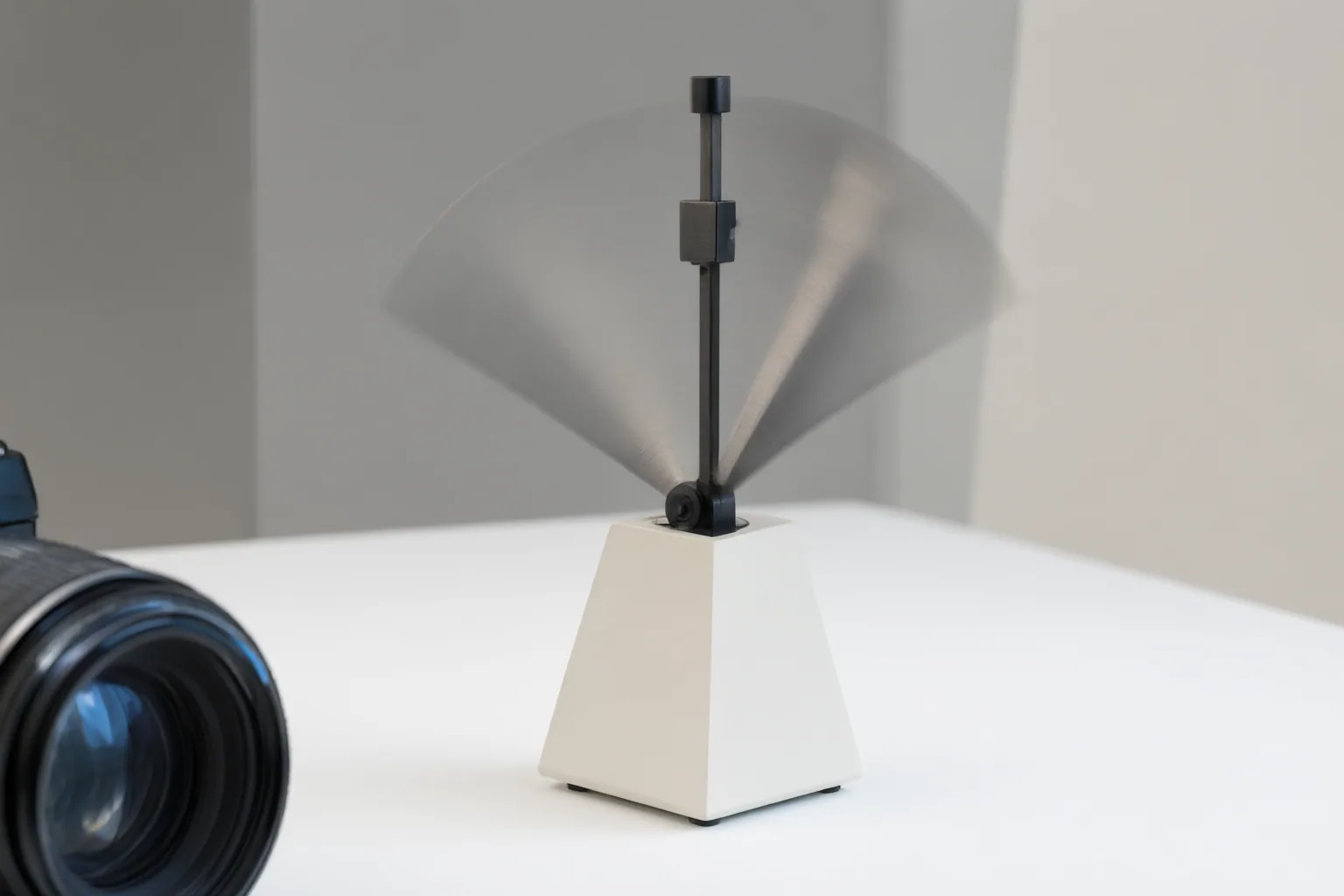
A common starting guideline is to choose a shutter speed whose denominator is approximately twice the frame rate. At 24 or 25 fps, that means roughly 1/50 second; at 60 fps, it means about 1/120 second. This relationship is often used to produce conventional-looking motion blur.
Treat it as a baseline rather than a mandatory rule. A faster shutter reduces blur and can make moving subjects appear sharper, but the motion may also look more choppy. A slower shutter records more blur and may create a dreamier appearance. The appropriate departure from the guideline depends on whether the priority is familiar-looking motion, clearer action, a deliberate visual effect, or accommodation of the available light.
Adjusting for Action, Slow Motion, Exposure, and Flicker
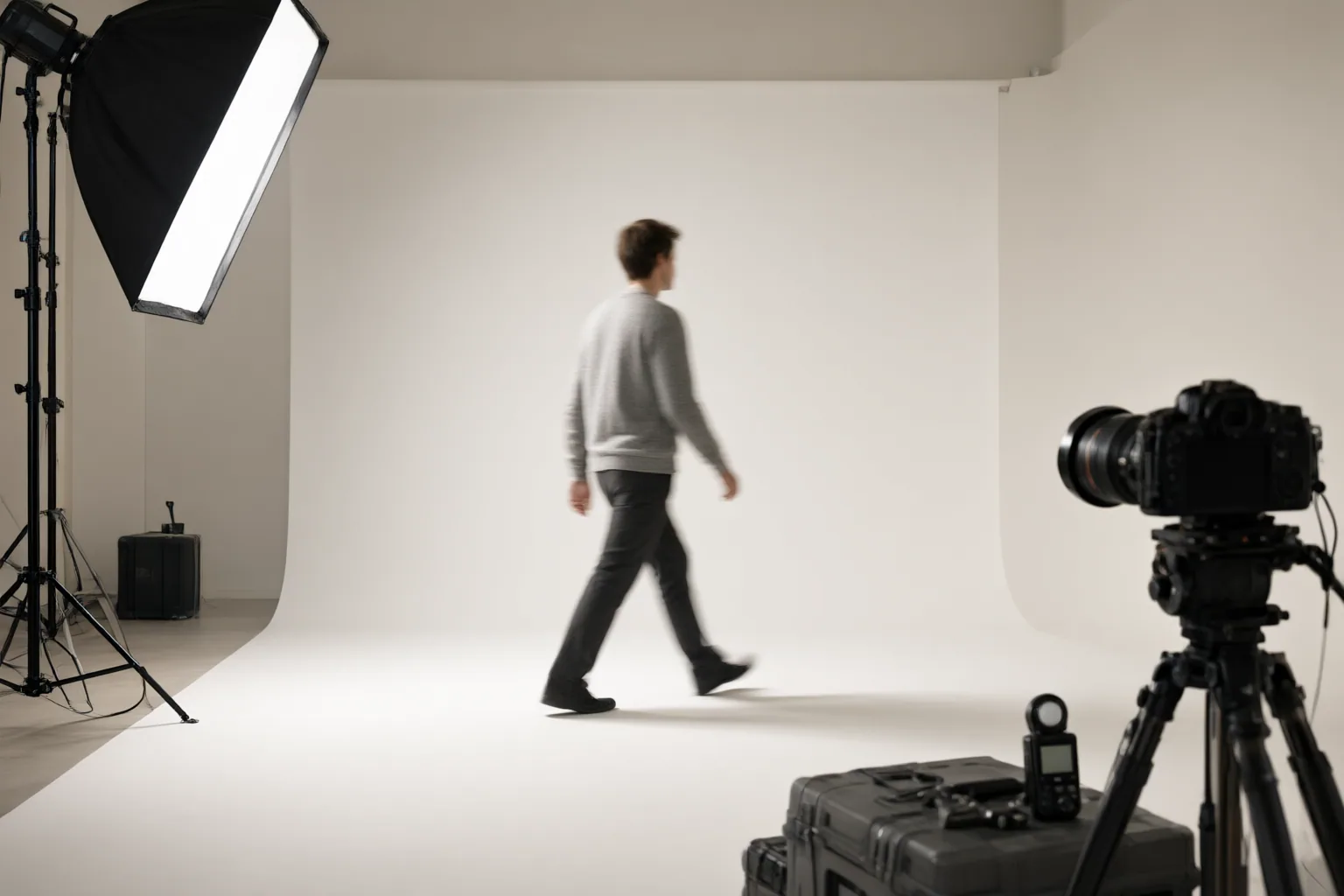
For fast action, a shorter exposure can reduce motion blur, but it also admits less light per frame. A longer exposure admits more light while increasing blur. Because shutter speed, aperture, and ISO jointly affect exposure, changing motion rendering may require compensating with the other available controls. In bright conditions, a neutral-density filter can reduce incoming light while preserving a chosen shutter speed. Some cameras do not permit independent adjustment of frame rate and shutter speed, so their controls may limit the intended result.
For slow motion, capture rate and playback rate must be considered together. Recording at 120 fps and playing the footage on a 24 fps timeline produces a five-times time expansion. The shutter speed used during capture still determines the blur within those recorded frames, so a high capture rate alone does not define the final look.
Artificial lighting and screens introduce another constraint. Recorded footage can flicker when shutter timing conflicts with the light source’s frequency. Under 50 Hz or 60 Hz lighting, adjust shutter speed to coordinate with the local frequency, then record a short test because the motion, exposure, and flicker requirements may compete.
Conclusion
Choose capture and playback frame rates according to the intended timing, including any slow-motion requirement. Next, select shutter speed for the desired motion blur, using a denominator near twice the frame rate as a practical starting point. Balance exposure with aperture, ISO, or a neutral-density filter where those controls are available, and account for artificial-light frequency. Before the main shoot, record and review a short sample under the actual lighting to check motion, exposure, and flicker.
Disclosures and limitations
- This article was prepared with AI assistance and is based only on the supplied research sources. Settings presented here are practical starting points, not results of firsthand product testing.
- No products are recommended, and no affiliate relationship informed this article.
Sources
- Scouty – ,Complete Shutter Speed for Video Guide — Scouty
- Frame Rate, Shutter Speed, and Display Refresh Rate Guide — Telycam
- GoPro HERO 13 / MISSION 1 | The co-ordination between shutter speed and frame rate explained | Facebook — Facebook Groups
- Frame Rate vs Shutter Speed (For Video & Photography) — Shotkit
- How to Choose the Best Frame Rate for Your Videos — Shotkit
Improve this guide
Report a problem or suggest the next question
Submissions enter a private editorial queue. They are reviewed and deduplicated before any public update or new page is created.