
Start with automatic tracking, then add a small number of correction keyframes at important motion states and wherever the attached graphic visibly loses alignment or readability. There is no evidence-backed keyframe count or fixed spacing that works for every shot.
What keyframes do in an AI-assisted tracking workflow
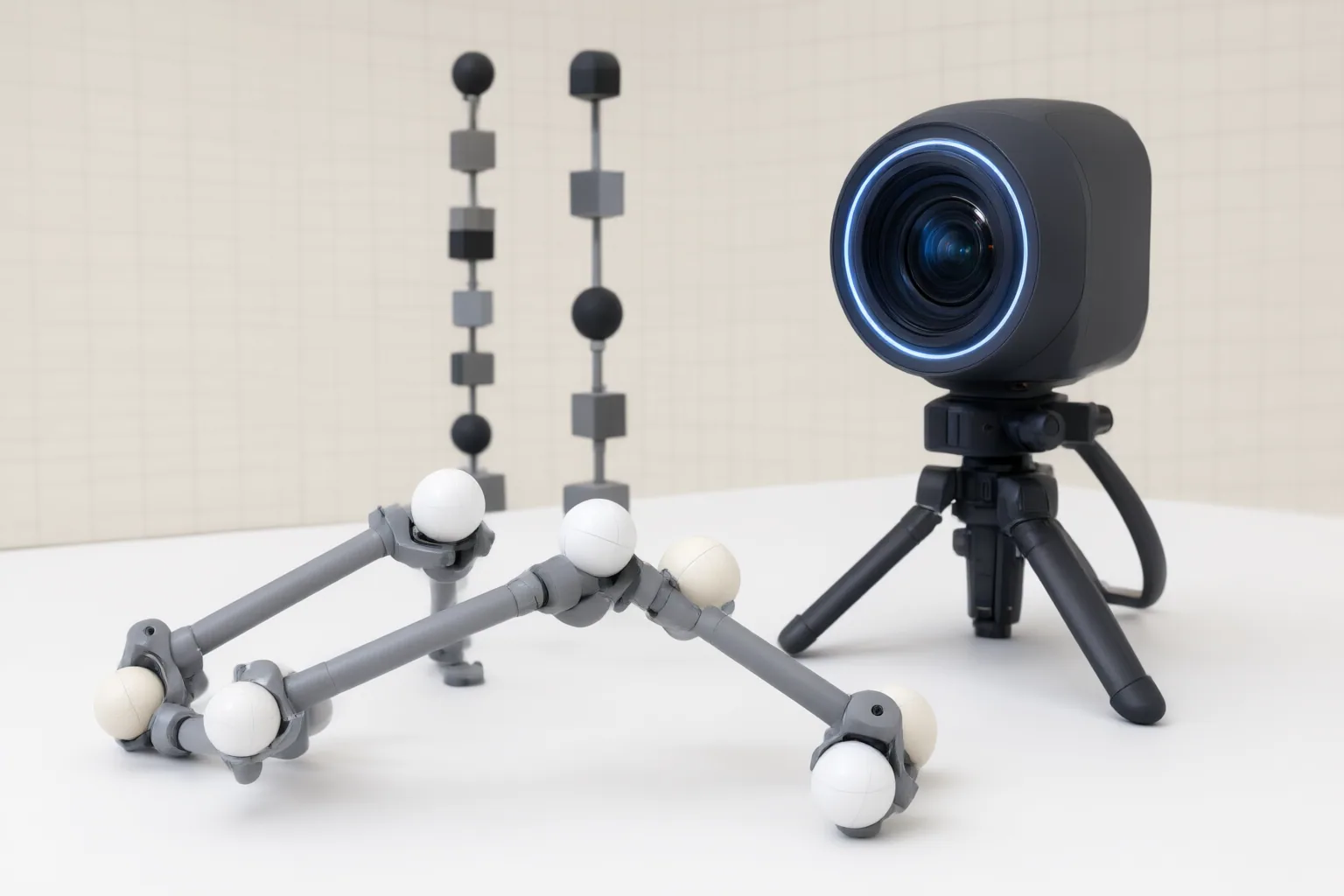
Motion tracking detects and follows movement in footage so a caption, callout, or other graphic can remain associated with a subject. Described tracking methods include template matching, edge detection, optical flow, feature extraction, and predictive filtering.
In an AI-assisted workflow, first select the subject or movement and let the software generate an initial track. Keyframes then define important motion states, while interpolation generates the intermediate frames. This makes sparse correction practical: instead of adjusting every frame, add keyframes where the tracked result needs a clearer position or motion state. Interpolation may produce smoother or more abrupt transitions, so review the frames between corrections rather than judging keyframes in isolation.
Where to place correction keyframes
Place correction keyframes in response to visible tracking errors, not at an arbitrary interval. Review the clip around meaningful changes in the subject’s movement and pay particular attention to conditions known to challenge automatic tracking.
Useful review points include:
- Before and after a temporary occlusion, where another object hides the tracked subject.
- Where the subject leaves the frame and, if applicable, where it returns.
- Around lighting changes, low-contrast moments, background clutter, or complex scenes.
- Wherever the graphic begins to drift, jump, or stop following the intended subject.
Add a correction at the start of an unstable span and inspect what happens through the end of that span. Additional keyframes are warranted only if interpolation does not keep the graphic aligned between those points. When recording can still be improved, more stable camera work and clearer lighting and contrast may help automated tracking operate more reliably.
How to refine and verify tracked graphics
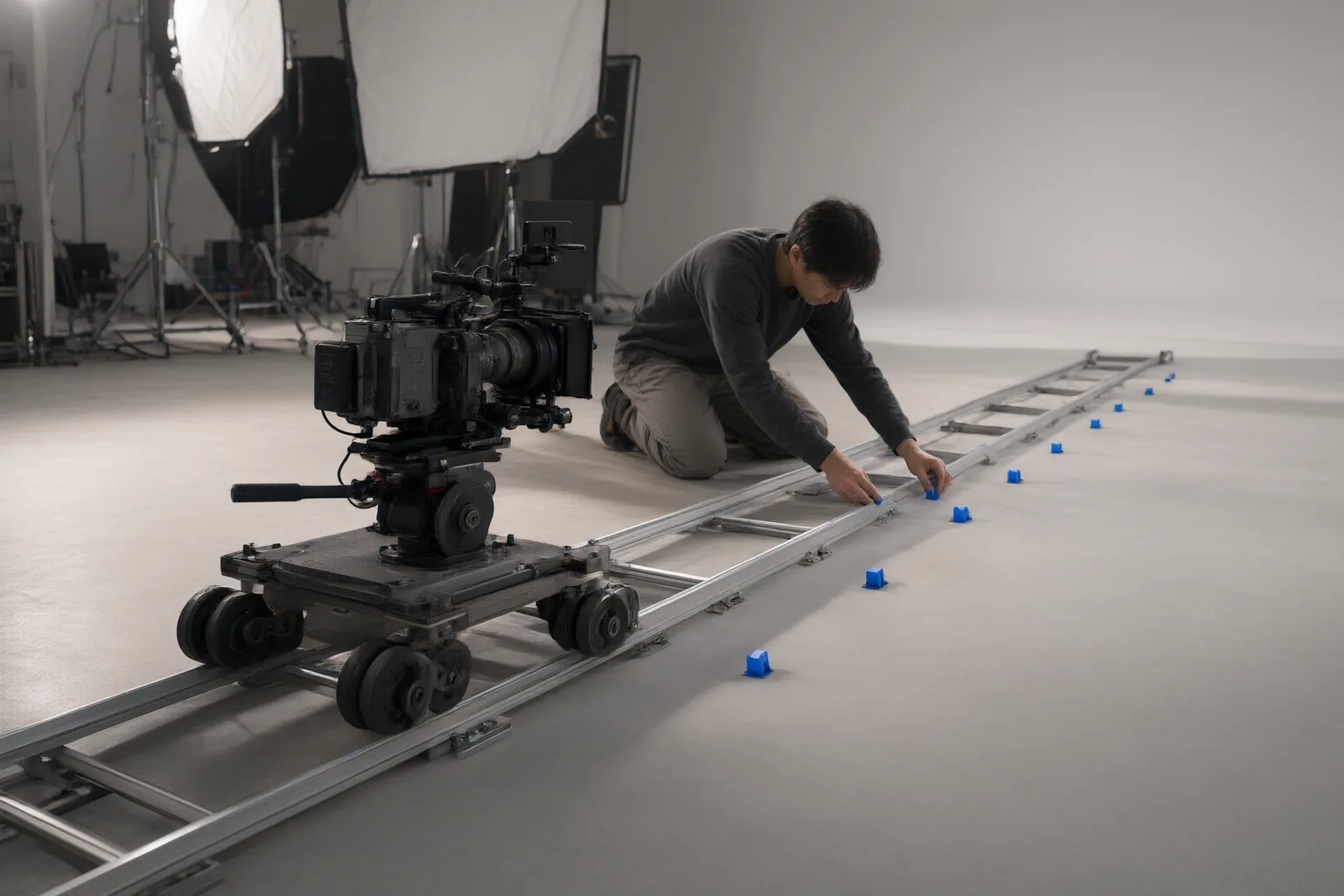
Use a bounded review process:
- Select the subject or movement that the graphic should follow.
- Run automatic tracking across a short test segment.
- Inspect the result and identify only the spans where tracking becomes unstable.
- Add correction keyframes at meaningful motion states or visible failure points.
- Replay the corrected span and verify the interpolated frames between keyframes.
- Check that captions and callouts remain aligned, readable, and visually consistent without distracting from the subject.
A successful correction should fix the unstable span without creating a new jump between keyframes. If the subject is hidden or leaves the frame, inspect both sides of the interruption rather than assuming the track will reconnect correctly. Software that preserves tracks through occlusion and permits manual correction is better suited to difficult shots.
The available sources describe general tracking, correction, and interpolation principles, but they do not establish a universally optimal number or spacing of keyframes. Treat the rendered result—not a preset interval—as the deciding evidence.
Conclusion
Let automation establish the initial track, then reserve correction keyframes for important motion states and places where alignment or readability visibly fails. Apply automatic tracking to a short test segment, review every visible motion or scene change, and correct only the unstable spans. Verify the graphic before processing the full clip.
Disclosures and limitations
- This article was prepared with AI assistance from the supplied research package. Its factual claims are based on the listed source IDs, which largely represent vendor- or company-authored material and have not been independently validated.
- No products are recommended, and no affiliate relationship is asserted. Tool capabilities, pricing, rankings, and universal keyframe settings should be independently verified before use.
Sources
- Smart Video Keyframing: AI for Smooth Animations — reelmind.ai
- Top‑7 AI Motion Capture Tools 2025 — Scrile
- AI Motion Tracking — vidio.ai
- Top 10 AI Video Making and Motion Tracking Tools in 2026 — Artificial Intelligence News & Cryptocurrency News: Latest Trends | Analytics Insight
- AI motion tracking technology: an overview – Abto Software — Abto Software
- Movalytix – AI Motion Analysis for Sports & Performance — Movalytix –
- 10 Best AI Motion Tracking Tools for Callouts & Captions – OpusClip Blog — opus.pro
- AI-Powered Video Keyframing: Precise Animation Control — reelmind.ai
Improve this guide
Report a problem or suggest the next question
Submissions enter a private editorial queue. They are reviewed and deduplicated before any public update or new page is created.