TOPIC GUIDE
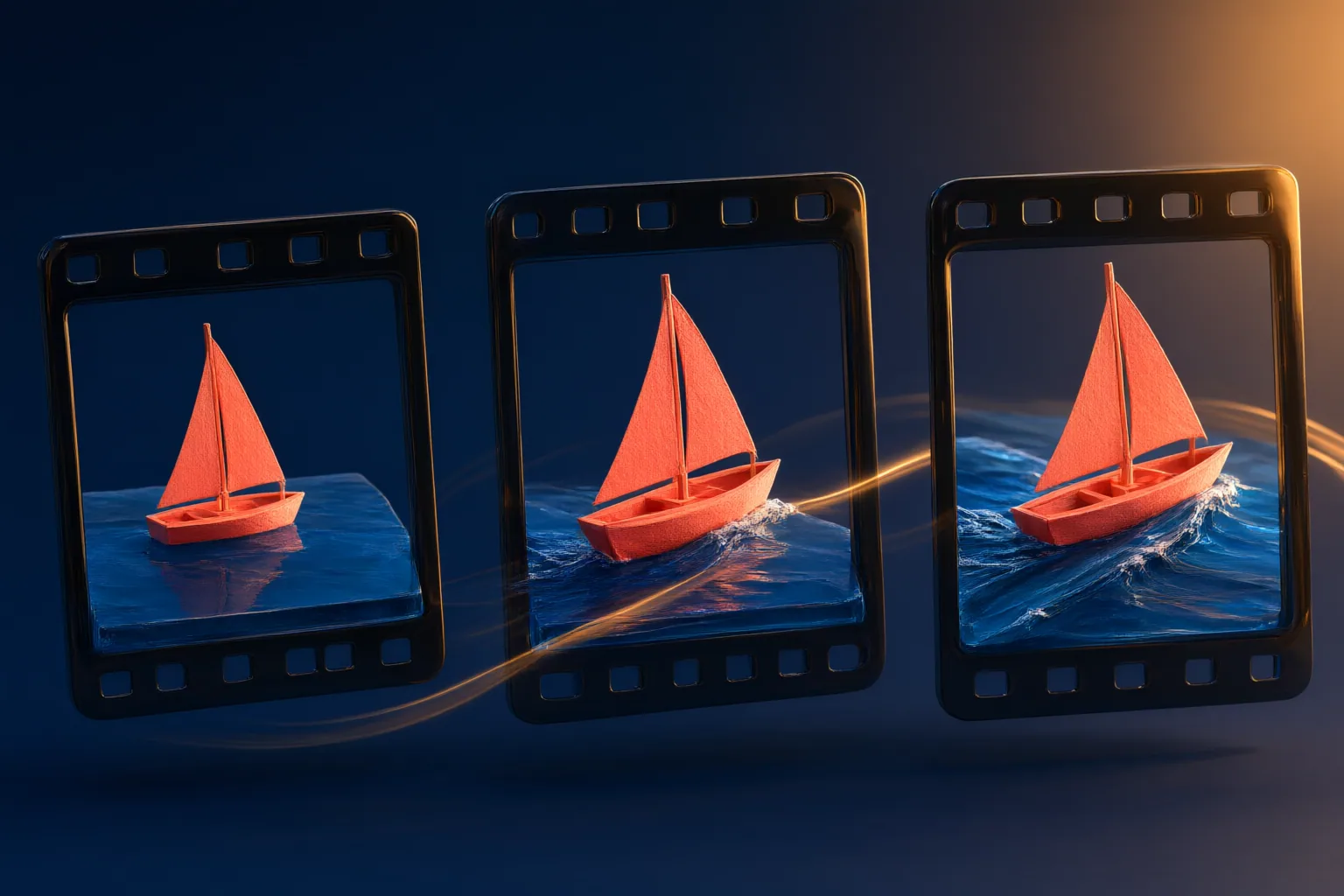
Artificial intelligence image to video is a generative workflow that uses a still image as the opening visual reference and synthesizes subsequent frames. The resulting movement is a model-generated interpretation, not evidence of what happened before or after the photographed moment. Magic Hour and Pixelcut both document browser-based workflows that accept an image and generate video from it. [S1] [S2]
Choose the right starting image and task
Begin by deciding what the clip must communicate: subtle atmosphere, subject movement, camera movement, a product view, or a storyboard concept. Image-to-video is appropriate when the opening composition matters. Magic Hour identifies animation, concept videos, marketing material, short social clips, and illustrative footage among its supported uses. [S1]
Use an image you are authorized to upload and modify. Favor a clear subject, readable edges, and enough surrounding space for the intended movement. This is workflow guidance rather than a provider guarantee: a tight crop may leave little room for a pan, zoom, or moving subject, while small faces, labels, and intricate objects warrant particularly careful review. [S1] [S2]
Match provider controls to the intended shot
Check that the selected model accepts image input; model availability and controls may differ within one platform. Pixelcut instructs users to choose an image-compatible model, add the image as a starting frame, and generate using the prompt, reference, ratio, and requested variation count. It also says aspect-ratio choices are model-dependent. [S2]
Magic Hour documents image-to-video alongside text-to-video, editing, lip sync, talking-photo, upscaling, and other workflows. Its generation process may expose controls such as a motion instruction, aspect ratio, and source media. The provider says processing time depends on the chosen model, clip length, resolution, inputs, and current demand. [S1]
Write a restrained and testable motion prompt
Describe visible change rather than restating every detail already present in the image. A useful prompt can separate subject action, environmental movement, and camera behavior: for example, ask for a stationary product while light shifts gently and the camera moves forward. Keep important identity, proportions, wording, or branding in a separate preservation note when the interface permits it. [S1] [S2]
Treat the prompt as guidance, not a deterministic command. For a first trial, request one principal action and one simple camera behavior. If the result fails, revise one variable at a time so the effect of each change remains understandable. Pixelcut and Magic Hour both describe prompts and starting images as generation inputs, but neither supplied page promises exact preservation of every source detail. [S1] [S2]
Review limits, rights, and delivery requirements
Inspect the whole clip at normal speed and then examine difficult moments more closely. Compare it with the source for changes in faces, product shape, text, hands, edges, reflections, lighting, background structure, and framing. Also look for flicker, implausible motion, sudden object appearances, or camera movement that conflicts with the brief. These checks are recommended review practices, not reported test results. [S1] [S2]
Confirm current export, watermark, commercial-use, privacy, and retention terms at the provider link before committing a sensitive or client asset. Magic Hour states that commercial permission depends on a subscription or credit-pack purchase and describes one-day retention plus deletion controls. Pixelcut claims commercial use, but its page also presents plan-specific licensing, so verify the terms that apply to your account. [S1] [S2]
Tools to explore
These descriptions summarize the providers’ documentation. They are not a hands-on comparison or a performance ranking. Open the provider to check current availability, limits, and terms.
Magic Hour
A browser platform that documents image-to-video, text-to-video, video editing, motion prompts, multiple aspect ratios, MP4 export, and access to several generation models. Confirm current model, resolution, duration, watermark, and usage conditions on its site.
Pixelcut
A web and mobile service that says users can upload a starting frame, choose an image-compatible video model, add a description, select available aspect ratios, generate variations, and download the result. Model-specific controls and licensing should be checked before use.
A practical workflow
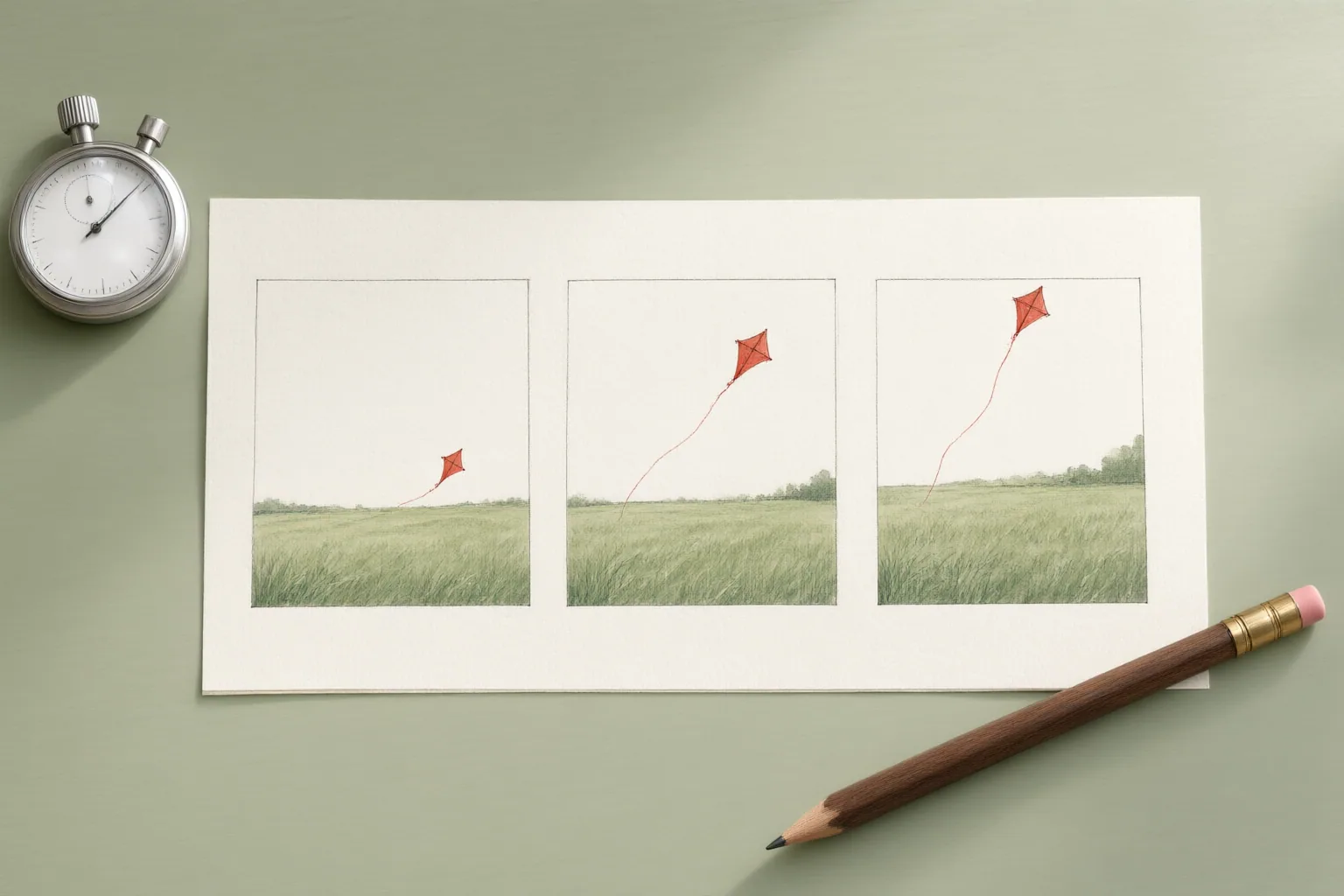
- Write a one-sentence shot brief naming the audience, purpose, destination format, required subject details, allowed movement, and changes that would make the clip unacceptable.
- Prepare an authorized copy of the source image. Choose framing with room for the planned action, and retain the untouched original so generated changes can be compared against it.
- Open an image-compatible workflow, upload the starting frame, and select an aspect ratio suited to the destination. Confirm current limits and terms on the provider page.
- Enter a concise motion prompt that separates subject action, environmental motion, and camera behavior. Start with restrained movement rather than combining many transformations.
- Generate a short candidate, review it against the source and brief, then change only one prompt or setting for the next attempt. Save the prompt and settings with approved versions.
- Before publication, verify visual continuity, factual claims, rights, disclosure duties, audio, framing, file compatibility, and any visible watermark at the actual delivery size.
Common questions
How is image-to-video different from text-to-video?
Image-to-video begins from an uploaded visual reference, while text-to-video begins primarily from a written description. Magic Hour lists them as separate starting modes. Pixelcut says an uploaded image becomes the start frame when a compatible model is selected, giving the generator an initial composition to continue. [S1] [S2]
Can an image-to-video tool preserve every detail in the source?
The supplied provider pages do not guarantee exact preservation. They describe generation from an image, prompt, model, and settings, but generated frames may introduce changes. Review identity, geometry, text, branding, edges, lighting, and background continuity against the original before approving a clip. [S1] [S2]
Do all models accept an uploaded starting image?
No such universal capability is documented. Pixelcut specifically tells users to select a model that supports image uploads, implying that support varies. Magic Hour offers several generation models and modes, so consult the current model interface or provider page for availability rather than assuming identical controls. [S1] [S2]
Can generated clips be used commercially?
Usage rights depend on the applicable provider terms and account arrangement. Magic Hour says outputs from paid subscriptions or purchased credit packs may be used commercially, while unpaid use is described as personal only. Pixelcut claims commercial use and shows licensing on certain plans. Recheck current terms for the exact plan and project. [S1] [S2]
Sources and review notes
Provider documentation checked 2026-09-24. Capabilities described here are provider claims; outputs should be checked for your own task.
Improve this guide
Report a problem or suggest the next question
Submissions enter a private editorial queue. They are reviewed and deduplicated before any public update or new page is created.