
Start with an image whose embedded ICC profile is known, record that profile, make a limited and repeatable AI edit, export with documented settings, and inspect the resulting file. This checks whether the intended profile remains embedded, but it does not prove that every application will render or process the image identically.
Why ICC Profile Preservation Matters
An ICC profile contains data that characterizes a color space or an input or output device. When the profile is embedded in an image, downstream software and service providers can use it to identify the intended color space. Without that information, color interpretation can become unpredictable; for example, WHCC says it cannot determine a file’s color space when no profile is embedded.
Profile preservation is therefore an important checkpoint in an AI image-editing workflow. However, finding the expected profile in an exported file does not guarantee identical results everywhere. The ICC format is precisely defined, but applications and systems can use different processing algorithms and implementation details.
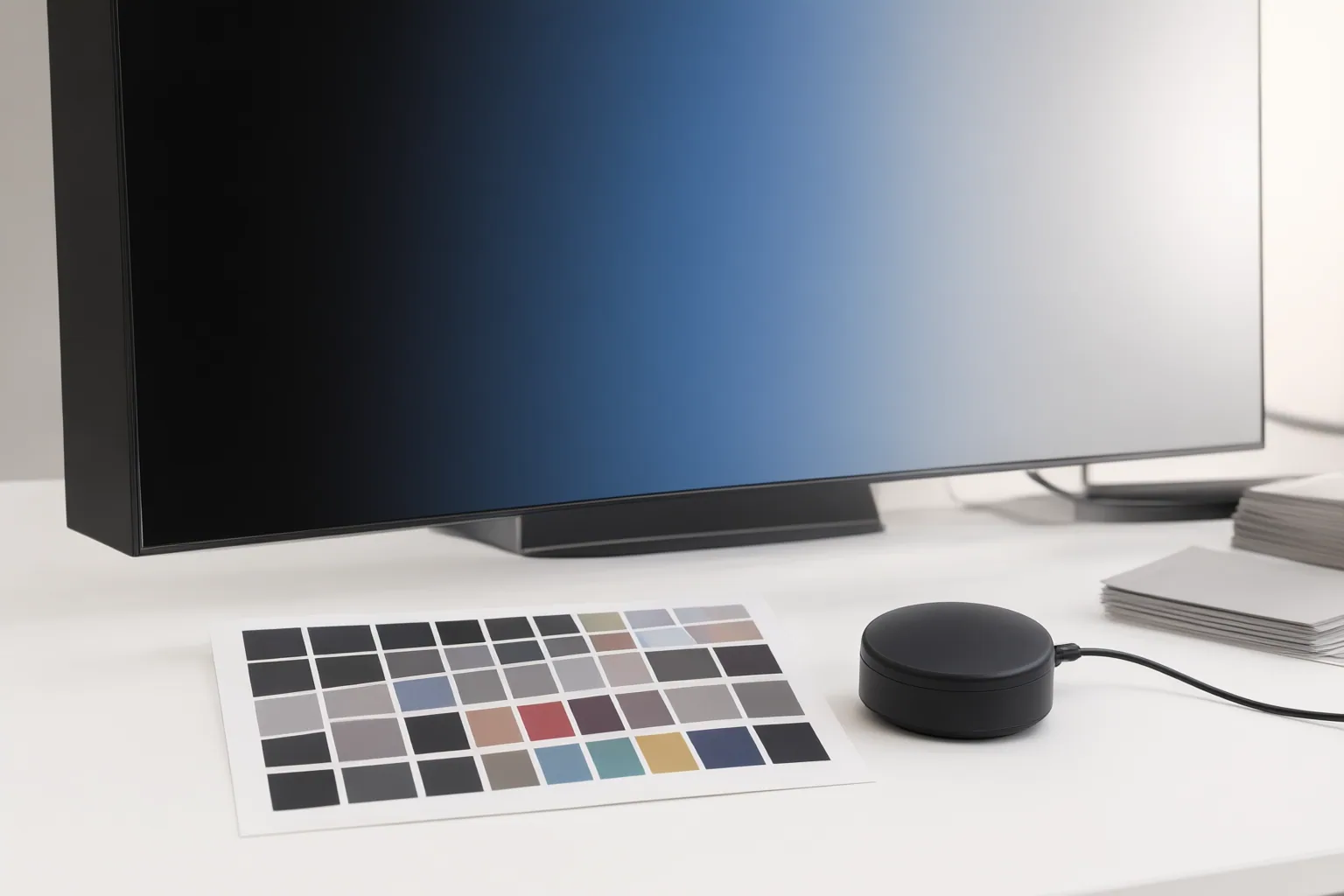
Set Up a Controlled Import-and-Export Check
Choose a source image with a known embedded profile. Before importing it, inspect the file and record the profile exactly as reported. The ICC notes that professional cameras may produce JPEG or TIFF images with embedded profiles; when raw files are converted later, conversion software normally suggests a profile to embed in the resulting image.
Import the controlled file into the AI editor and apply a small, repeatable edit. Use the same edit whenever you compare editors or presets so that the workflow changes as little as possible. Export the result, recording the available format and export settings. Then inspect the exported file and compare its profile tag with the profile recorded from the input.
Classify the observation plainly: the intended profile remains embedded, a different profile is reported, or no embedded profile is found. Repeat the process for every export configuration that matters to your workflow. The supplied evidence does not identify a particular inspection tool, prescribe exact file formats or settings, or establish a universal pass/fail threshold, so those details require separate verification. This procedure is a testing approach, not evidence that any named AI editor preserves profiles.
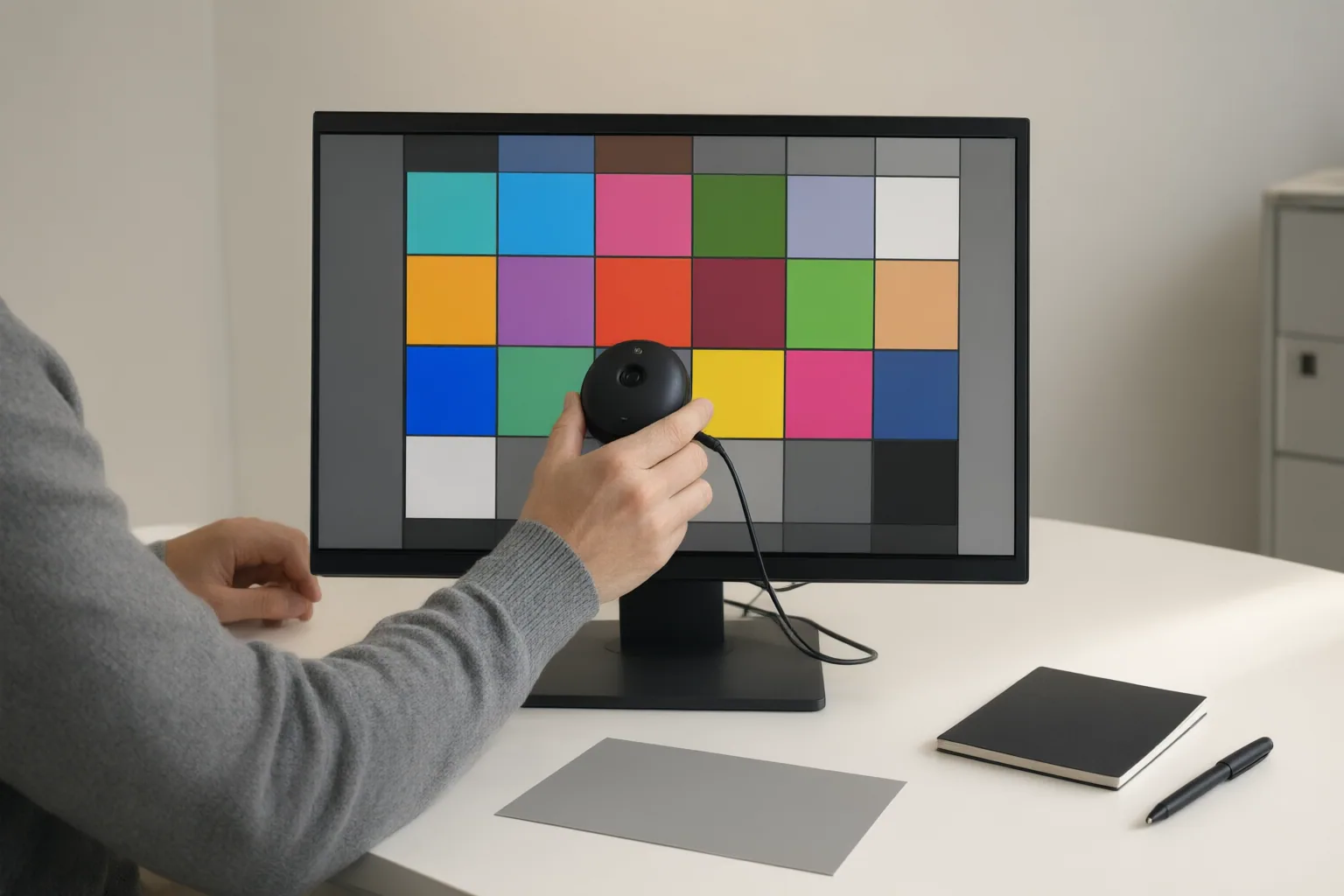
Interpret the Result Without Overclaiming
A missing profile means downstream systems may be unable to identify the intended color space reliably. An unexpected profile indicates that the workflow may have changed the tagging or color-space information and deserves further investigation. If the intended profile remains present, you have evidence of retained tagging—not proof that all software will process the pixels identically.
Do not rely on appearance alone. Device gamut limits how closely color can be maintained across capture, display, editing, proofing, and reproduction. Display calibration and variation between devices can also complicate visual comparisons. A visible shift therefore does not, by itself, establish that the AI editor removed the profile.
Keep embedded working-space profiles separate from printer profiles used for soft proofing. WHCC specifically warns against saving or embedding its proofing profiles in image files. Confirm which kind of profile you are examining before drawing a conclusion.
Conclusion
A controlled before-and-after inspection provides stronger evidence of ICC profile preservation than a visual comparison alone. Record the input profile, repeatable edit, export configuration, and output profile, while avoiding editor-specific claims until that editor has been directly verified. Profile suitability still depends on the workflow: the ICC advises users to confirm that a profile meets their requirements rather than treating any particular profile as universally recommended. Its current v4 specification is Version 4.4, while the older v2 specification remains supported.
Run and document this check for every AI editor, file format, and export preset you depend on before placing its output into production.
Disclosures and limitations
- This article was prepared with AI assistance using only the supplied research package and its identified sources; it does not report hands-on testing of any named AI image editor.
- No products are recommended and no affiliate relationship is presented. Any future commercial recommendation should disclose relevant relationships and be supported by direct verification.
Sources
- Profile Library — registry.color.org
- ICC profile – Wikipedia — en.wikipedia.org
- about icc colour profiles, icc profiles explained | colourmanagement.net — colourmanagement.net
- How to Find and Install a Color Profile for a More Accurate Monitor on Windows and macOS — How-To Geek
- How To Install An ICC Profile On Windows Simple Guide — Display Ninja
- ICC Profiles | WHCC Help — WHCC
- Finding profiles — International Color Consortium — color.org
- International Color Consortium — color.org
Improve this guide
Report a problem or suggest the next question
Submissions enter a private editorial queue. They are reviewed and deduplicated before any public update or new page is created.