Compare localized editing tools by repeating the same task and evaluating six separate qualities: selection coverage, boundary placement, transition softness, gradual brush buildup, precision cleanup, and constraints on where strokes apply. These criteria help reveal how predictable each workflow is without implying an unverified product ranking.
Start With Selection Coverage and Boundary Placement
Begin with an image that has both a clear subject edge and a nearby object. Generate the initial mask, then inspect it at close range for missed strips, thin residual ridges, spill beyond the subject, and areas incorrectly included or excluded. Record the initial errors before making corrections so you can distinguish mask quality from the effectiveness of its refinement controls.
Next, test any whole-mask grow, shrink, Edge, or comparable boundary operation in small increments. The Lightroom source distinguishes Edge, which expands or contracts the selected area, from Feather, which changes the transition around that boundary. Blender likewise documents growing and shrinking an entire mask. Check whether these adjustments move the boundary predictably and whether reversing a change is straightforward.
Pay particular attention to neighboring objects. A broad boundary adjustment may remove a residual border, but it can also alter regions that should remain selected. The Lightroom guidance indicates that manual brush correction can be preferable when expanding an edge would affect an adjacent area. A useful tool should therefore support both efficient whole-mask changes and controlled local cleanup.
Test Transition Softness Separately From Mask Position
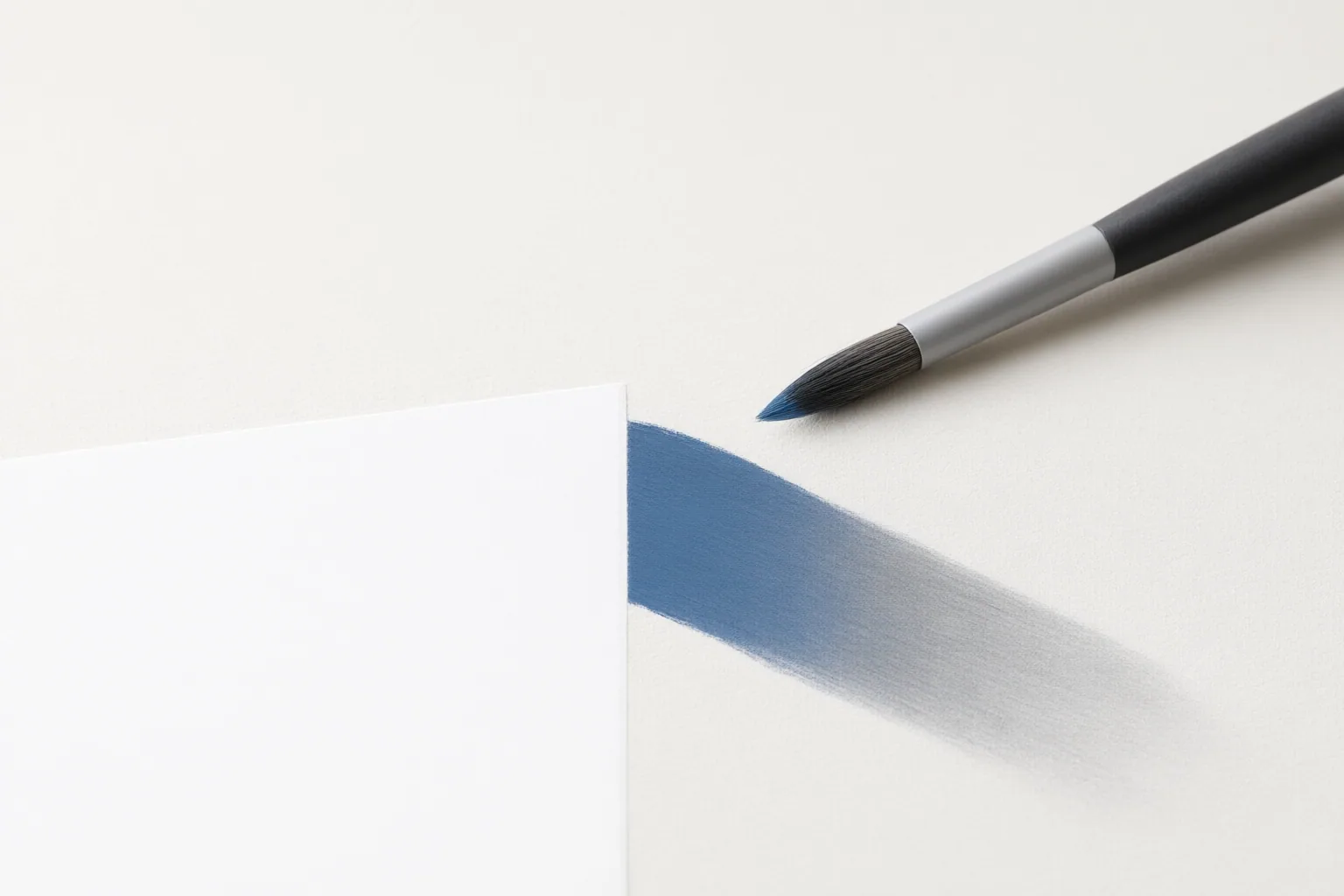
Do not treat a misplaced boundary and a harsh transition as the same problem. First correct where the mask ends; then evaluate how smoothly the adjustment blends across that edge. In the Lightroom source, Feather softens and widens the transition, whereas Edge moves the selected boundary. Blender also documents whole-mask smoothing and sharpening operations.
Run two edge tests: one on a sharply defined subject and another on a softly focused or naturally gradual boundary. Increase feathering or smoothing step by step, watching both the edited subject and its surroundings. Excessive feathering can spread an adjustment beyond the intended area, so the softest-looking boundary is not automatically the most accurate one.
Compare whether each tool offers enough range and control to preserve a crisp edge when needed while producing a natural blend on softer content. Also note whether a whole-mask filter delivers a consistent result; Blender’s documentation says filter-based smoothing can be faster and more consistent than smoothing with a mask brush.
Compare Brush Buildup, Precision, and Stroke Constraints
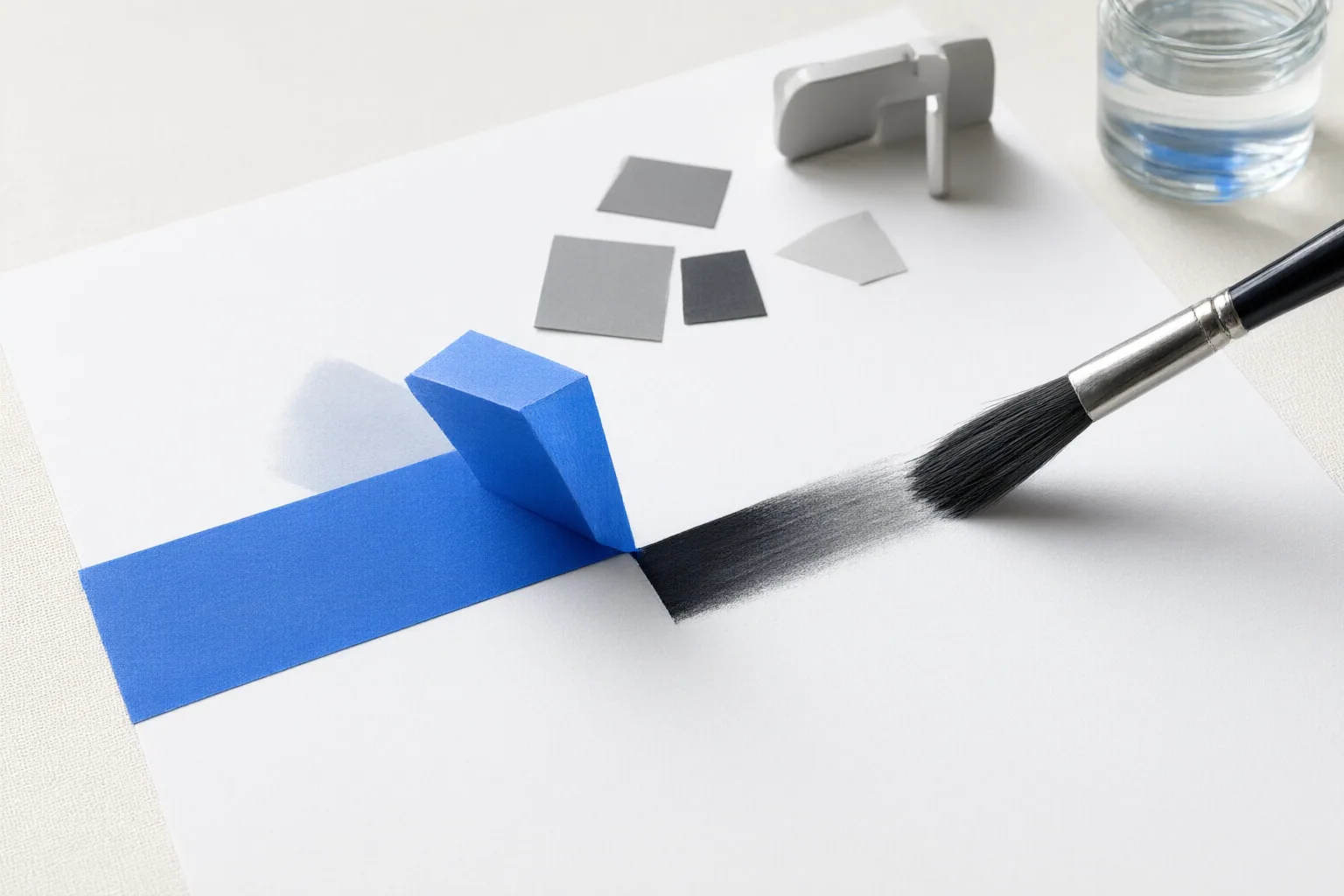
Use the same small cleanup area in every tool, ideally beside an object that must not be changed. Test brush size at both broad and fine scales, then examine whether the cursor and resulting stroke make precise placement easy. This reveals whether manual correction can solve errors that would be risky to address with a whole-mask expansion or contraction.
Evaluate opacity and flow independently. The Photoshop-oriented source describes opacity as a cap on the masking applied by a stroke, while flow determines how gradually the effect accumulates as repeated painting passes over an area. Try one pass and several overlapping passes at different settings. Record whether partial corrections build predictably and whether you can reproduce the same result.
Where available, test strength, rotation, spacing, and scatter rather than assuming all brushes behave alike. Unity’s Terrain Tools documentation identifies these as distinct controls. Its mask filters can also modify the base brush-mask texture and determine which regions painting affects. For constraint testing, compare unrestricted strokes with any relevant limiting modes. Blender documents combinable auto-masking based on factors such as connectivity, boundaries, cavity, and surface orientation. These examples establish useful test dimensions, but they do not prove that any unverified AI image editor includes equivalent features.
Conclusion
Score each workflow separately for initial coverage, boundary movement, transition softness, gradual buildup, fine manual correction, and stroke constraints. Keep the source image, intended edit, viewing scale, and evaluation criteria consistent. These are comparison criteria synthesized from documentation, not reported head-to-head results or evidence of feature availability in particular AI editors.
Run this checklist on the same image and edit task in every tool you are considering. Record where each control succeeds or fails, then choose the workflow that provides the most predictable local corrections for your material.
Disclosures and limitations
- This article was prepared with AI assistance from the supplied Lightroom, Photoshop-oriented, Unity Terrain Tools, and Blender documentation. The sources define evaluation criteria; they do not provide controlled comparisons, rankings, prices, or hands-on results for named AI image editors.
- No products are recommended here. If commercial or affiliate links are added later, that relationship should be disclosed and must not be treated as evidence of product quality or performance.
Sources
- Controls — Blender Manual — docs.blender.org
- Lightroom’s New Feather & Edge Mask Controls Explained — Scott Davenport Photography — Scott Davenport Photography
- Dynamic Masks with Brush Size, Opacity and Flow – shutterbugacademy.net — shutterbugacademy.net
- WorldEdit, Mask and Brush Reference | Astroworld Guides — Astroworld Guides
- The 10 Best Face Mask Brushes In 2026 | The Apex Beauty — The Apex Beauty
- Blender Sculpting Hotkeys: Complete Cheat Sheet for Sculpt Mode — vkgamedev.com
- Brushes | Terrain Tools | 5.1.0 — docs.unity.cn
- Understand painting a mask with the Mask Brush — StudyRaid
- Mask – Blender 5.2 LTS Manual — docs.blender.org
Improve this guide
Report a problem or suggest the next question
Submissions enter a private editorial queue. They are reviewed and deduplicated before any public update or new page is created.