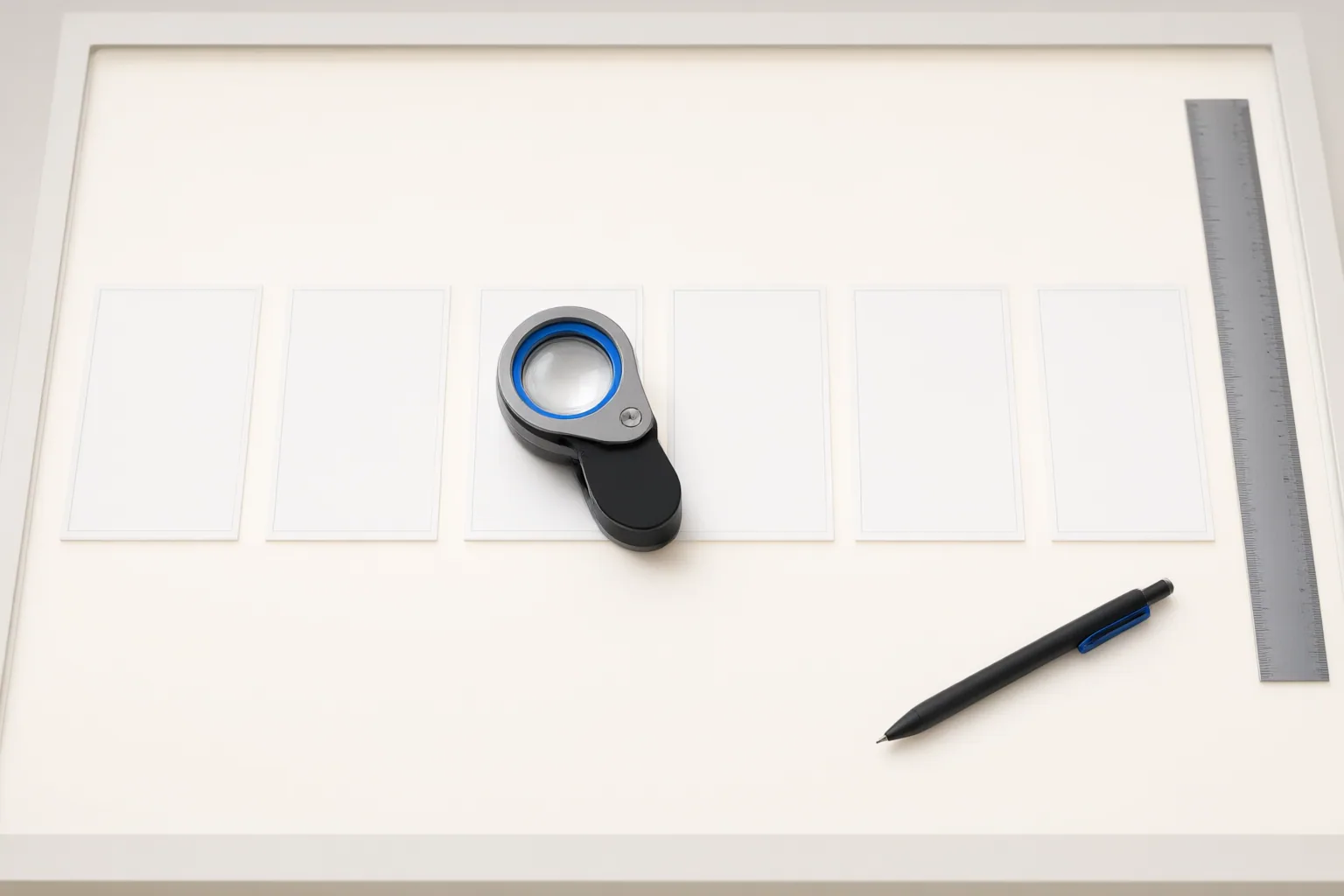
Prepare AI-generated frames like any ordinary numbered image sequence: place one run in a dedicated folder, use consistent filenames, check for gaps and mixed formats, then confirm sequence grouping and playback rate in your editor.
Use a Consistent Filename Pattern and Folder
Give every frame the same prefix, a sequential numeric field, and the same file extension. A clear pattern is frame_0001.png, frame_0002.png, and frame_0003.png. Consistent zero-padded numbers make the ordering easy to inspect, while the shared prefix and extension identify the files as one run.
Keep that run in its own folder. Remove reference images, logos, unrelated stills, and other numbered runs from the import location. This separation reduces ambiguity for both the editor and the software. The guidance is not specific to an AI generation system: it applies when AI-generated frames have been exported as ordinary numbered image files.
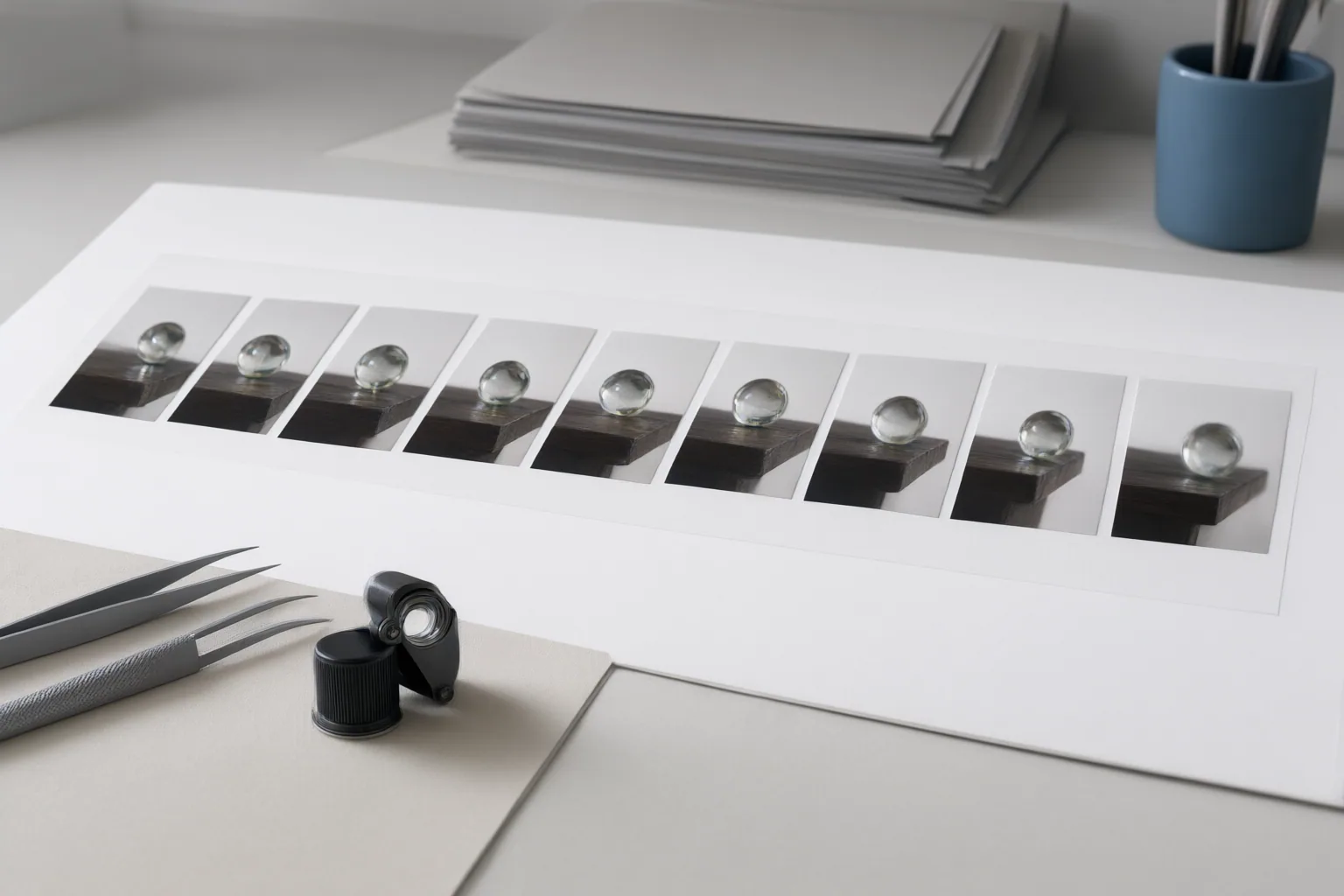
Verify the Sequence Before Import
Inspect the folder before opening the editor. Confirm that every intended frame has:
- One shared filename prefix.
- One consistent extension.
- A clear numeric sequence field at the end of the filename.
- Continuous numbering without unintended gaps.
A file with a changed prefix, a missing number, or another number placed after the intended sequence field can prevent the files from being grouped correctly or leave a hole in the run. Do not rely only on how the filenames look at a glance; compare the numbers across the complete set.
Technical consistency matters too. Check that one run does not mix extensions, color depths, or alpha-channel behavior. These differences can complicate sequence handling even when the filenames are orderly. If a number is missing, first determine whether a frame is absent or merely misnamed. Rename or regenerate files only when their intended position is known; the supplied material does not support inventing replacement frames.
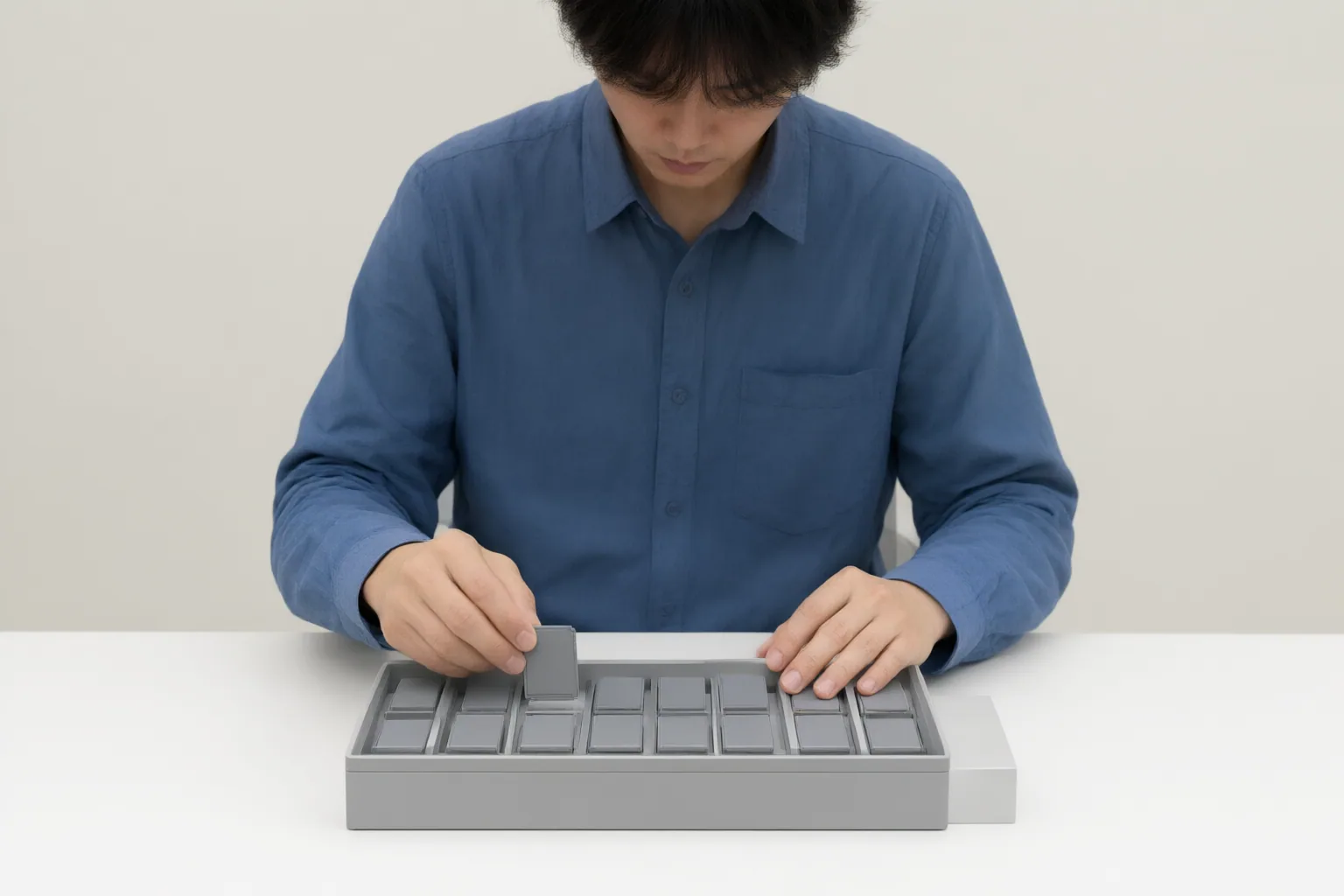
Import the Frames and Check Playback Rate
In DaVinci Resolve, numbered files that appear separately may require Frame Display Mode to be set to Sequence. One source notes that earlier versions called the equivalent control Show Individual Frames. Because labels and default grouping can vary by version, verify the current sequence-versus-individual-frame control in the installed application.
In Kdenlive, Add Image Sequence lets the editor select the first image from a prepared run. The application detects the numbering pattern, and the result appears as one clip in the Project Bin. Its image-sequence settings include frame duration and frame rate; the cited guide recommends a duration of one frame per image for standard video playback.
Treat recognition and timing as separate checks. Correct filenames help the application identify one sequence, but the assigned frame rate determines its duration and apparent motion. A recognized clip can still play too quickly or slowly if that rate does not match the intended editorial timebase. Changing the assigned playback rate affects the sequence clip rather than altering the source images stored on disk.
Conclusion
A reliable import begins before timeline work: isolate one frame run, confirm its prefix, numeric order, extension, and technical consistency, then import it using the editor’s sequence control. After grouping succeeds, check that the assigned frame rate produces the intended duration and motion. Test the prepared sequence in the installed editor version before building the edit around it.
Disclosures and limitations
- This article was prepared with AI assistance from the supplied tutorial-source research. The sources are not official DaVinci Resolve or Kdenlive documentation, so interface names and behavior should be verified in the installed software version before publication or use.
Sources
- How to Import an Image Sequence in DaVinci Resolve — DaVinci Resolve Club: Tutorials, Fixes & Workflow Guides
- DaVinci Resolve Import Image Sequence (+FIX Issues 2025) — Beginners Approach
- How to Extract and Import Image Sequences in Kdenlive – kdenlive — salivity.github.io
Improve this guide
Report a problem or suggest the next question
Submissions enter a private editorial queue. They are reviewed and deduplicated before any public update or new page is created.