AIAI Image Enhancer Tutorial: Resolution, HDR and Format
Setup only — no generation submitted. Follow a real desktop session up to the final review. This guide does not assess output quality, processing time, or downloads.
Open the tool, check the current file limits and quote, and prepare your settings.
Watch the setup walkthrough
Continuous Chrome window capture, English Jenny narration at −5%, and English captions. Reviewed waits are accelerated; zooms and pointer guides are editorial annotations. The Samples panel shows platform examples, not outputs from this lesson.
Before you start
PNG, JPG, JPEG, or BMP; maximum 1MB. The UI states width/height of 50 px–2128 × 4096 pixels; the public form configuration specifies minimum width/height 50 × 50 and maximum width/height 2128 × 4096. Recheck the current UI if your file is rejected.
Use material you own or are allowed to edit. Check Public Visibility before proceeding with your own project. It was on in this recording; the tutorial did not change it or verify any privacy promises.
1. Check the stricter upload requirements
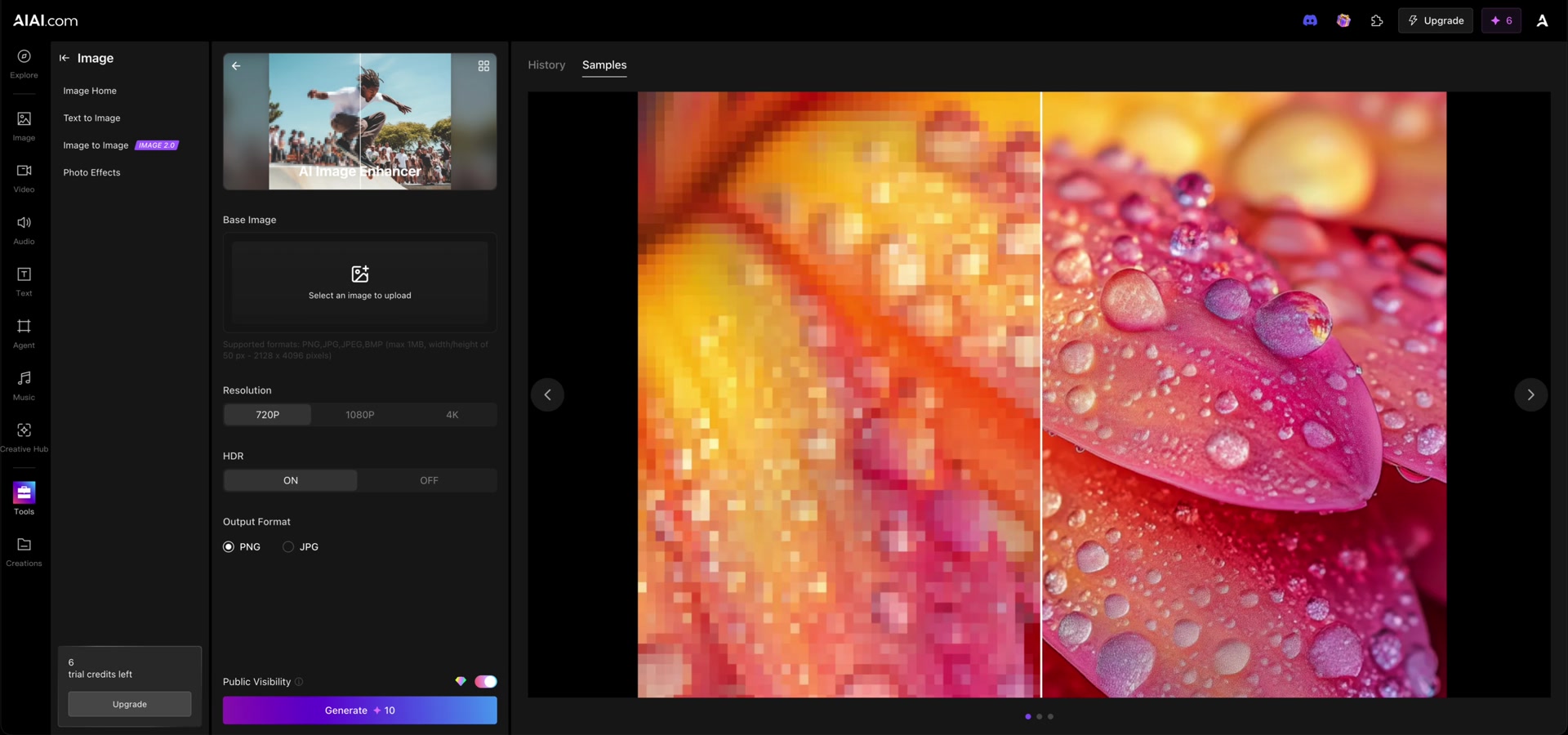
Image Enhancer has a 1MB file limit, unlike the 20MB limits in this batch’s other tools. Our 104,201-byte, 1024 × 1024 JPEG fits the displayed bounds. Choose a permitted image, confirm Open, and wait for its thumbnail.
2. Set resolution, HDR and format
The form initially displays 720P, HDR ON, and PNG. For this walkthrough, select 1080P, turn HDR to OFF, and choose JPG. The other visible resolution label is 4K; its availability in the menu does not establish the dimensions or quality of an actual generated file.
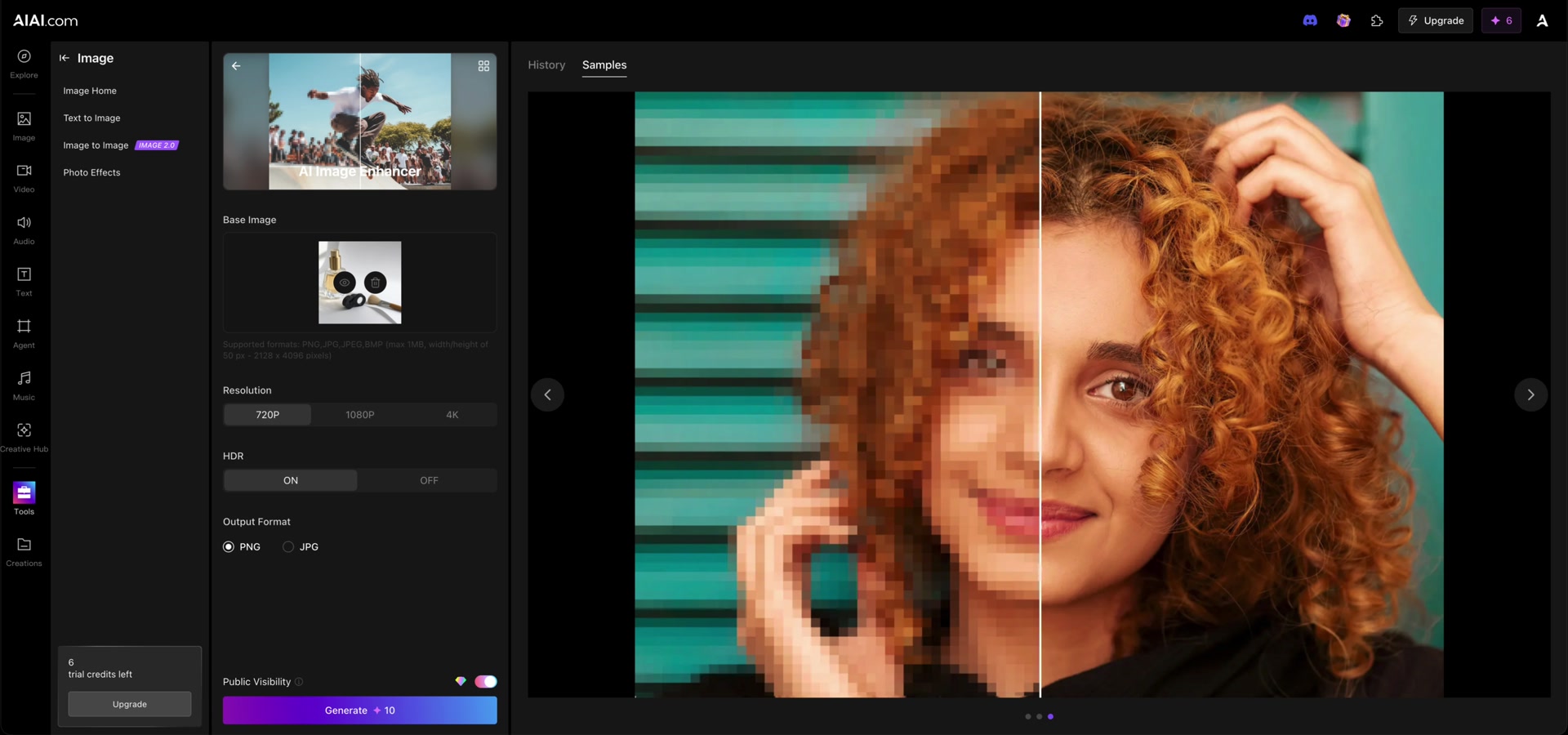
3. Review the final setup
Confirm 1080P, HDR OFF, and JPG remain selected. Public Visibility is on and unchanged. The observed Generate quote is 10 credits and the balance remains 6. Stop before Generate; neither enhancement quality nor an exported JPG was tested.
Open the tool, check the current file limits and quote, and prepare your settings.
Common questions
Why is the quote larger than the displayed balance? This session only prepares the form. The quote is 10 credits and the balance is 6; no purchase or generation is attempted. Check your own current account and quote before deciding whether to proceed.
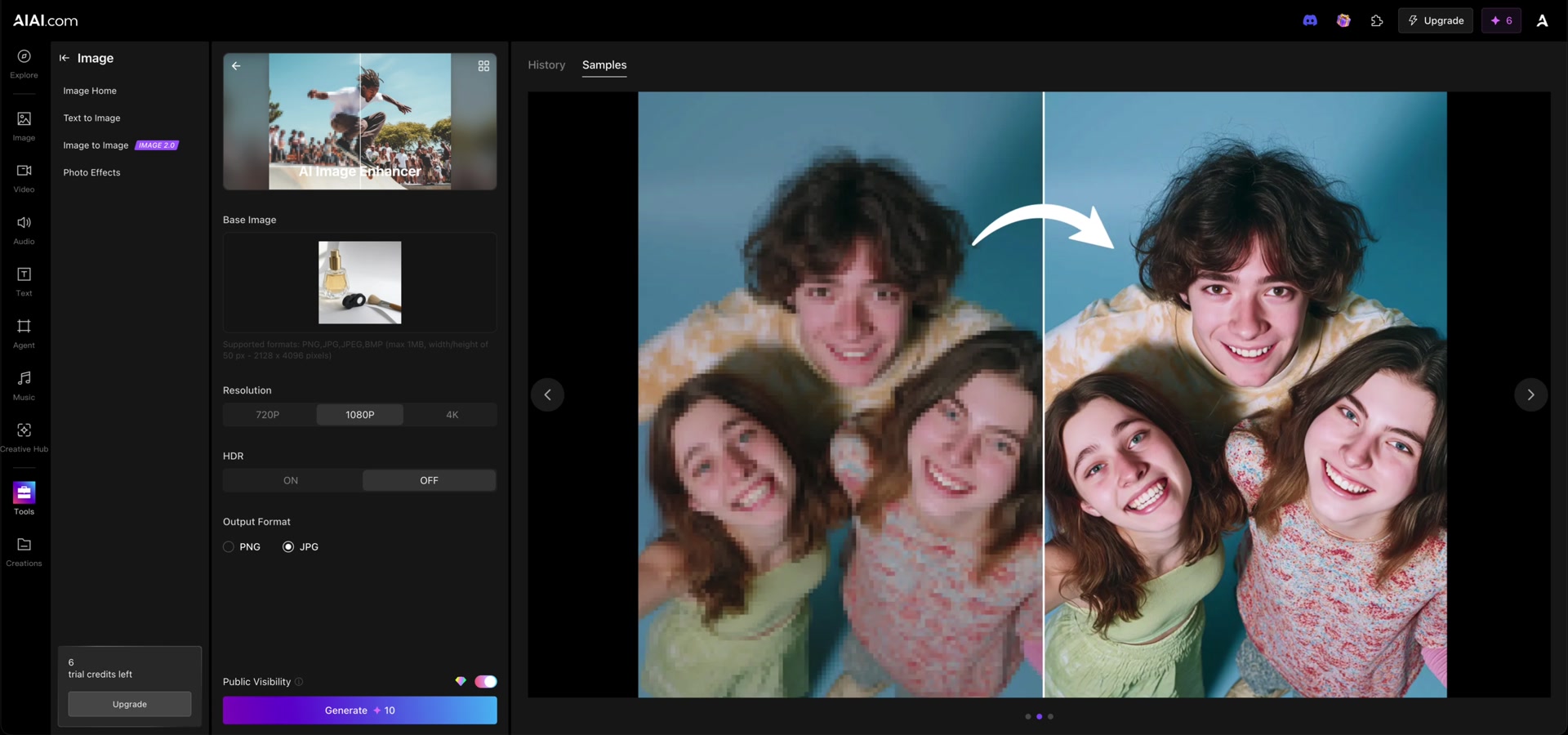
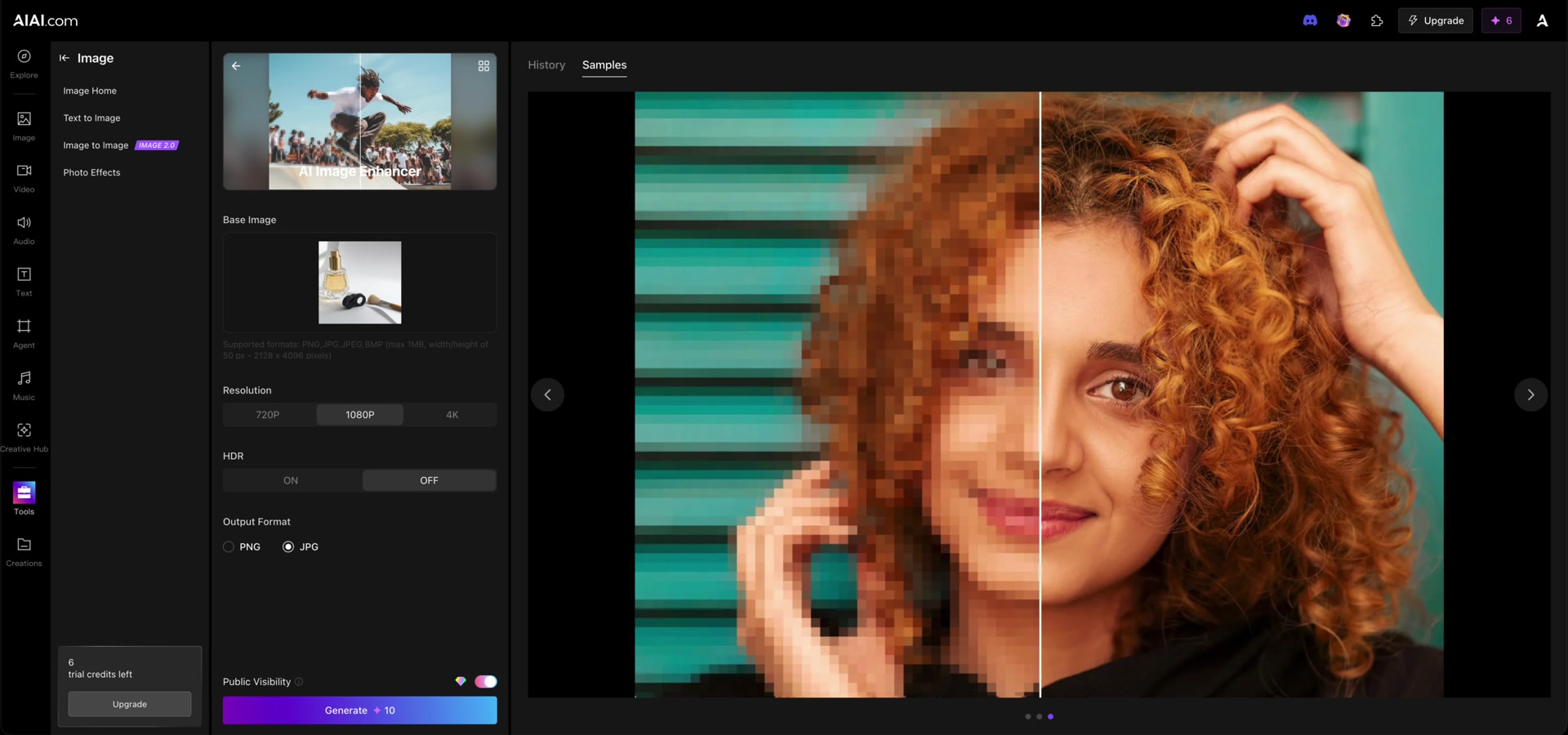
Is the large before-and-after view our result? No. It belongs to the platform Samples panel. Our uploaded product image appears only in the input area.
What was verified? File selection, the input preview, and the settings visible above. No generated image, batch processing, output dimensions, download, or watermark behavior was tested.
Session notes
Recorded September 21, 2026 in signed-in desktop Chrome. One owned JPEG uploaded; zero generations; zero credits consumed; displayed balance 6 → 6. No prompt helper, automatic translation, visibility change, payment, or result download. Quotes and interface limits can change.
AIAI links are promotional referral links and are labeled sponsored. This guide reports only the actions and states observed in this session.
Improve this guide
Report a problem or suggest the next question
Submissions enter a private editorial queue. They are reviewed and deduplicated before any public update or new page is created.