The tool in this tutorial · AIAI.com
Plan motion from a single image
Explore AIAI’s Image to Video workspace. Bring a starting image, describe the movement, and review the video settings before submitting.
This operation guide shows how to prepare AIAI’s Image to Video generator with an existing reference image, a manually written prompt and the settings visible in our session. Follow the real recording, then use the illustrated steps to prepare your own form.
- Beginner
- English video + illustrated steps
- Observed September 18, 2026
- 0 generation jobs
Disclosure: eWiki has a business relationship with AIAI. See our disclosure. Model names and controls below reproduce the interface labels; this lesson does not independently verify model specifications.
Watch the setup walkthrough
Real continuous window recording with waiting intervals accelerated 8×. English synthetic narration uses the original Jenny voice, with captions. Zooms and pointer guides are editorial annotations. No output or processing-time test was performed.
1. Open Image to Video and inspect the model
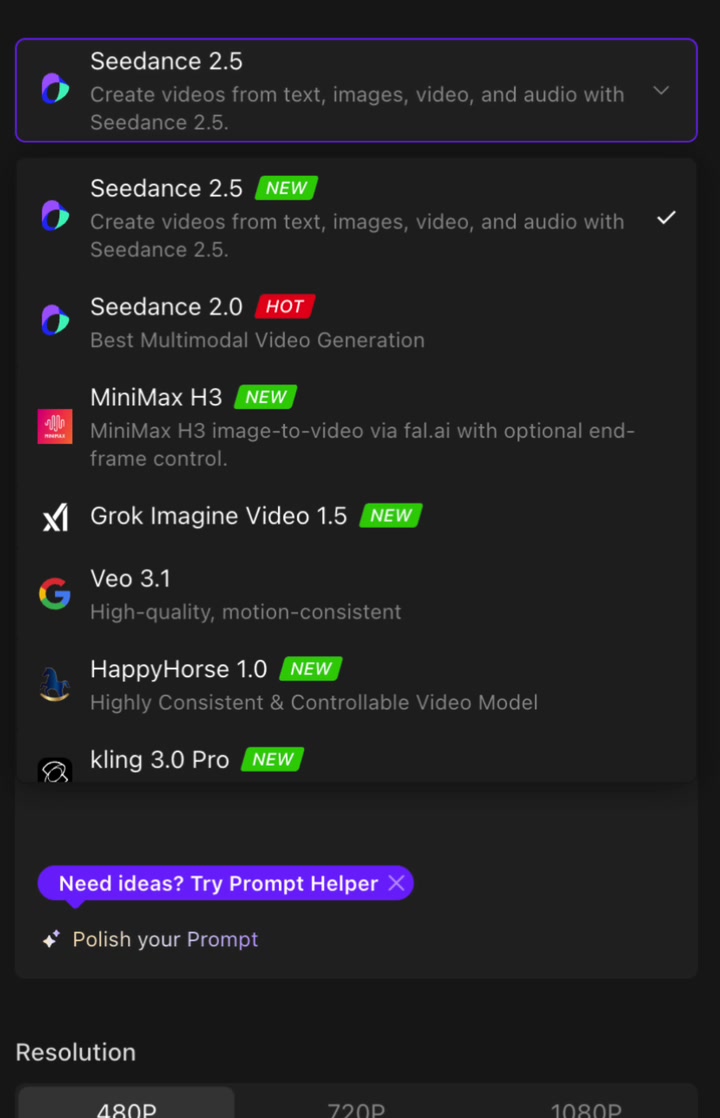
Sign in to AIAI and choose Video → Image to Video. Open the model selector to inspect the choices. We kept the preselected Seedance 2.5. Changing the model can change the available upload fields, controls and credit quote, so review the resulting form before following later steps.
2. Add your start frame
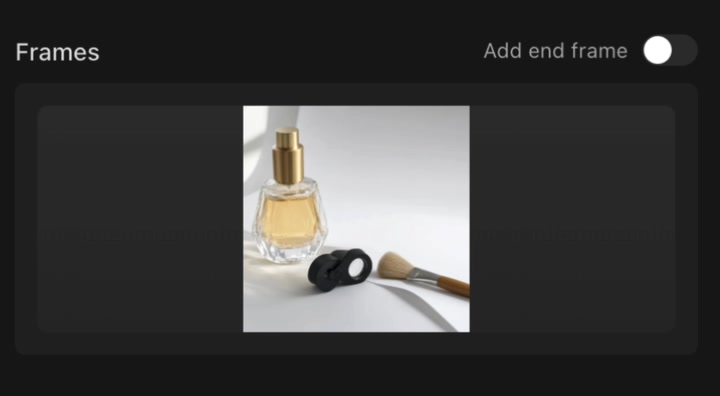
Click the Start Frame upload area and choose your file. We left Add end frame off for this single-image example; the second-frame workflow was not tested. The form listed PNG, WEBP, JPG and JPEG with a displayed limit of 30 MB. These are the labels observed during recording, not promises for every model or future version.
Use an image you own or have permission to upload. Our reference is a pre-existing synthetic product scene containing a perfume bottle, compact and brush: a 1024 × 1024 WebP file of about 31 KB. We did not generate a new reference image for this guide. Wait until its thumbnail appears before writing the prompt.
3. Describe the motion clearly
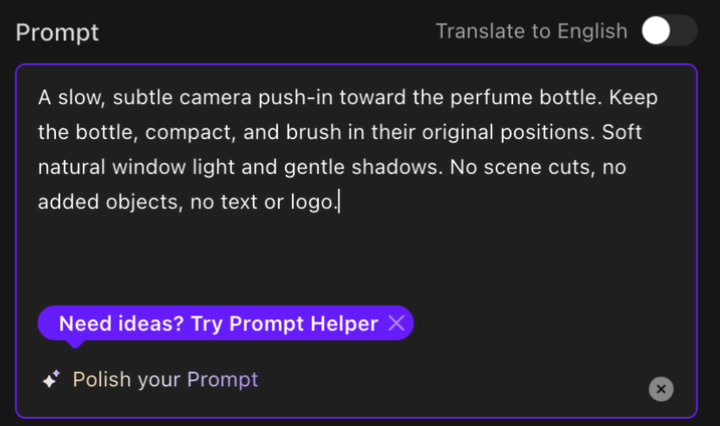
Describe camera movement and subject movement separately. We ask for a slow camera push-in while the three objects keep their original positions. The constraints request no cuts, extra objects, text or logo; they are instructions, not verified output behavior.
Enter this text in the main Prompt field:
A slow, subtle camera push-in toward the perfume bottle. Keep the bottle, compact, and brush in their original positions. Soft natural window light and gentle shadows. No scene cuts, no added objects, no text or logo.
We entered English manually, left Translate to English off and did not use Polish your Prompt, Enhance Prompt or the separate Prompt Assistant chat. Avoid Create Similar One while following this setup-only exercise.
4. Review video settings
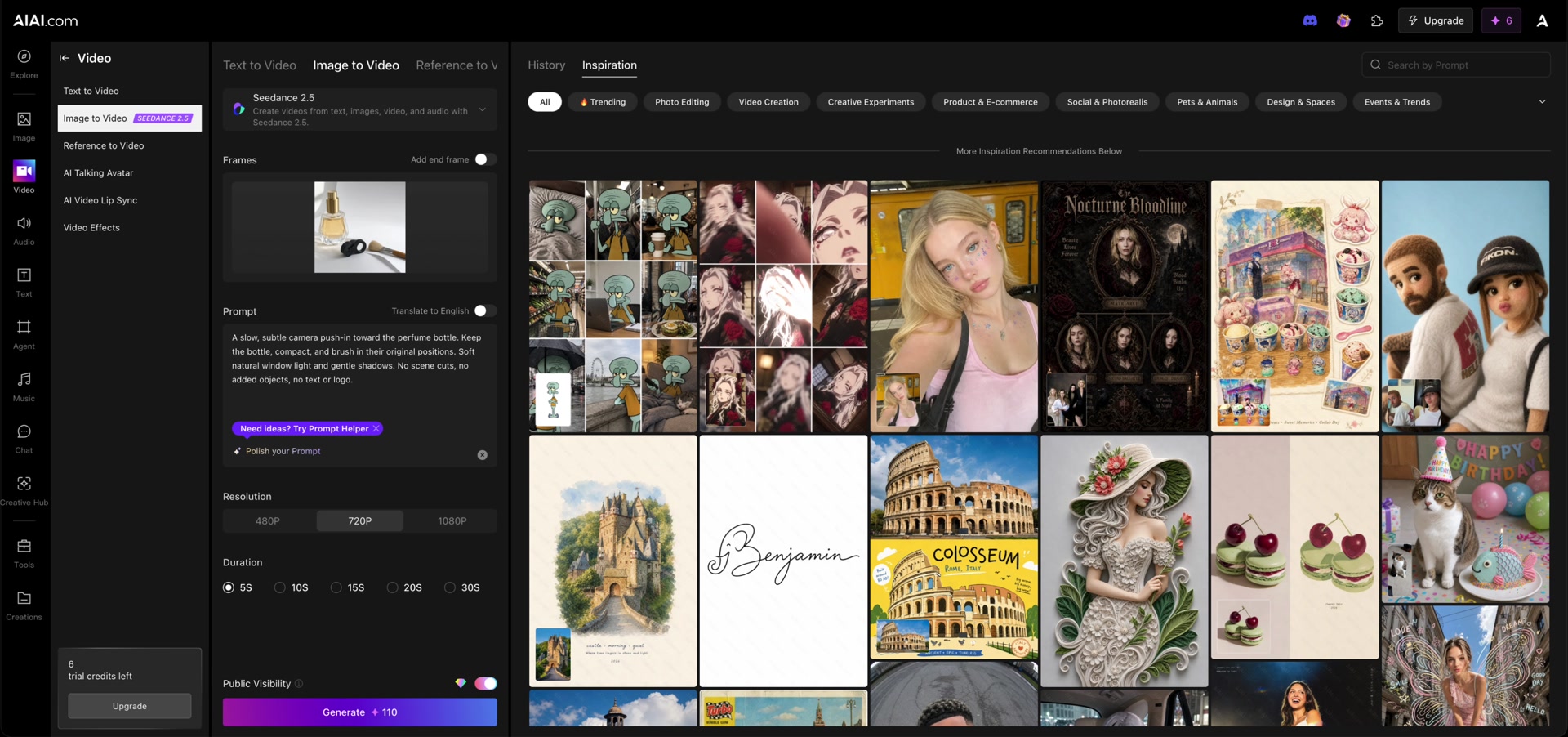
We changed the resolution from 480P to 720P and kept the selected 5S duration. A longer duration or another resolution may change the quote.
| Control | Our setting | Observed detail |
|---|---|---|
| Start frame | One image | Existing product reference uploaded. |
| Add end frame | Off | Observed without enabling. |
| Resolution | 720P | Changed from 480P. |
| Duration | 5S | Kept at the visible default. |
| Credit quote | 110 | Initial quote 50; final quote 110 at 720P. No charge was submitted. |

5. Check visibility and stop before Generate
Public Visibility was on; we observed it without changing it. Before any future generation, review the current visibility options and whether they fit your material and account.
The final Generate 110 label is a displayed quote, not a charge from this tutorial. The quote was above our displayed balance of 6 trial credits. We did not test an insufficient-credit submission, buy credits or start a task. Quotes can change with model, settings, plan or product updates.
Do not click Generate when following this exercise. The prepared input panel is the end state of this lesson. Images or videos in Inspiration belong to the platform gallery and do not demonstrate that your prompt has run. Save your prompt separately if needed; persistence of an unsubmitted form was not tested.
Open Image to Video on AIAI and follow the steps with your own reference. You can complete this exercise without submitting a generation.
Before you continue
| Question | What to check |
|---|---|
| My form looks different | Check the selected model and follow its current field labels and file limits. |
| The reference did not appear | Check the selected file, supported type, size and visible upload message. Do not submit generation just to test the upload. |
| The quote exceeds my balance | Stop before Generate. Prompt preparation and reviewing the available settings are the scope of this exercise. |
| Does the output preserve the product correctly? | No output was generated. We did not verify fidelity, motion, processing time, watermark, dimensions or export availability. |
Continue with the AIAI Text to Video guide, or browse all video and illustrated tutorials.
Session notes
Recorded in signed-in desktop Chrome on September 18, 2026. Actions: model-menu review, upload of one existing reference image, manual prompt entry and the settings described above. Generation count: 0. Credits consumed by these actions: 0; displayed balance before and after: 6 → 6. No assistant request, translation request, payment, output generation or result download was submitted. The video and screenshots come from the same recorded setup. Uploading this input was observed separately from the untouched Generate action; this does not establish upload behavior for other tools.
Improve this guide
Report a problem or suggest the next question
Submissions enter a private editorial queue. They are reviewed and deduplicated before any public update or new page is created.