
To match AI-generated B-roll with existing footage, map each cutaway to a timed line of narration, choose the media type the sequence needs, and review every result for meaning, timing, tone, aspect ratio, and visual continuity. Automation can accelerate placement, but it does not remove the need for editorial review.
Map the Narration Before Creating B-Roll
Start with the spoken structure of the video. Divide the narration into timed segments, then mark each required cutaway with a timestamp range, category, and short description of what the visual must communicate. This creates a shot plan before media generation begins and helps prevent a loosely related keyword from replacing the actual meaning of a line.
Some tools automate part of this process. Kapwing says Smart B-roll analyzes the transcript of a video with spoken audio and inserts relevant B-roll. VEED similarly says it transcribes spoken audio, generates contextual images, and places them on the timeline. Clipmesh describes a broader matching chain: narration is divided into timed segments, segment meaning becomes a visual query, candidate clips are ranked, and selected clips are aligned with the relevant lines.
Treat these automated placements as a first pass. For each segment, retain a concise statement of the intended subject, action, setting, or concept so the resulting shot can be judged against the narration rather than accepted solely because it contains a related object or keyword.
Choose the Right Kind of AI B-Roll
“AI B-roll” can refer to different outputs, so confirm what the timeline needs before choosing a workflow. A cutaway might come from retrieved stock footage, a generated still image, a generated video clip, or an animated scene. These formats are not interchangeable: the appropriate choice depends on the visual requirement defined for that timed segment.
The documented product options also differ. Kapwing says its workflow can use stock libraries or generate custom video clips, images, and animated scenes. VEED says its current AI B-roll feature generates custom images rather than stock videos, and that users can move, resize, replace, or remove them. Those descriptions come from the vendors and were not independently tested here.
Use the required output—not the feature label—as the decision point. If the segment calls for motion, a generated still may require timeline treatment or replacement with a moving source. If a still image communicates the idea clearly, generating video may be unnecessary. Verify the actual media produced before building the rest of the edit around it.
Match Meaning, Timing, and Visual Style
Place each candidate cutaway over the exact spoken line it is intended to support. Then review it on several levels. First, check meaning: a shot can match a keyword while missing the statement’s intended sense or factual content. Next, assess tone, sequence rhythm, repetition, and aspect-ratio fit. Clipmesh specifically recommends reviewing these qualities rather than accepting every automated selection unchanged.
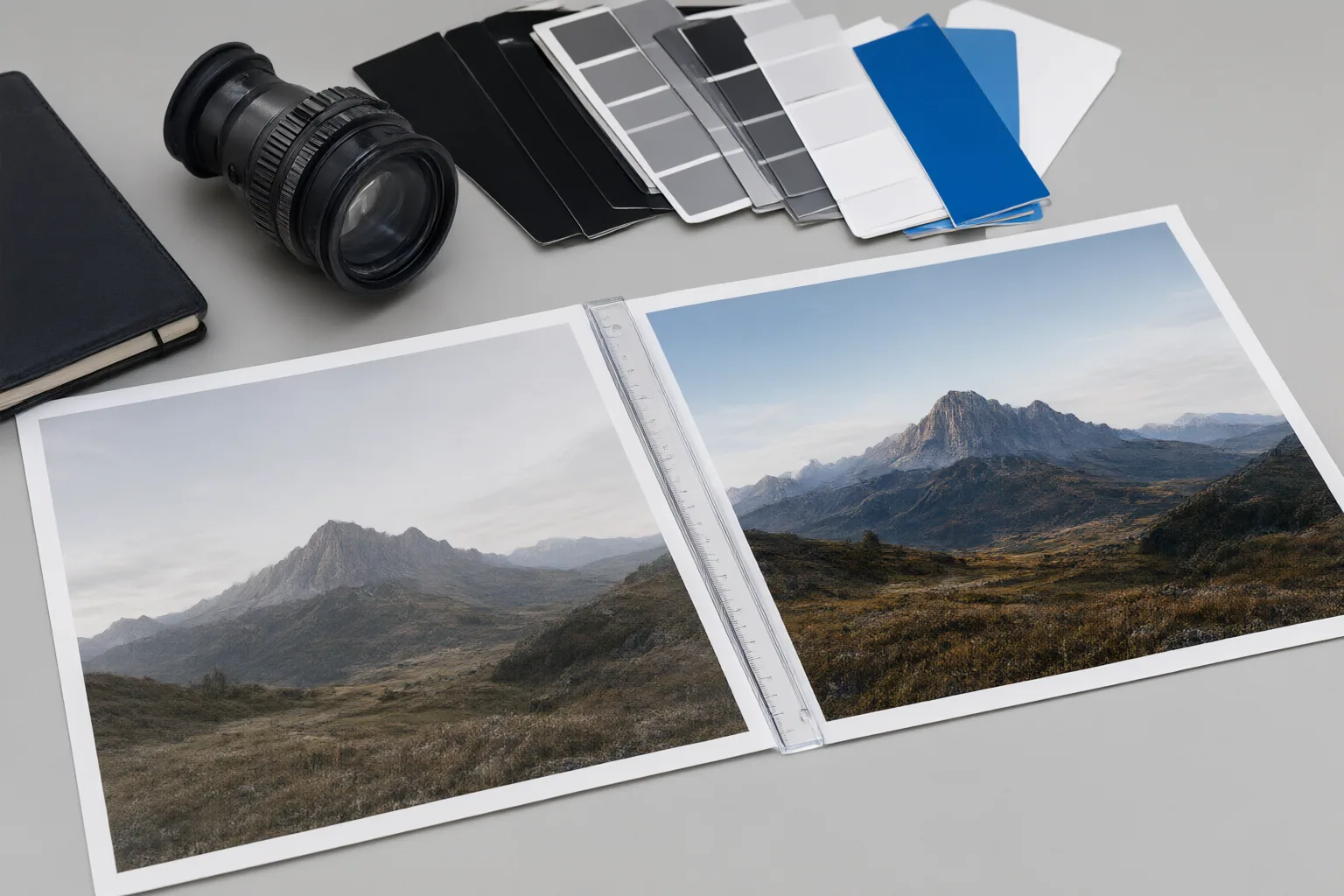
Visual continuity requires a separate pass. Compare the generated media with the existing A-roll for lighting, color temperature, framing, lens character, and texture. A relevant image may still feel disconnected when these characteristics shift sharply. Genra.ai recommends applying consistent visual choices across a batch, which can help related cutaways feel as though they belong to the same edit.
When a shot fails one of these checks, adjust its placement, resize it where appropriate, or replace it. Kapwing and VEED both describe editable timelines after automatic insertion, while VEED explicitly says generated images can be moved, resized, replaced, or removed. Review cuts in sequence so that individually acceptable visuals do not create an uneven rhythm or repetitive pattern when viewed together.
Conclusion
A practical AI B-roll workflow moves from transcript mapping to output selection, timeline alignment, and human review. Before finalizing any inserted visual, confirm that it supports the spoken line, suits the intended tone, fits the sequence rhythm and aspect ratio, avoids unnecessary repetition, and shares enough visual character with the existing footage.
Begin with one short sequence. Mark its timestamps and visual requirements, generate or select the cutaways, and review them for meaning, timing, tone, and continuity. Replace weak matches before applying the same process to the full video.
Disclosures and limitations
- This article was prepared with AI assistance from the supplied research package. Product capabilities and workflow guidance are attributed to vendor-authored pages and commercial content and were not independently tested. No product or affiliate relationship was supplied, so no purchase recommendation is made.
Sources
- AI B-Roll Generator — Instant Video Footage — www.kapwing.com
- AI B-Roll Generator – Try for Free – VEED — VEED
- B-Roll Generator — www.gling.ai
- AI B-Roll: How to Get Matched Stock Footage for Any Script (2026 Guide) — ZinAIStudio
- How to Generate B-Roll with AI for Existing Videos – Genra.ai — Genra.ai
- AI b-roll: how to match footage to your voiceover automatically — Clipmesh
- AI B-Roll Generator – Add Dynamic B-Roll to Any Video – OpusClip — opus.pro
- AI B-Roll Generator 2026: Generated vs Stock B-Roll Tested — DIY AI
Improve this guide
Report a problem or suggest the next question
Submissions enter a private editorial queue. They are reviewed and deduplicated before any public update or new page is created.