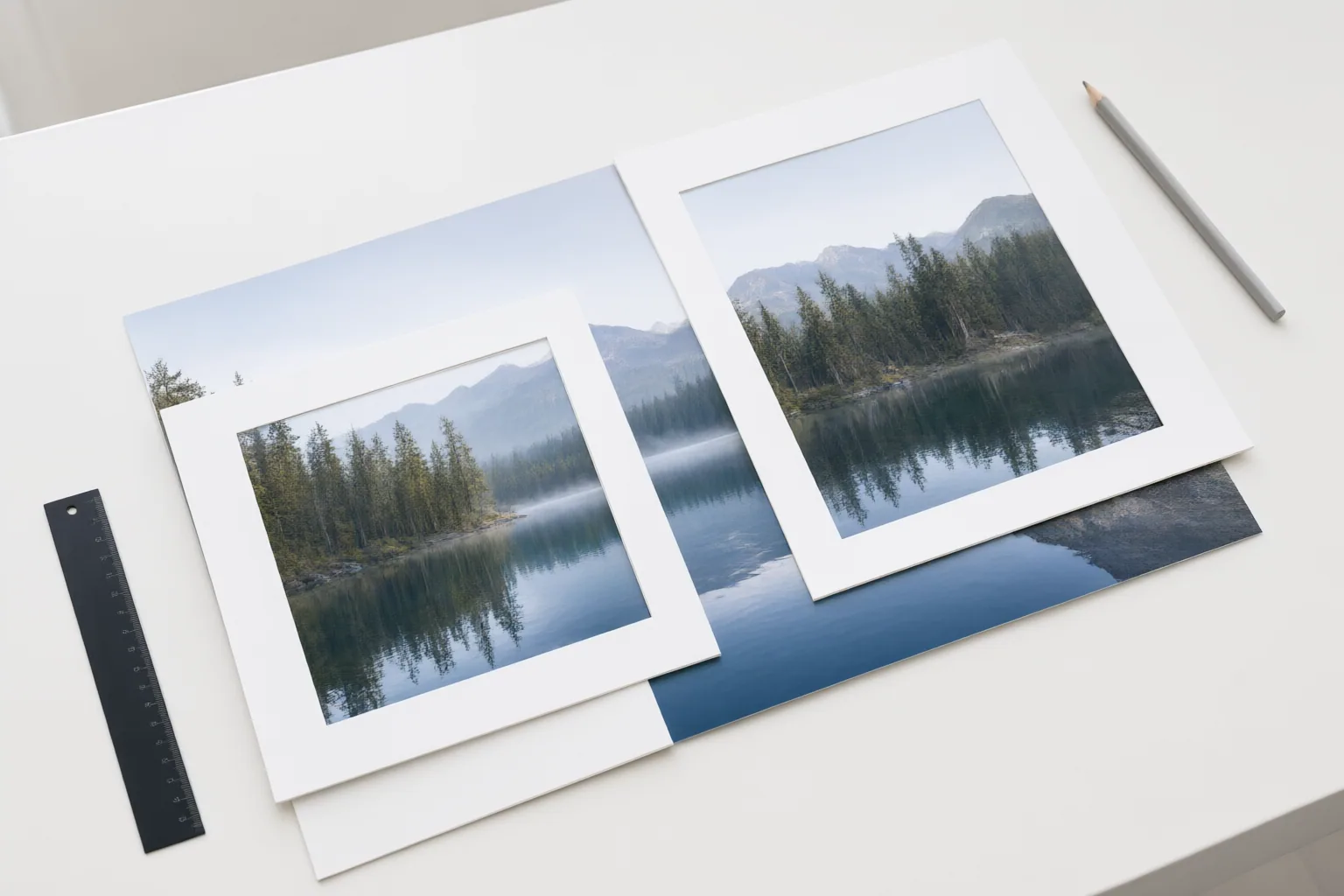
To uncrop a photo, first look for the genuine original or a reversible edit. If neither is available, AI outpainting can expand the frame, but it generates new pixels rather than recovering what the camera originally captured.
First, Determine Whether the Original Can Be Recovered
Start by identifying what you actually have. If someone sent you a cropped copy, ask that person for the uncropped file. Also check saved files and backups for an earlier version. These are the most direct ways to recover the real image area removed by cropping.
If you applied the crop yourself, examine the photo’s edit history. A reversibly edited image may offer a Revert option in Google Photos on Android or in the Photos app on iPhone, provided the original edit state is still available. Check the current interface before relying on a particular control, because the option depends on the retained edit state and may vary as apps change.
If no original, backup, or reversible edit exists, the missing pixels cannot be authentically recovered from the cropped copy. At that point, you can either keep the crop or use AI to create a plausible expansion.
How to Expand a Cropped Photo With AI
AI outpainting extends an image beyond its current borders. Although individual interfaces differ, the supplied tool pages describe a similar process:
- Make a duplicate of the cropped image so the available copy remains unchanged.
- Upload the duplicate to an outpainting or uncropping tool.
- Choose the intended aspect ratio or adjust a custom border around the image.
- Indicate which sides should expand. When prompting is supported, describe useful context, such as extending both sides of a portrait or adding more sky above the subject.
- Generate the extension and review the available result.
- Save the chosen output. Photoeditor.ai describes downloading its output as a PNG.
For example, Clipdrop’s published workflow asks the user to upload an image, select a new aspect ratio, and generate an image matching that ratio. These workflows can help create space for a wider layout, but the cited pages do not independently establish comparative quality, speed, privacy, or pricing.
Review the Generated Edges and Understand the Limits
Treat an AI-expanded image as a newly created version, not as evidence of what once existed outside the crop. The tool generates content that plausibly follows the visible scene; it does not reveal the original missing pixels. Specific objects, people, text, or scenery in the generated area therefore should not be assumed to match the authentic uncropped photo.
Inspect the boundary between the original and generated regions at 100% zoom. Look for visible seams, changes in lighting, repeated or distorted patterns, and backgrounds that continue unnaturally. Pay particular attention to areas where structured details cross the boundary. If the result looks implausible, revise the expansion direction or description and generate another version, while continuing to preserve the cropped source separately.
Conclusion
Use recovery methods before generation: request the original, search saved files and backups, and check whether the crop can be reverted. If those options fail, AI outpainting can create additional space, but that space is synthetic. Check your backups and edit history now; then, if necessary, test an outpainting tool on a duplicate and inspect every generated edge at 100% zoom before using the result.
Disclosures and limitations
- This article was prepared with AI assistance using only the supplied research package, which draws primarily from tool vendors and secondary how-to publishers; product capabilities and interface details should be verified before use.
- Tools are mentioned descriptively rather than as endorsements. The supplied materials do not establish any affiliate relationship, so readers should check for commercial or affiliate disclosures wherever tools are offered or recommended.
Sources
- Uncrop Images Online Free – AI Photo Tool | EditThisPic — EditThisPic
- Clipdrop – Uncrop — clipdrop.co
- A Step-by-step Guide on How to Uncrop a Photo — repairit.wondershare.com
- AI Image Extender – Uncrop & Extend Photos with AI — photoeditor.ai
- How to Uncrop a Photo Someone Sent You? – FotoProfy — FotoProfy
Explore the complete topic guide
Improve this guide
Report a problem or suggest the next question
Submissions enter a private editorial queue. They are reviewed and deduplicated before any public update or new page is created.