Learn how to use Runway Gen-4 References to add a character or object to a new image, save inputs for later sessions, combine as many as three references, and continue from a selected result.
What Runway Gen-4 References Does
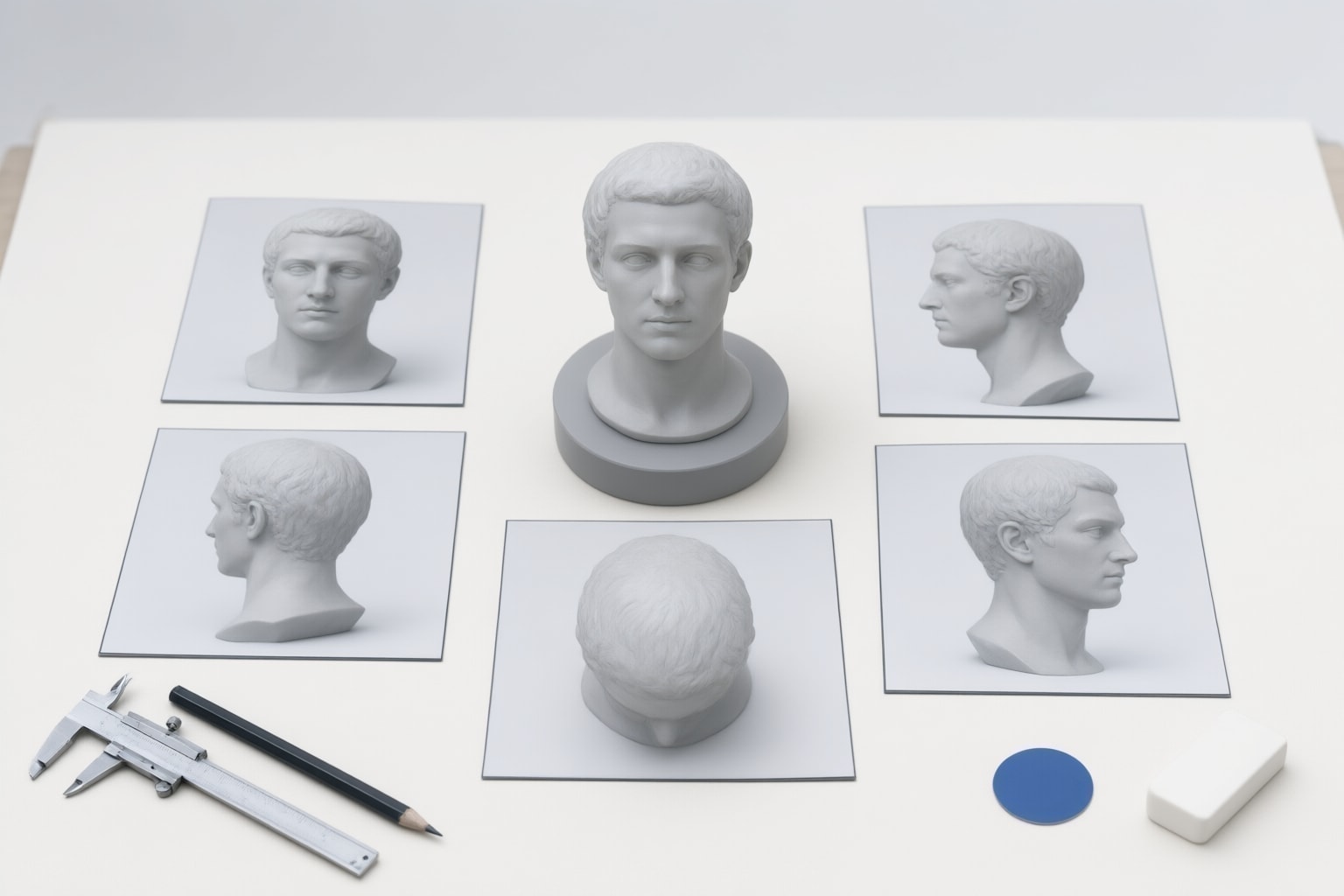
Runway’s official Academy describes Gen-4 References as a way to work with consistent characters and locations. Runway’s documentation says the feature can create new images using the characteristics, styles, characters, or objects in one or more input images. Documented examples include placing a character in another scene, changing character or environmental elements, blending visual styles, and combining elements from several sources (Runway documentation).
The feature can also use a single character image as the basis for images with different lighting, locations, or treatments. However, Runway notes that using several references or requesting substantially different imagery creates more opportunity for variation. Treat the input as guidance for a generation rather than assuming every detail will remain identical.
Open References and Add an Input
Runway documents the following setup in Tool mode:
- Select Tool in the left sidebar.
- Select the Image tab at the top of the generation panel.
- Turn on References with the displayed icon.
- Drag an image into the prompt canvas or choose an existing image from Assets.
For a character reference, Runway recommends moderate image quality, natural and even lighting, and a neutral expression. It also says stylized inputs can work.
As an editorial suggestion, begin with one image in which the relevant character or object is easy to identify. This provides a simpler starting point for comparing outputs, but it is not a guarantee of identity, composition, or object fidelity.

Save, Select, and Name References
An uploaded image is temporarily saved in the active session by default and does not appear in a newly created session. To retain one across sessions, hover over the image, select tag to save, enter a name, and press Enter.
To use an input, select its image in the References panel. A saved name can be autocompleted by entering @ in the prompt. Runway recommends beginning with a simple prompt and adding details iteratively.
As an original suggestion, use a direct structure such as @character in a quiet railway station, medium shot, evening light. This is not an official formula. A descriptive saved name can help distinguish a character, object, or setting when more than one input is active.
Combine Characters, Objects, and Environments
Runway allows up to three active references in one generation. Its documentation demonstrates combinations involving a character and a forest, a floating boulder, or another scene, and more generally describes combining elements from multiple images.
As an editorial suggestion, give every selected reference one intended role, such as character, object, or environment. Then describe the requested relationship between those elements in the prompt. This organizational method is a suggestion, not an assurance that the resulting layout or details will match the request.
Runway advises developing individual elements separately for complex changes and then using the resulting images as new references. That approach is relevant when additional inputs and larger transformations introduce unwanted variation.
Continue From a Result or Use a Sketch
To continue from a generated output, hover over the result and select Reference for image. Runway documents this as part of an iterative workflow in which a preferred result becomes another input for a new setting.
References can also support new scene views, focal subjects, and objects. For composition guidance, Runway defines a sketch as either a new drawing or annotations added to an existing image. Start an empty-canvas sketch with sketch a scene, or load an image and select its sketch-marker icon. After adding shapes, drawings, or text labels, select Export sketch to load it as a reference. Runway states that an exported sketch cannot be edited.
As a suggestion, use a sketch only when placement or gaze direction needs explicit visual guidance; otherwise, begin with a simpler image-and-text workflow.
Conclusion
To use Runway Gen-4 References, open References in Tool mode, add or select an image, and write a prompt describing how it should inform the new image. Save and name an input when it needs to remain available across sessions. Up to three references can be active for one generation, and a selected output can become a subsequent reference (Runway documentation).
The practical recommendation is to start with one suitable reference and a simple prompt, review the result, and introduce changes in small stages. Add another reference only when it has a defined purpose. For a complex transformation, consider developing the character, object, or setting separately and reusing a preferred intermediate result. This is a suggested working method aligned with Runway’s iteration guidance; it does not establish a guaranteed outcome.
Sources
Disclosure
This article was prepared with AI assistance.
Improve this guide
Report a problem or suggest the next question
Submissions enter a private editorial queue. They are reviewed and deduplicated before any public update or new page is created.