Leonardo Universal Upscaler creates a higher-resolution image while providing controls for enlargement, creative detail, structural similarity, and detail contrast. Start from the documented midpoint settings, retrieve the result, and compare it with the source before making further edits.
What Leonardo Universal Upscaler Does
Leonardo Universal Upscaler can create a high-resolution image from a Leonardo-generated image, an uploaded image, or an existing variation. In the API, these inputs are supplied through a generatedImageId, initImageId, or variationId.
The documented upscaleMultiplier ranges from 1.0 to 2.0 and defaults to 1.5. Leonardo.Ai’s recipe also sets a maximum output size of 20 megapixels. In Ultra mode, the available styles are ARTISTIC and REALISTIC; the official recipe recommends ARTISTIC for 2D-style imagery. Check current pricing and access requirements directly with Leonardo.Ai before starting paid requests.
How to Control Detail and Preserve the Original Look
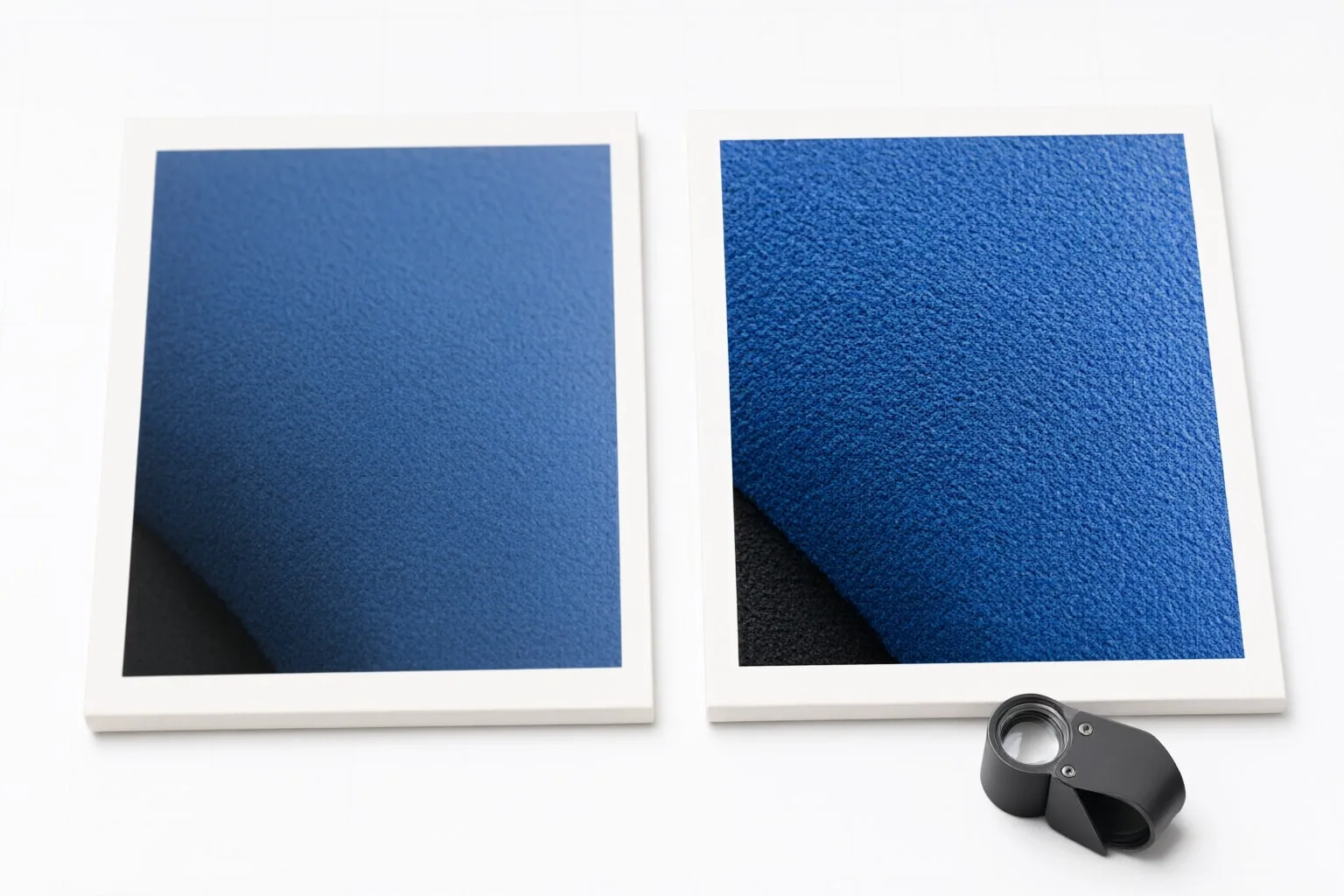
Three controls shape the balance between refinement and fidelity:
- creativityStrength governs creative deviation and added detail. Raising it can substantially change the source image.
- similarity governs how closely the overall structure follows the original. Use it alongside creativityStrength when resemblance matters.
- detailContrast changes contrast within image details. Very high values can produce pronounced, unrealistic-looking edges.
The API defines all three on 1–10 scales. detailContrast and similarity are available only with ultraUpscaleStyle. Leonardo.Ai recommends beginning with creativityStrength, detailContrast, and similarity at 5, then adjusting them for the intended result. Treat that midpoint as a starting configuration rather than a guaranteed optimum: if the output departs too far from the source, reconsider the balance between creativity and similarity; if edges appear excessive, reduce detail contrast.
Create, Retrieve, and Compare the Upscaled Image
For the provider-documented API workflow:
- Submit a supported image reference: a generated image ID, uploaded-image ID, or variation ID.
- Choose the multiplier and applicable Ultra style settings.
- Create the upscale job.
- Retrieve the resulting image URL through the Get Variation ID endpoint, or receive it through a webhook callback.
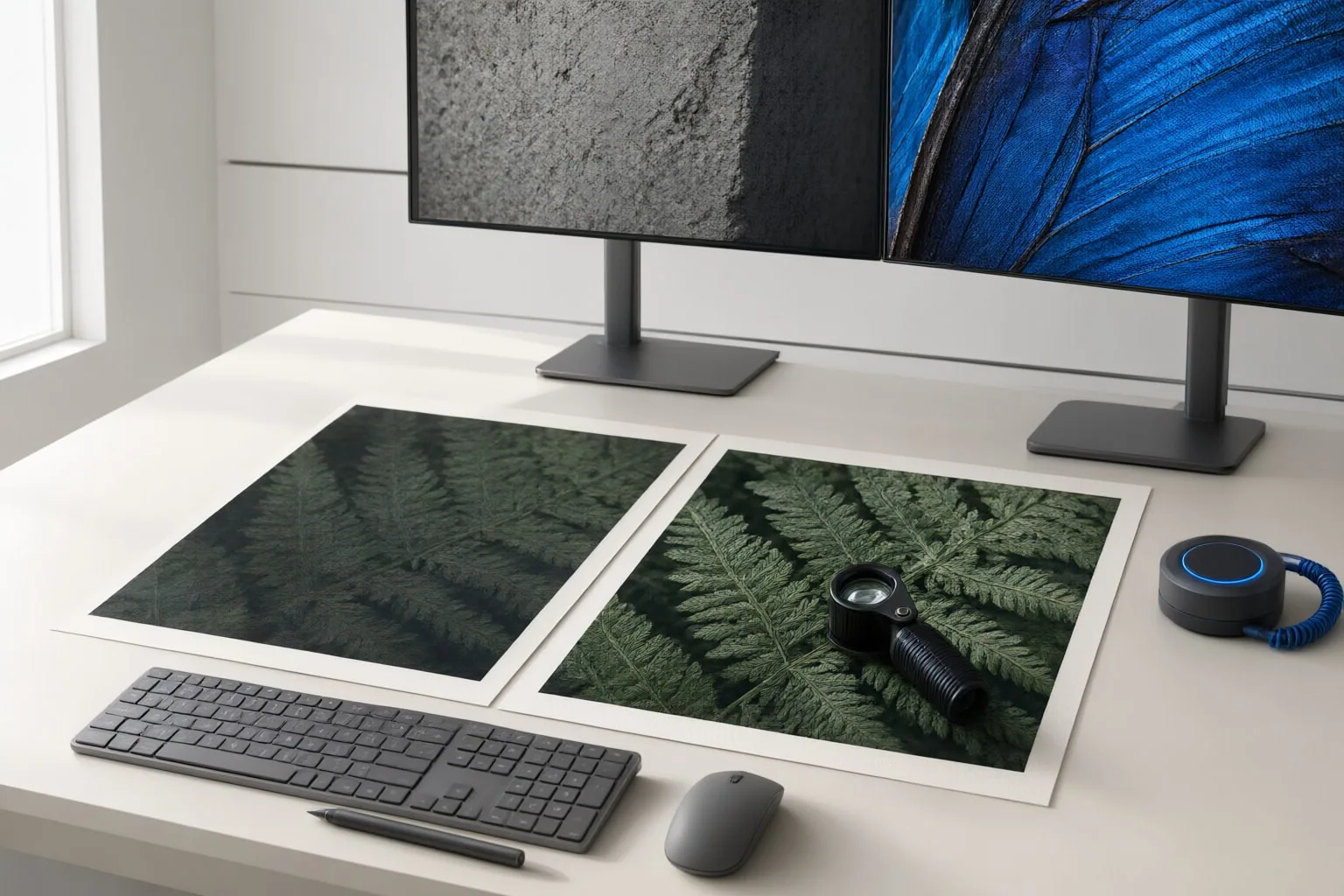
For a practical API comparison, keep the original input and save the retrieved output alongside it. As an editorial suggestion, note the image reference and the parameters used for each request so you can compare individual adjustments.
As an editorial review exercise, compare the saved output with the source for structural resemblance, added detail, and unnatural edge contrast. These are suggested inspection criteria, not measured results or a claim about a particular app interface.
Conclusion
Begin with the documented value of 5 for creativityStrength, detailContrast, and similarity. Select ARTISTIC or REALISTIC in Ultra mode as appropriate, choose an upscale multiplier within the documented 1.0–2.0 range, and retrieve the completed image. Then compare it with the source for resemblance, added detail, and excessive edge contrast. Before further editing, change one setting at a time and create another upscale so that its effect is easier to distinguish.
Disclosures and limitations
- AI assistance was used to draft and organize this article. Product capabilities and parameter details are based on the cited official Leonardo.Ai API documentation.
- This guide does not report hands-on testing. Before using a paid API, check current provider access terms and pricing, and compare an output against your own requirements.
Sources
- Upscale with Universal Upscaler — Leonardo.Ai
- Leonardo AI – Universal Upscaler — tutorialspoint.com
- Create using Universal Upscaler — Leonardo.Ai
Improve this guide
Report a problem or suggest the next question
Submissions enter a private editorial queue. They are reviewed and deduplicated before any public update or new page is created.