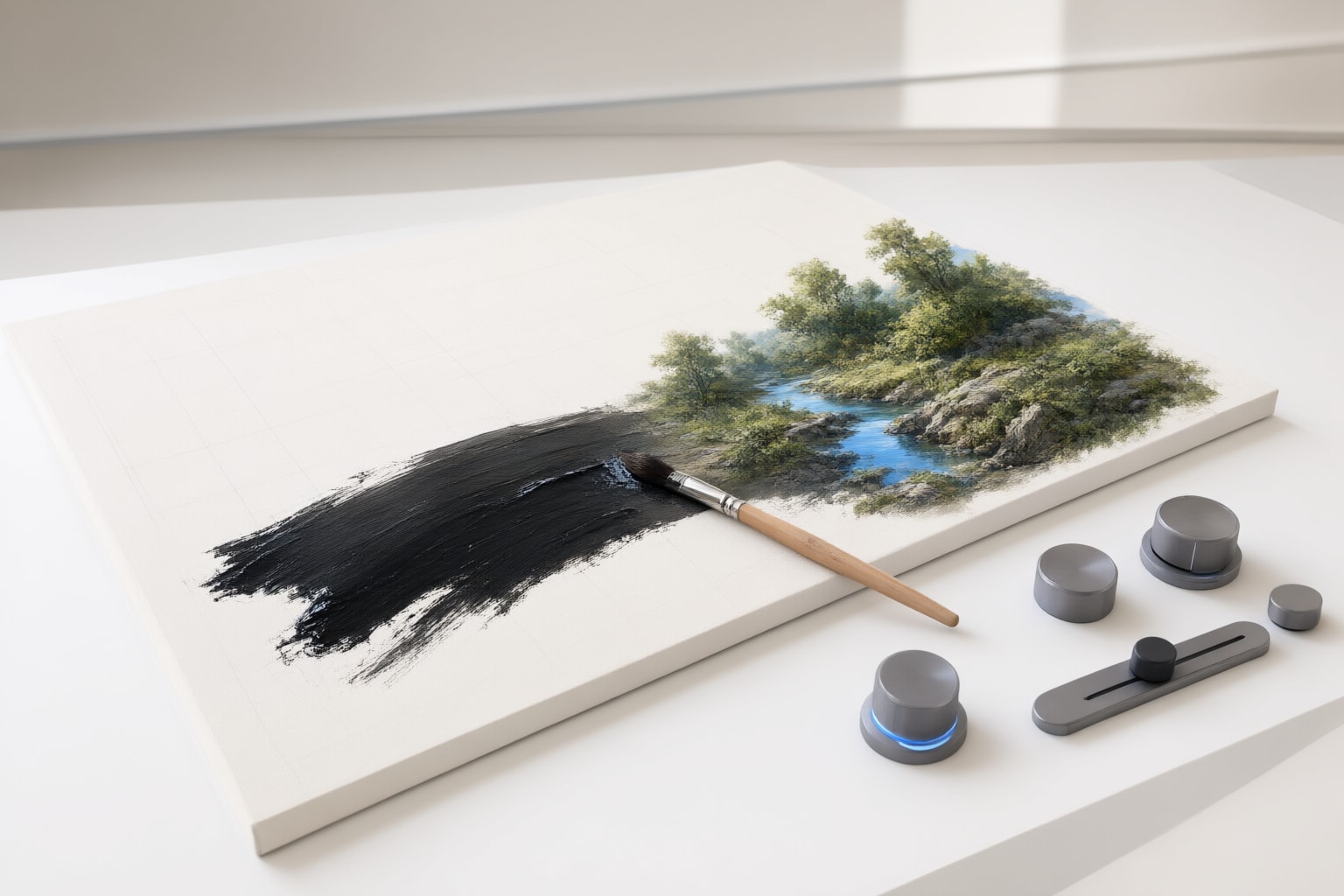
Leonardo Realtime Canvas turns drawings or uploaded sketches into images as you work. Learn what its documented controls do and how it differs from Canvas Editor.
What Leonardo Realtime Canvas Is
Leonardo describes Realtime Canvas as an image-to-image tool that transforms drawings into artwork while the user interacts with the canvas. It can begin with brushstrokes or an uploaded sketch, and a text prompt is optional.
The company notes that the guide uses some older branding but says its information and functionality remain relevant. Leonardo also recommends trying its newer image-generation models and Editor experience. Realtime Canvas is therefore still documented, but it should be understood alongside the company’s newer editing workflow rather than treated as its only image-editing option.
For evaluation, a useful suggestion is to begin with a simple composition containing a few large shapes. That makes it easier to observe whether later changes come from the drawing, the prompt, or a control adjustment. This is an editorial testing method, not a guaranteed route to a particular image quality.

How Live Generation Works
Leonardo’s Realtime Canvas API documentation says the feature uses a Latent Consistency Model for fast generation. Its documented API recipe sends a JPEG drawing as a base64 data URL to an LCM generation endpoint, illustrating how a drawing can serve as the input for a generated image.
In the interactive product, Leonardo says updates occur after actions such as clicks, drags, and moves are completed. “Realtime” consequently describes a responsive sketch-to-image process; it should not be interpreted as a promise that every brush movement produces an uninterrupted frame-by-frame transformation.
As a practical suggestion, pause briefly after a meaningful drawing change before judging the output. Compare distinct states—such as outline, filled shapes, and added color—instead of changing several visual elements at once. This comparison technique may make the relationship between the input and output easier to assess, although Leonardo does not guarantee a specific result.

Guidance and Creativity Strength
The two controls address different inputs. According to the Realtime Canvas documentation, Guidance changes adherence to the text prompt and affects detail, while Creativity Strength balances fidelity to the visual input against AI reinterpretation. Lower Creativity Strength makes the result follow the sketch more closely.
A sensible way to explore them is to treat each adjustment as a separate experiment:
- Keep the sketch fixed and change Guidance if you want to examine the prompt’s influence.
- Keep the prompt fixed and change Creativity Strength if you want to compare closer adherence with broader reinterpretation.
- Change only one setting between comparisons.
These are suggested evaluation steps, not an official procedure or a guarantee of better output. If exact placement matters to you, consider starting with lower Creativity Strength and increasing it gradually. If the written description matters more, consider testing Guidance separately. Record settings for outputs you prefer so that your comparison remains consistent.
Realtime Canvas Versus Canvas Editor
Realtime Canvas and Canvas Editor are documented as separate experiences. The Canvas Editor guide covers masking, erasing, framed generation, inpainting, and outpainting. A masked or erased region can be regenerated from a prompt, while Inpaint Input Strength controls how closely the new content follows the underlying image.
That distinction matters because Inpaint Input Strength is not simply another label for Realtime Canvas’s Guidance or Creativity Strength. The controls operate in different documented workflows.
As an editorial recommendation, consider Realtime Canvas when your starting point is a rough visual concept that you want to reinterpret. Consider Canvas Editor when you need to target a bounded part of an existing image or extend beyond its edges. These are workflow suggestions based on the documented tool roles; they do not establish that one experience will produce better results than the other.
A Focused Way to Evaluate the Controls
Try a small, controlled comparison rather than attempting a finished composition immediately. Suggested sequence:
- Create one uncomplicated sketch or choose one uploaded sketch.
- Save a reference of the initial output.
- Add a short prompt and compare the change.
- Return to the same input, then adjust either Guidance or Creativity Strength—not both.
- Note which version best matches your intended structure and description.
This sequence is a suggested review method. It does not claim that settings behave identically across subjects, styles, or inputs. Avoid drawing conclusions from a single result, and do not assume that a numerically higher setting is inherently preferable.
If the task evolves from broad ideation into localized repair, consider moving to Canvas Editor’s masking or inpainting workflow. If you are choosing a longer-term workflow, it is also reasonable to compare the newer Editor experience that Leonardo recommends with Realtime Canvas before committing to one process.
Conclusion
Leonardo Realtime Canvas is a documented sketch-to-image experience whose live controls divide visual and textual influence: Creativity Strength concerns adherence to the sketch, while Guidance concerns the prompt and detail. Leonardo says the older-branded documentation remains relevant, while also directing users toward its newer models and Editor.
The practical recommendation is to use Realtime Canvas for a controlled sketch-led experiment, changing one control at a time. For precise regional changes, masking, or outpainting, consider Canvas Editor instead. Before adopting either workflow, compare both with the kind of image you actually plan to make; that comparison is a suggestion, and its outcome will depend on your input and preferences.
Sources
- How To Use Canvas Editor Tool | Leonardo.Ai Help Center
- Generate Images with Realtime Canvas
- Realtime Canvas | Leonardo.Ai Help Center
Disclosure
This article was prepared with AI assistance.
Improve this guide
Report a problem or suggest the next question
Submissions enter a private editorial queue. They are reviewed and deduplicated before any public update or new page is created.