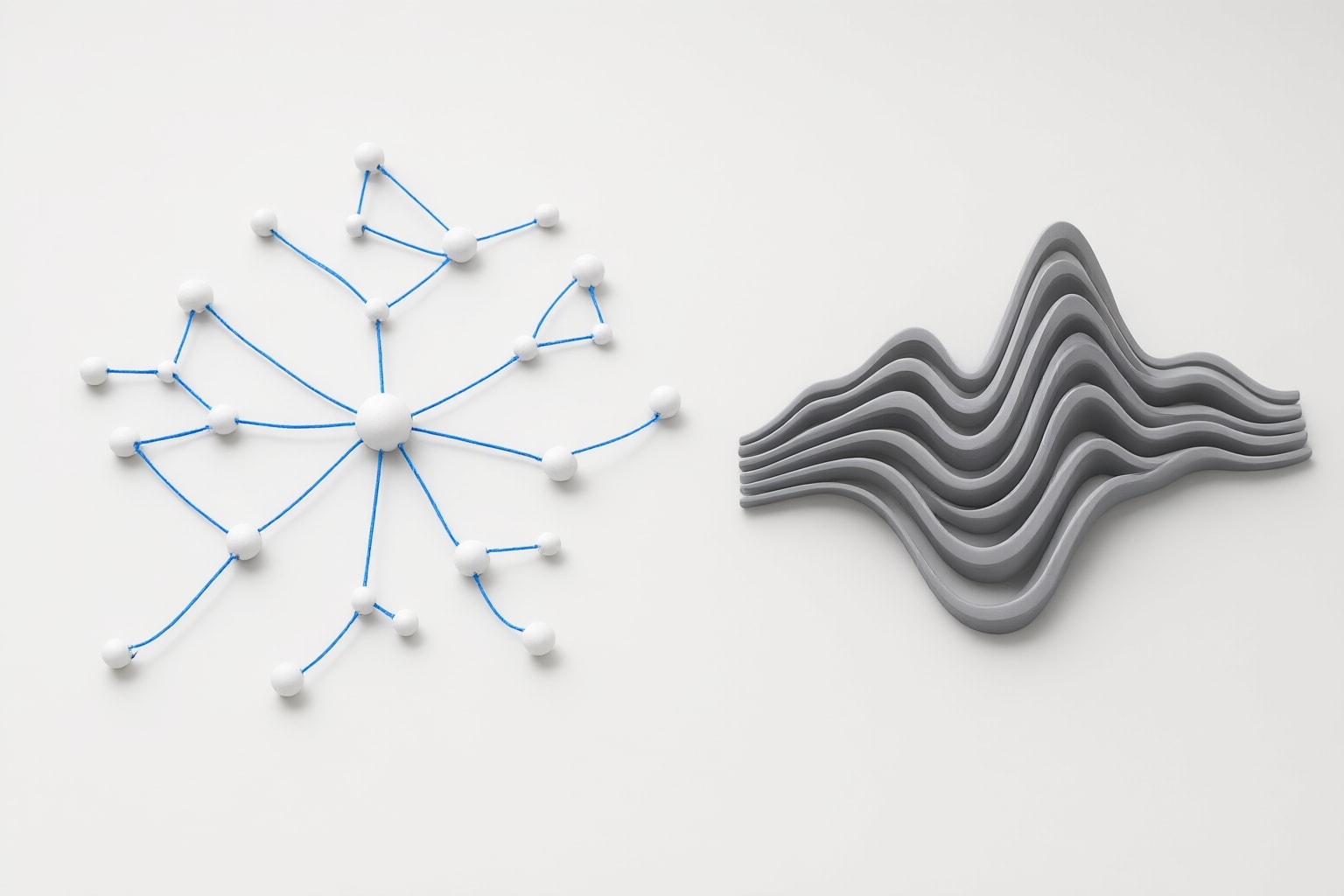
NotebookLM is now called Gemini Notebook. This guide explains what its Mind Maps show, when Google recommends them, and when choosing one instead of an Audio Overview may suit your task.
NotebookLM Mind Maps now live in Gemini Notebook
Google renamed NotebookLM to Gemini Notebook in July 2026. Google says it remains a standalone product, so “NotebookLM Mind Maps” refers to the Mind Maps now documented under the Gemini Notebook name.
A notebook is a collection of sources for a particular project, and each notebook is independent. Gemini Notebook cannot use information from several notebooks simultaneously. Its Studio panel can generate multiple source-based outputs, including Mind Maps and Audio Overviews, from the active notebook’s material (Google Help).
As an editorial suggestion, group the materials for one question or project in the same notebook before choosing an output. That keeps the available source set aligned with the subject you intend to examine.
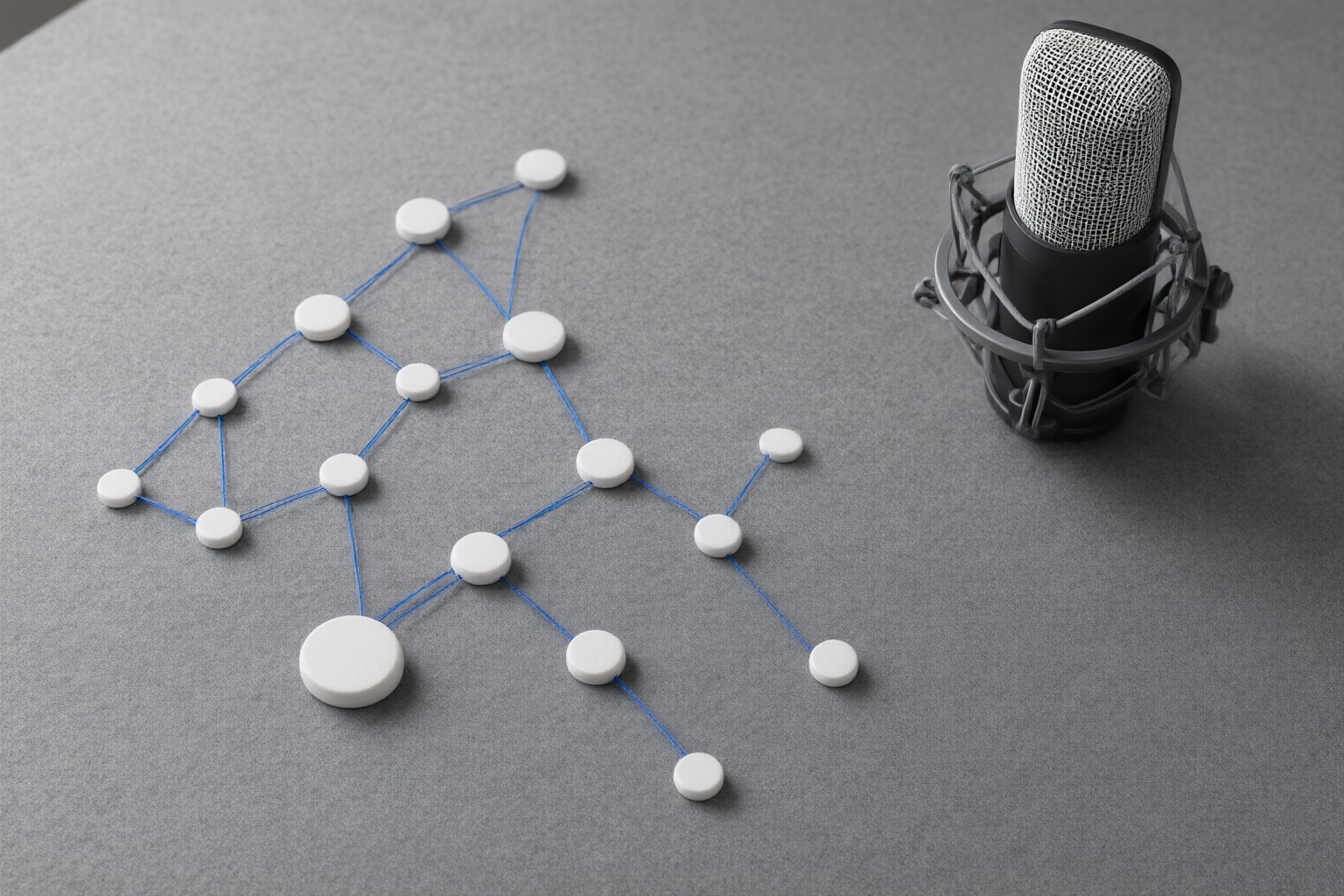
What NotebookLM Mind Maps show
Google describes a Mind Map as a visual summary of uploaded sources. It presents main topics and related ideas in a branching diagram (Google Help).
Editorial suggestion: try a map when seeing the structure is your immediate priority. Write down the relationship or topic you want to investigate before expanding the diagram. Use that question to decide where to focus, rather than opening every branch at once.
This is a proposed research method, not a claim of a measured learning benefit. After scanning the map, record one question that deserves a closer look and keep the relevant original material available for review.

When to choose a Mind Map instead of an Audio Overview
Google describes Audio Overviews as AI-host discussions summarizing key topics from uploaded sources. Its documented formats include a two-host Deep Dive and a shorter single-speaker Brief. Google warns that the generated audio can contain inaccuracies or glitches.
My editorial recommendation is to choose a Mind Map when you want to inspect a visual structure and follow a particular connection. Consider an Audio Overview when listening suits the way you want to approach the material. Choose according to the task in front of you; neither generated format should replace your own assessment of the underlying evidence.
For mixed tasks, a cautious suggestion is to begin with the Mind Map only if visual orientation is your first priority. You can then decide whether another Studio output would help with the next stage of your work.
How to generate and explore a Mind Map
On the web, open an existing Gemini Notebook, or create one and upload sources. In chat, select the Mind Map chip. Google says the generated map appears as a new note in the Studio panel and can be revisited there (Google Help). The Gemini Notebook mobile app does not support Mind Maps at the time covered by that documentation.
Within a map, Google documents controls for zooming, scrolling, and expanding or collapsing branches. Selecting a node lets you ask questions in Gemini Notebook chat about that topic. Options in the upper-right area provide expanded viewing, download, and exit actions. To regenerate a map, Google instructs users to delete the note through More and start generation again.
As a practical suggestion, first scan the higher-level branches, expand only the areas relevant to your question, and select a node when you need a more focused chat query. This proposed sequence is editorial guidance; Google documents the individual interactions but does not prescribe that exact research method.
Check the supporting material before relying on an answer
Gemini Notebook chat can answer questions about uploaded material and can be limited to selected notebook sources. Google says its answers use quotations, text, and images from those sources as citations. Selecting a citation opens the quoted passage in context, while hovering reveals the full quoted text (Google Help).
Google also warns that Gemini Notebook can be inaccurate and recommends checking its responses. Accordingly, a Mind Map node should be treated as a route into further investigation, not as a final conclusion. After asking about a node, an editorially recommended verification routine is to open the answer’s citations, read the cited context, and compare it with the claim made in chat.
As an editorial precaution, avoid treating the visual prominence of a branch as proof. Read the original context, identify any qualification, and check whether the answer addresses the question you actually asked. If the evidence is unclear, keep that uncertainty in your notes.
Conclusion
My practical recommendation is to begin with the source material and a specific research question, then choose the generated format that helps you investigate it. Keep a short record of what you accepted, what you checked, and what remains uncertain.
The practical recommendation is to choose a Mind Map instead of an Audio Overview when those visual functions directly serve your current task. Start with a project-focused notebook, generate the map on the web, explore the relevant branches, and use a node to ask a focused question. Then open the chat citations and verify the answer against its source context. If visual structure is not your priority, consider another Studio output rather than assuming a Mind Map is automatically the best choice.
Sources
- Use chat in Gemini Notebook – Gemini Notebook Help
- Use Mind Maps in Gemini Notebook – Gemini Notebook Help
- NotebookLM is now Gemini Notebook
- Create a notebook in Gemini Notebook – Gemini Notebook Help
- Generate Audio Overview in Gemini Notebook
Disclosure
This article was prepared with AI assistance.
Improve this guide
Report a problem or suggest the next question
Submissions enter a private editorial queue. They are reviewed and deduplicated before any public update or new page is created.