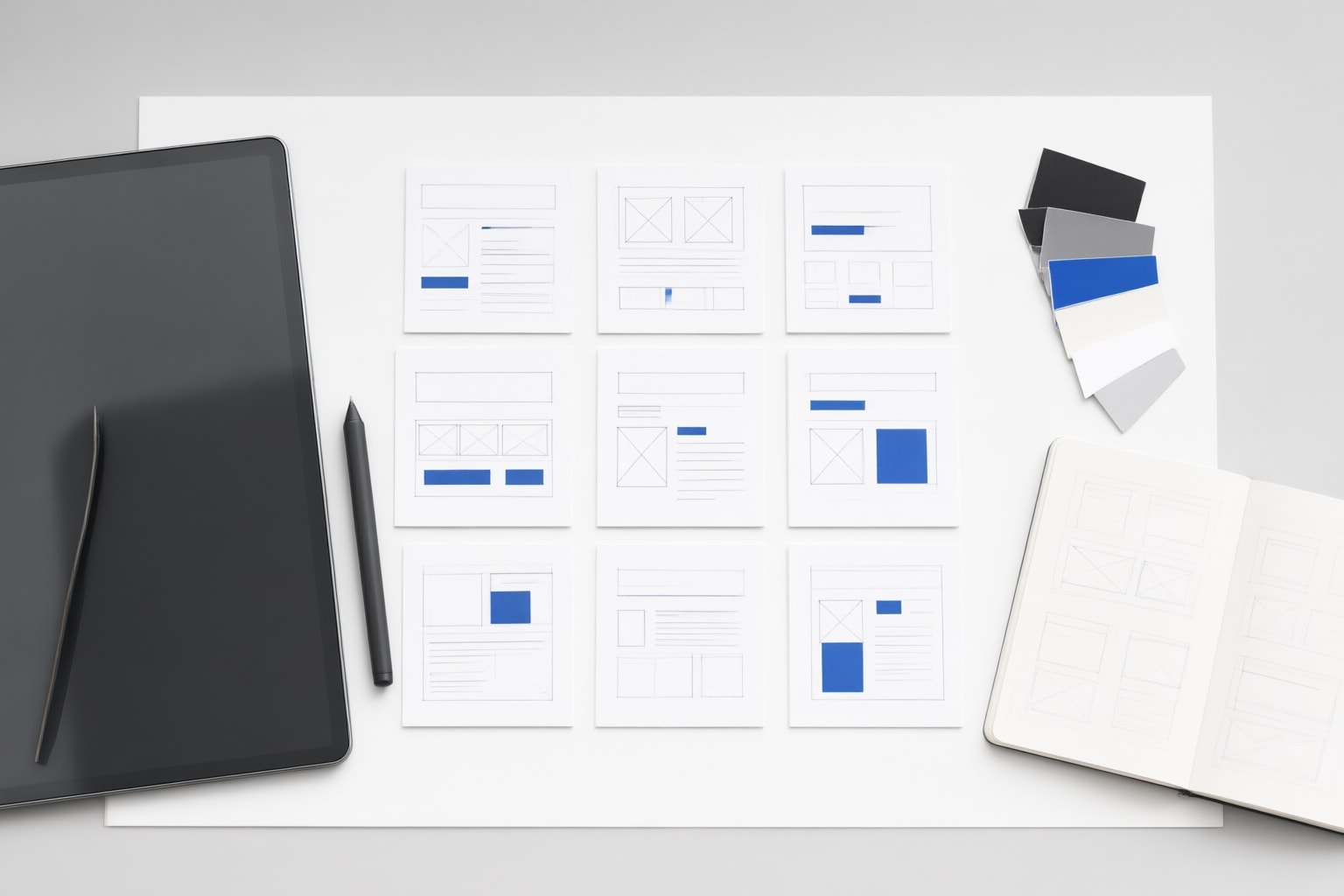
Canva Magic Design uses AI and adaptable templates to arrange supplied ideas and content. This guide explains Canva’s documented workflow and suggests a careful process for turning a generated design into a presentation draft.
What Canva Magic Design Does
Canva describes Magic Design as an AI-assisted way to generate designs from text, images, or ideas. It uses ready-made templates that adapt to supplied content, and a design can incorporate personal files, Canva stock media, or content created with other Canva AI tools.
For presentation work, treat the result as a starting point. A practical suggestion is to decide what the deck must communicate before generating anything. Write down the topic, intended audience, central message, and essential evidence. This planning recommendation is editorial guidance; it does not promise that a particular prompt will produce a complete or accurate presentation.
Plan the Request Before Opening Canva AI
Canva states that more context and instruction can improve the result. Based on that guidance, consider drafting a short request that identifies the subject, audience, desired tone, and material that should appear.
A suggested structure is: “Create a presentation design about [topic] for [audience]. Use a [tone] style and emphasize [key points].” This is a writing aid, not a guaranteed formula. If particular statistics, quotations, dates, or conclusions are essential, keep a separate checklist so you can verify them independently and add them deliberately during editing.
Avoid asking one prompt to settle every content and design decision. As an editorial recommendation, prioritize the purpose and hierarchy first; wording, visual choices, and pacing can be refined after Canva produces a design.
Generate a Design from the Homepage
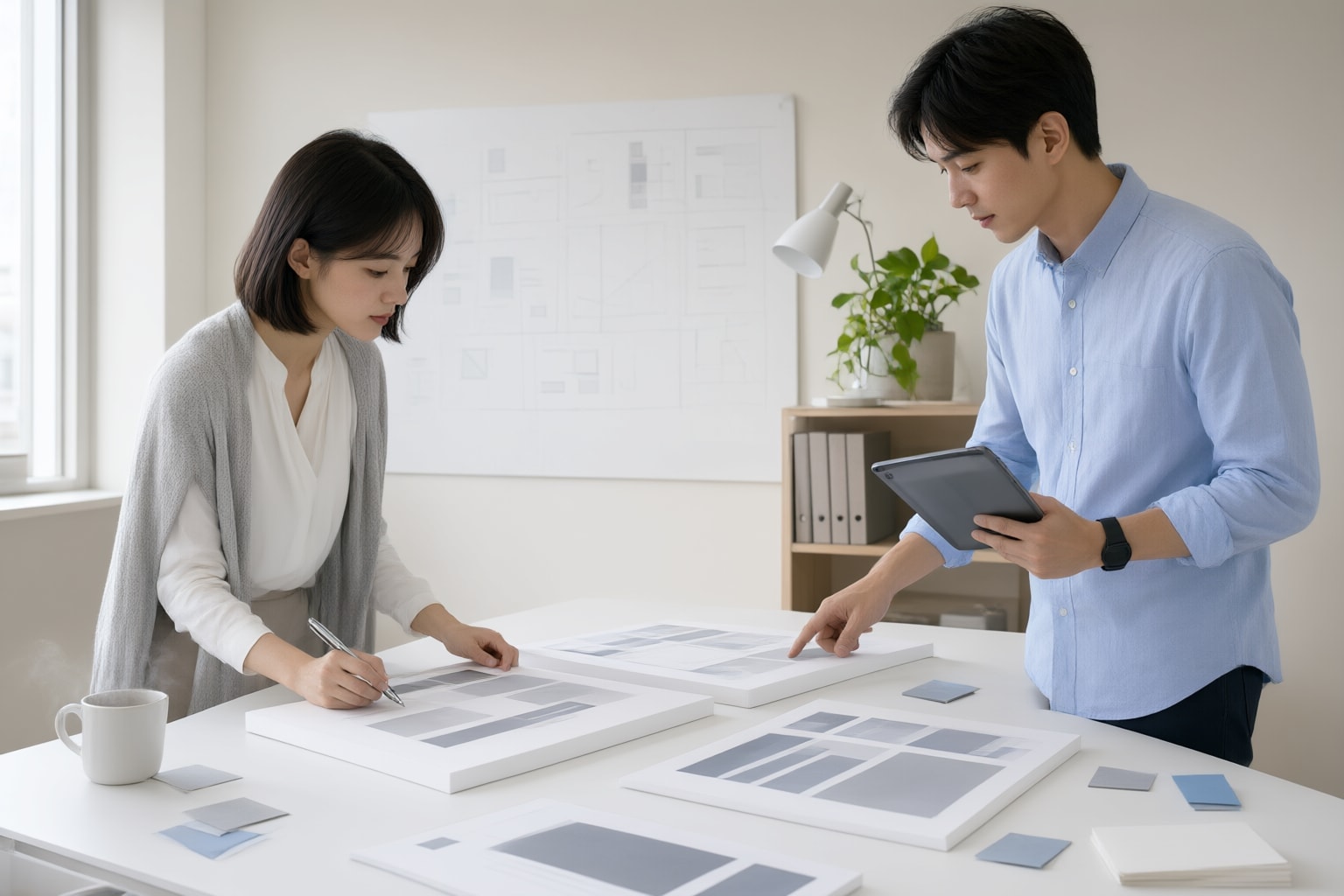
Canva’s current documented homepage path begins by selecting Canva AI, entering a short design description, and submitting it. The plus control can add an uploaded file, an existing Canva file, brand assets, or material from a connected app. Canva then places the generated design in the homepage editor, where Edit design opens the full editor.
For a presentation project, a sensible suggestion is to attach only material that directly supports the deck’s purpose. After generation, inspect whether the result establishes a usable order for your ideas. If it does, continue refining it. If it does not, revise the request or reconsider the supplied context rather than treating the first result as final.
Generate from an Existing Editor
Canva also documents an editor-based route. Open Templates in the side panel, search with at least four descriptive keywords, and choose Try Canva AI under “Can’t find something?” You can review the prompt, optionally add context with the plus control, and submit it. The generated design is added as a new page.
As a presentation-specific recommendation, use this route when you already have a deck and want to explore a new page direction. Compare the generated page with the surrounding slides for hierarchy, tone, spacing, and visual consistency. This comparison is a suggested review method, not a documented promise about the generated page.
Refine the Presentation Deliberately
Canva says Magic Design can be customized with your own text and media, Canva stock assets, and AI-generated content. That makes manual revision a reasonable next step after generation.
Suggested review sequence:
- Check that each page has one clear purpose.
- Rewrite text so it accurately reflects your evidence and audience.
- Remove repeated ideas and unnecessary decoration.
- Replace visuals that do not directly support the message.
- Standardize headings, type scale, colors, and spacing.
- Read the deck in sequence and adjust transitions between ideas.
These are editorial recommendations rather than established outcomes of Magic Design. People, organizations, quotations, figures, and dates should be checked against appropriate authoritative sources before the presentation is shared.
Conclusion
Canva Magic Design offers two documented starting routes: generating through Canva AI on the homepage or trying Canva AI from the editor’s Templates panel. Both routes accept added context, and Canva presents the result as an editable design.
The practical recommendation is to use Canva Magic Design for an initial visual structure, then review the resulting presentation page by page. Begin with a focused request, supply only relevant context, verify substantive claims separately, and revise the language and visual hierarchy for the intended audience. Do not make publication or presentation contingent on the first generated result; make a deliberate human review the final stage.
Sources
Disclosure
This article was prepared with AI assistance.
Improve this guide
Report a problem or suggest the next question
Submissions enter a private editorial queue. They are reviewed and deduplicated before any public update or new page is created.