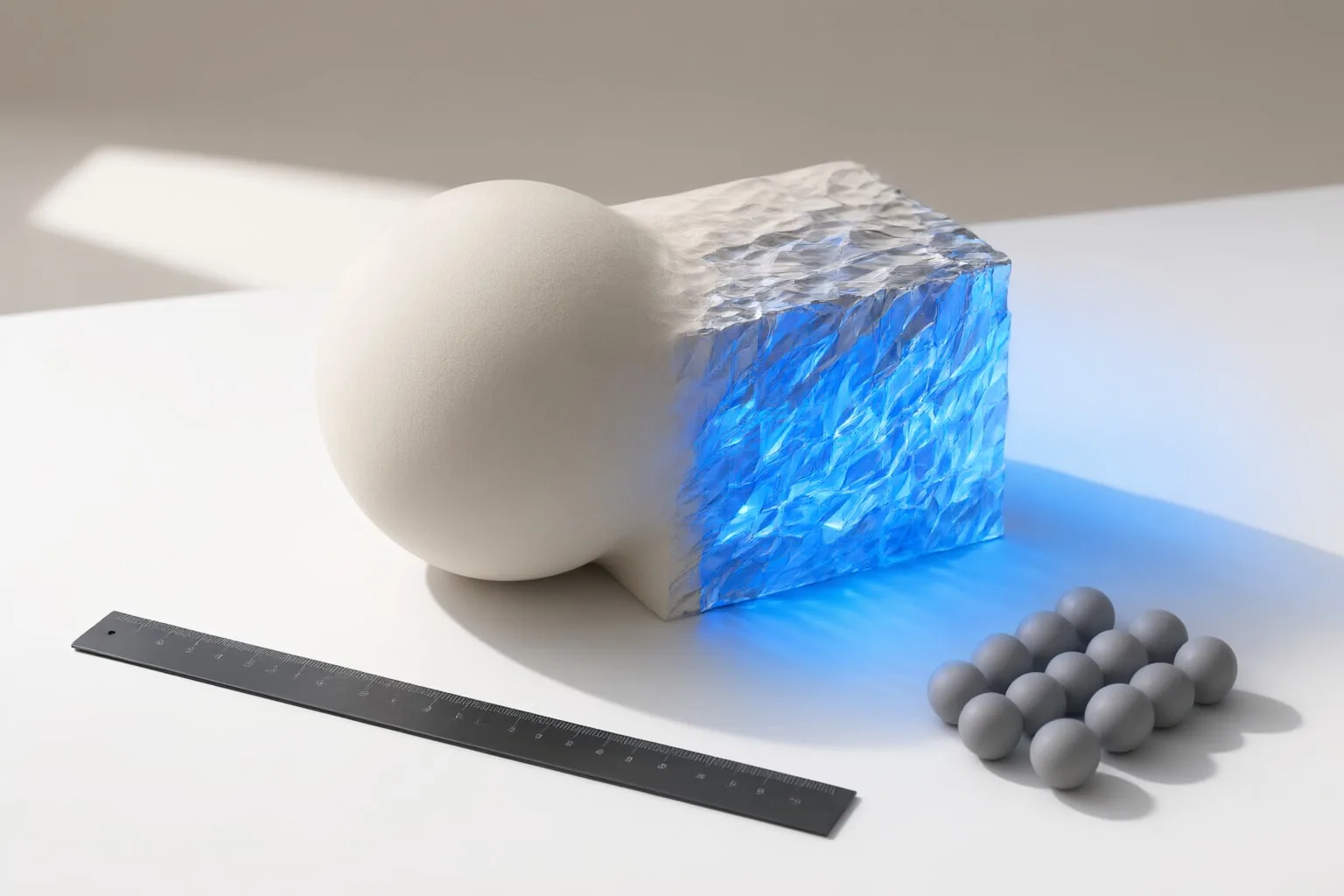
Luma Modify Video changes the visual appearance of existing footage while keeping its underlying motion, framing, and performance as the foundation. Choose it when those source elements matter; use Ray2 text-to-video when you want a new clip created from a written scene description.
What Luma Modify Video does
Luma Modify Video is an AI video-to-video transformation workflow in Dream Machine. It uses existing footage rather than starting from an empty prompt, changing the clip’s appearance while retaining its original motion or camera dynamics.
Luma says the system considers signals such as pose, facial expression, lip sync, and scene structure when deciding what to preserve and reinterpret. Documented uses include changing an environment or lighting treatment, transferring motion to another character, restyling a whole scene, or editing details such as wardrobe, faces, props, and skies.
This makes the workflow relevant when a recorded performance, camera move, or composition already provides the structure you want. The visual treatment can change without requiring the result to originate as an entirely new scene.
How to use Modify Video in Dream Machine
Luma documents the following Dream Machine workflow:
- Open a Board and access Modify Video.
- Select 720p or 1080p output.
- Use the plus control to upload source footage.
- Enter a prompt describing the intended transformation.
- Choose a transformation level and generate the result.
The documented source-video limit is 10 seconds. For a localized edit, describe the specific element to change so the prompt does not unnecessarily redirect the whole shot.
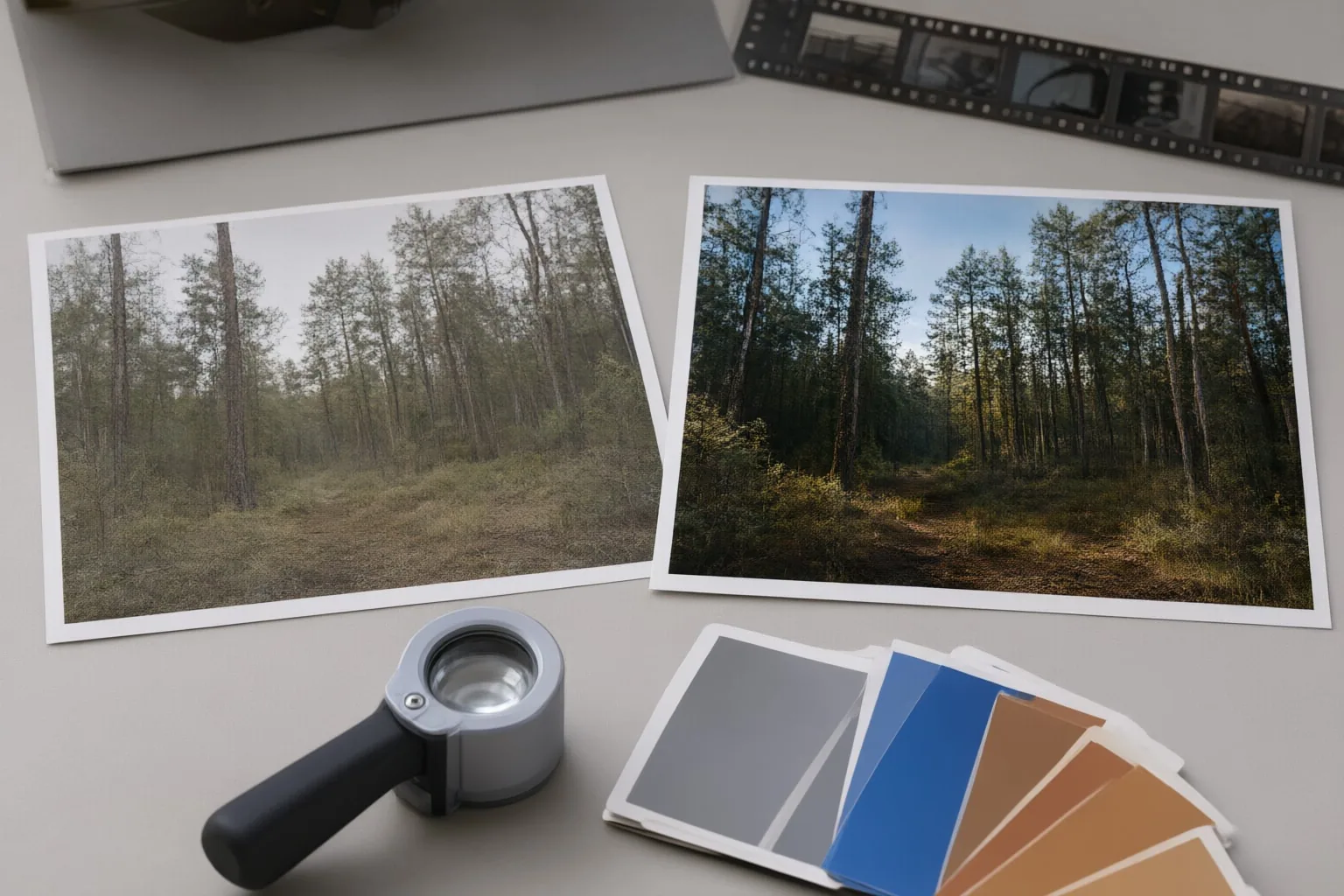
The three transformation levels control how closely the output follows the source. Adhere favors subtle changes and close correspondence. Flex balances transformation with recognition of the input. Reimagine allows a broader reinterpretation of the scene or character.
A reference image can be assigned in two ways. Start Frame makes that image the opening frame and follows the source clip’s motion from it. Style guides the appearance without requiring the reference to become the literal first frame.
Luma’s guide says modified clips retain their original audio. New audio can also be added through the Audio Feature. The same guide documents Modify Video as available with paid Dream Machine subscriptions on the web and iOS.
Modify Video or Ray2 text-to-video: which workflow fits?
The clearest distinction is the starting material. Choose Modify Video when an existing clip contains a performance, motion path, camera movement, or framing that should remain the basis of the result. You can then use Adhere, Flex, or Reimagine according to how recognizable that source should remain.
Choose Ray2 text-to-video when the clip should begin with a written scene description instead of source footage. Luma’s documented Ray2 workflow offers 5- or 10-second clip lengths and 540p, 720p, or 1080p output.
For example, changing the setting around an existing movement fits the Modify Video workflow. Describing a new scene without supplying an original performance fits text-to-video. This is a workflow-based distinction, not a claim that either option produces better results. This guide does not report hands-on testing.
Conclusion
Luma Modify Video is intended for reinterpreting a short existing clip while preserving its underlying movement, performance, or framing. Ray2 text-to-video instead creates a clip from a written scene description.
For your next step, choose a source clip of up to 10 seconds and decide whether Adhere, Flex, or Reimagine matches the desired degree of change. If no existing motion or framing needs to be retained, draft a Ray2 scene prompt instead.
Disclosures and limitations
- This article was drafted with AI assistance using the cited official Luma documentation as its factual source. No hands-on testing or comparative performance results are claimed.
Sources
- Dream Machine How to Generate with Ray2 — lumalabs.ai
- Introducing Modify Video | Luma — lumalabs.ai
- Transform Footage With Modify Video — lumalabs.ai
Improve this guide
Report a problem or suggest the next question
Submissions enter a private editorial queue. They are reviewed and deduplicated before any public update or new page is created.