HeyGen Video Translate can generate translated audio while leaving the original mouth movement unchanged, or produce a translated video with synchronized lips and facial movement. Before final generation, users can review translated wording through the product’s Edit & Review step or follow the documented API workflow to revise an SRT file.
How translated speech and lip movement work
HeyGen separates audio dubbing from video dubbing. Audio dubbing transcribes and translates the speech, then generates translated audio without altering the original visuals or lip movement. This is the behavior documented for Audio Only mode.
Video dubbing adds visual synchronization. Along with translating the speech, cloning the voice, and producing new audio, HeyGen adjusts the lips and facial movements to align with the translated speech. The practical choice is therefore whether the output needs translated audio alone or a new video in which the visible speaker appears to deliver that translation.
Audio Only can suit material where synchronized mouth movement is unnecessary. When the speaker’s face is prominent and matching the translated dialogue matters, a video mode with lip sync is the relevant option.
Choosing Audio Only, Speed, or Precision
HeyGen documents three translation engines. Audio Only changes the speech without lip synchronization. Speed includes lip sync and is optimized for relatively simple footage, particularly a speaker facing forward. Precision is intended for more complicated visuals, including side profiles, obscured faces, changes between speakers, and conversations involving multiple people.
The source recording must contain one spoken language. HeyGen warns that a video containing multiple source languages may fail or produce an inaccurate transcript. This limitation should be considered before choosing an engine or creating several translated versions.
A job can include up to 10 target languages. For each target, the language choice also affects the intended voice result: a base-language selection prioritizes the original speaker’s identity and accent, while a localized variant prioritizes a native accent associated with a particular region.
HeyGen recommends starting with one target language and checking its quality before submitting every desired language. This reduces the risk of spending credits on multiple versions that require the same correction.
What you can revise before final generation
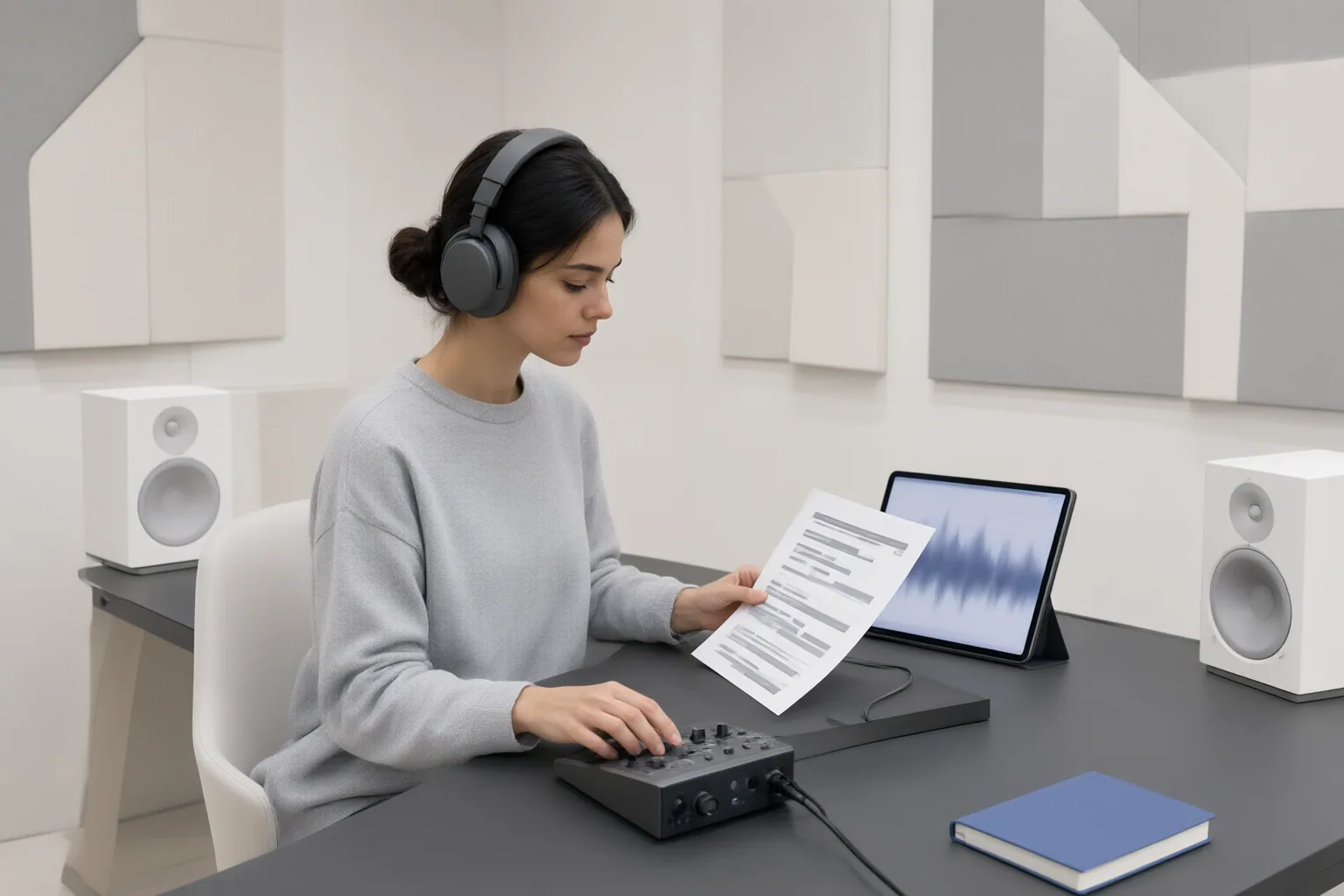
HeyGen’s product page describes an Edit & Review stage where the translated script can be proofread before the video is finalized. This gives users an opportunity to check names, branded language, phrasing, and other wording before committing to final generation.
The API documentation provides a more explicit proofread sequence:
- Create a proofread session.
- Poll the session until its status is completed.
- Download the resulting SRT file and edit its translated text.
- Upload the revised SRT.
- Request generation of the final video.
For terminology that should remain protected or receive a specific translation, the API also supports a brand glossary in Speed mode. Its controls can protect terms or force selected translations. When generating the final video from an API proofread session, captions can be enabled as part of the generation request.
These controls address different needs: SRT editing revises the translated script for a particular session, while the glossary helps govern how specified terms are handled in supported Speed-mode translation.
Conclusion
Choose Audio Only when translated speech is needed without changing the original mouth movement. Choose Speed for comparatively straightforward, front-facing footage that needs lip sync, or Precision when profiles, facial obstructions, speaker changes, or multi-person scenes make the footage more complex.
Start with one target language, select the engine that matches the footage, and review the translated script before requesting the final video. Correct names, brand terms, and other important wording through Edit & Review or the documented SRT proofread workflow, then generate additional language versions after the first result has been checked.
Disclosures and limitations
- AI assistance was used to draft and organize this article. Product capabilities and workflow details are based on the cited HeyGen product, help, and API materials; no hands-on testing is claimed.
Sources
- Video Translation – Speed – HeyGen Documentation — HeyGen Documentation
- I Tested the Best AI Video Translator with Lip Sync (HeyGen Guide) — gregpreece.com
- AI Video Translator : Translate Videos into 175+ Languages — HeyGen
- Scale Video Globally With Translation Tools | HeyGen — HeyGen
- AI Video Translator: Convert Videos into 175+ Languages — HeyGen
- heygen-translate – HeyGen Documentation — HeyGen Documentation
- AI Video Translator Tool | Translate 70+ Languages | HeyGen — HeyGen
- AI Lip Sync App for Video Localisation and Translation | HeyGen — HeyGen
- How to Get Started with Video Translation | HeyGen Help Center — help.heygen.com
Improve this guide
Report a problem or suggest the next question
Submissions enter a private editorial queue. They are reviewed and deduplicated before any public update or new page is created.