ElevenLabs Dubbing Studio lets existing customers edit transcripts and translations, reorganize speakers and clips, review timing, regenerate changed audio, and export several deliverable formats. It is a legacy Dubbing v1 tool in maintenance mode, so use this workflow for existing Studio projects rather than treating it as the current default dubbing experience.
Start a Legacy Dubbing Studio Project
Dubbing Studio is available only through ElevenLabs Dubbing v1. ElevenLabs says the tool is in maintenance mode: existing Dubbing Studio customers retain access, but only critical bug fixes are planned, not new feature development.
To create a Studio project, select Dubbing v1 as the model, choose Dubbing project, and click Create Dub. When processing finishes, open the completed project to enter the editing workspace. For this Studio-specific workflow, uploads are limited to 1 GB and 45 minutes.
Keep Dubbing Studio distinct from the broader automatic dubbing workflow. The service supports translation across more than 90 languages, but legacy Dubbing v1 does not support region-qualified dialect tags.
Edit Speaker Transcripts and Translations
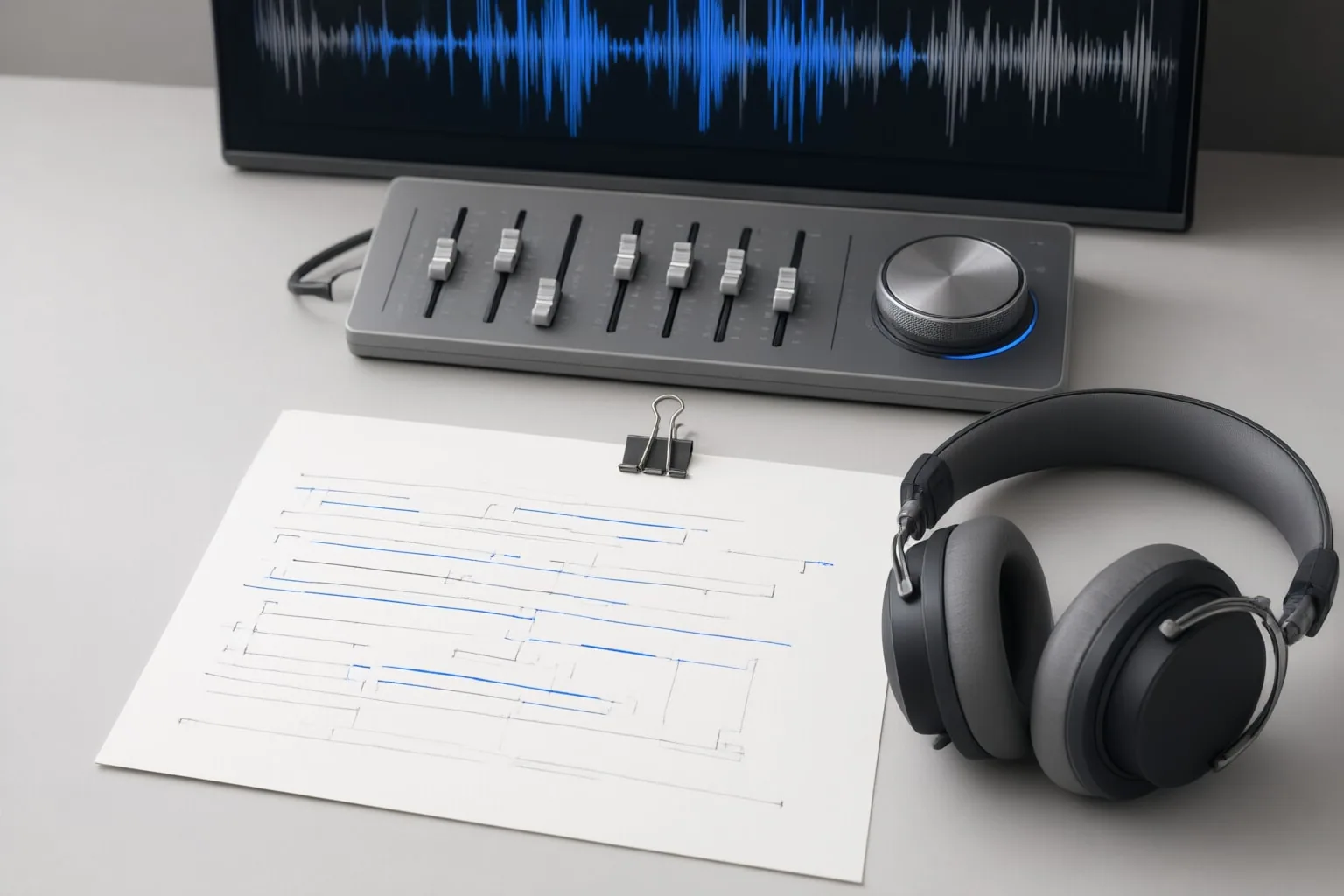
Each speaker card displays the original transcription and any translation added to the project. To correct either version, click inside its field and type the revised text. Dubbing Studio also provides controls for retranscribing the original speech or retranslating an existing transcription.
Use the timeline when the problem involves speaker or segment organization rather than wording. Drag a clip to another speaker track to reassign it. To divide a segment, position the cursor at the intended timecode and select Split. To combine adjacent clips, drag their ends together and select Merge. The corresponding speaker cards update after a split or merge.
After changing text or segment structure, do not assume that the existing generated speech reflects the revision. Transcript, translation, timing, and settings changes can leave a clip’s audio stale; regeneration is covered in the next step.
Review Timing, Pacing, and Audio Before Export
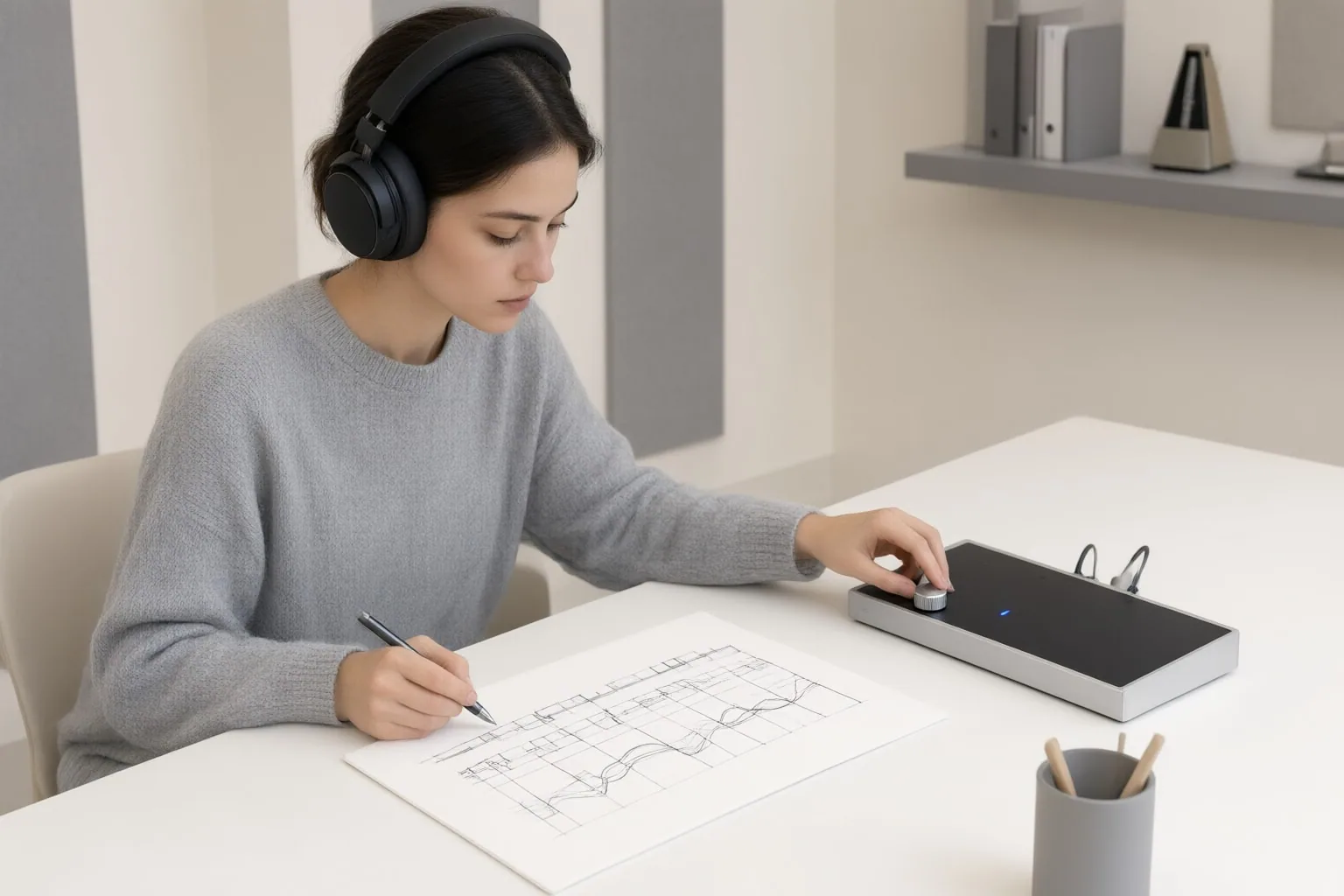
Navigate the timeline by dragging the cursor, scrolling horizontally, or entering a timecode. You can change a clip’s duration by dragging its left or right handle, then regenerate its audio with the refresh control.
Dubbing Studio uses Fixed Generations by default. This keeps the selected clip duration unchanged regardless of text length, so substantial wording or duration edits can make the resulting speech noticeably faster or slower. Listen for pacing problems after every meaningful edit.
For a segment that needs a duration more closely matched to its text, open its context menu and select Dynamic Generation. This can produce a more natural relationship between wording and clip length, but expansion may disrupt synchronization or fail if there is not enough space before the next clip. Recheck the segment against neighboring clips.
Regenerate an edited clip individually, or select Generate Stale Audio to update every stale clip in bulk. If you want to compare earlier results, open Clip History from the clip’s context menu and choose a preferred previous generation.
When the timeline is ready, select Export in the lower-right corner. Documented options include AAC, MP3, WAV, ZIP archives containing tracks or clips, AAF timeline data, SRT captions, and CSV data with speaker, timing, transcription, and translation fields. Select the correct language as well as the format that matches your intended deliverable.
Conclusion
Before exporting, verify the transcript and translation, confirm speaker assignments, inspect clip boundaries and pacing, and regenerate every stale segment. Then choose the required language and export format.
ElevenLabs describes dubbed video output as a preview rather than a production master, and Dubbing v1 audio is mono. For a production deliverable, its documented recommendation is to download the dubbed audio and replace the source video’s audio track. Open your existing project now, review each edited clip for timing and stale audio, regenerate where necessary, and export the version suited to your delivery workflow.
Disclosures and limitations
- This article was created with AI assistance using the cited ElevenLabs documentation as its factual basis.
Sources
- Dubbing Studio | ElevenLabs Documentation — elevenlabs.io
- Dubbing | ElevenLabs Documentation — elevenlabs.io
- Dubbing | ElevenLabs Documentation — elevenlabs.io
- Dubbing Overview | ElevenLabs Documentation — elevenlabs.io
Improve this guide
Report a problem or suggest the next question
Submissions enter a private editorial queue. They are reviewed and deduplicated before any public update or new page is created.